
What is Cascading?
Sometimes, the output generated from one or more Plans needs to be used as input to another Plan. This feature of using one Plan’s output in another Plan is called cascading.Need for Cascading
By default, cascading is turned off as a feature. It can be turned on by sending a request for the same to the Empuls team. If the incentive structure has multiple subincentives that are to be added up to a singular final reward, then cascading will be needed. The output of individual Plans for each vertical will be used as input for the final Plan, which will have the total incentives. Cascading may end up complicating the plans for a non-technical user if they are overused and not needed. Additionally, any changes must be propagated to all the metrics and Plans in the cascade, deriving directly or indirectly from the modified metric/Plan. This may increase the time taken to implement changes. So, it is vital to use cascading ONLY when needed.How Cascading works
The essence of cascading lies in the “Views” and Metrics. Whenever a Plan is created with the cascading enabled, a View of the same name is also created. This View of the Plan shows all the data generated by the Plan, along with the metrics used in the Plan. Now, in a particular Plan, the rewards within a single milestone can be denoted by Reward 1, Reward 2, and Reward 3…, in order of their occurrence in the milestone. So, if a particular reward is at the second position in each milestone, we can get its value as a metric by summating Points and so on for each milestone. The view used to create this reward will be the Plan from which we want to sum the reward, i.e. the view that was automatically generated when the Plan was created with the same name as the Plan. These metrics can then be used in another Plan to get another value by applying a formula, using it as a task condition, or displaying it as it is. A chain of such Plans and their derived metrics will form a visual branch-like structure, with views at the bottom-most level. The below-shown screenshot shows what a simple 2- level cascading looks like. It will be discussed in depth in the latter part of the documentation.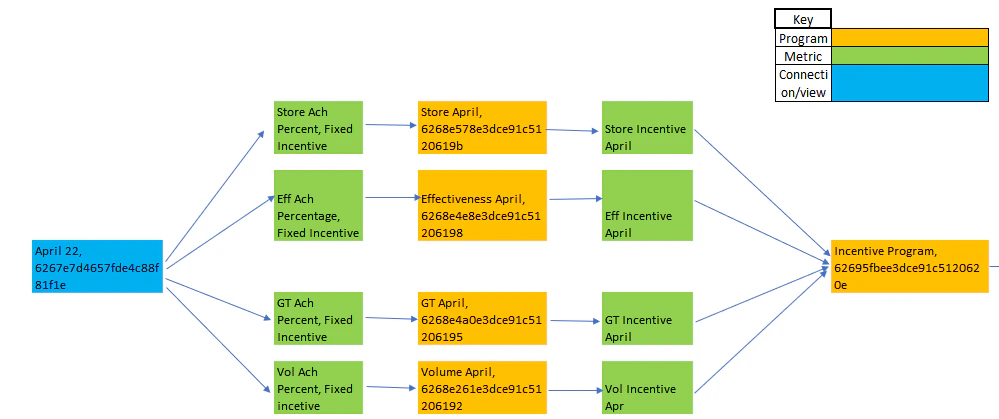
Processing of Plans in a cascaded structure
When Plans are to be processed in a cascaded structure, the Plans in the lower layer are to be processed first, and then, based on their output, the Plans in the higher levels are calculated. So, in a scenario where new/updated data is uploaded, the Plans must be reprocessed. However, manually reprocessing/recalculating each plan can be tiresome. The simple process is to click on the three-dot options menu for the Plan at the top level and then click on view incentives. From there, re-calculate this Plan at the highest level in the cascade. This will reprocess all the Plans beneath it with the updated data. In a case where multiple plans are at the highest level, this reprocessing is not directly possible, as there are multiple branches for multiple Plans. Although this scenario is rare, it is still possible. You can ask the backend team to set up ARP or Auto ReProcessing to combat this. Here, the Plans will be reprocessed at fixed intervals, as you mentioned. For the system to know which Plans to reprocess, you need to provide the team with the ID of the Plan group(s) that you want to be reprocessed periodically. This eliminates the need to manually recalculate the Plans from the “View Incentives” tab.Plan views for Cascading
As mentioned above, the views are automatically created when a Plan is created with the same name as the Plan. However, plan names are editable even after the plan has been published. So, if the Plan name is changed, the view for that Plan will still have the same name. It is advised to keep a log of the plan’s original name and subsequent changes so as to know which view is correct.Backtracking/Debugging
There may arise a need to backtrack on the so-called cascading structure. Or, if you encounter an error and need to know exactly which Plan in the flow is causing the error. Backtracking means mapping out the structure such that one can understand which Plans are made from which metrics and those metrics are made from which Plans. To backtrack, start with the topmost level of the Plan in the cascade. Then, note down all the metrics used in this Plan, including the ones in task conditions and the reward. For each of these metrics, look them up in the metric section and open them. Note the view/connection used to create this metric. This view refers to the Plan of the same name, where the metric was created. Now repeat the process on the Plan/ Plans in the above steps. Different metrics in a Plan may be generated from the same Plan/view or from different ones. Repeat this process till one reaches the metrics that were made using the initial user-event view. All the structure branches must end in a view that is not directly generated by a Plan. This structure will help one understand where the calculation issue is occurring and where to make the changes to correct it.Documentation for ease of use
Cascading can get a bit complex for Admins to remember, especially if it is for a complex incentive structure. If that is the case, it makes sense to have it documented so as to be able to replicate it when needed.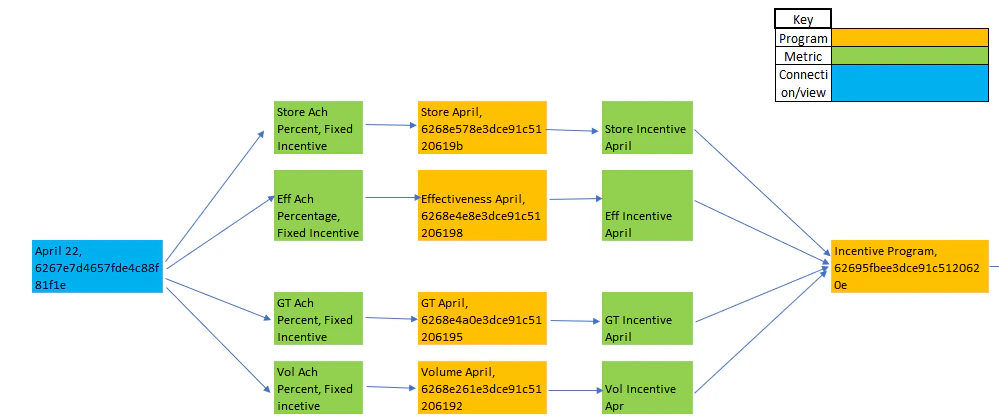
How to make a plan a cascaded one?
You can choose to make a Plan a cascaded one, i.e., a view will be created for it. In the settings tab of plan creation, select the checkbox shown below to make the cascaded Plan, or uncheck it to keep it a simple Plan.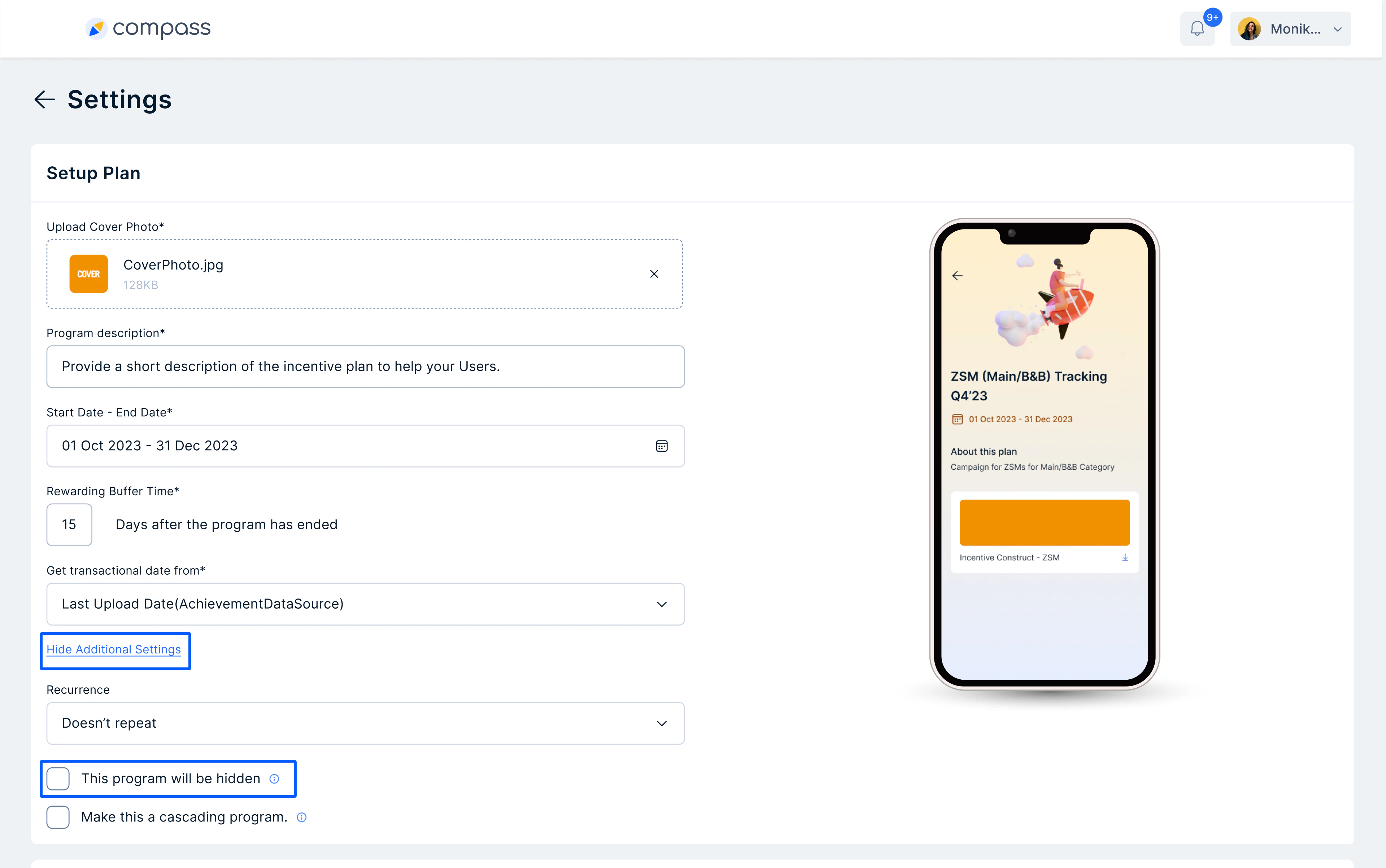
Need help? Reach out to your support team or cs@xoxoday.com.