
Open quick links
From the Empuls left navigation, click Quick Links. If you don’t see it, your admin may not have enabled this feature for your role — ask your HR team.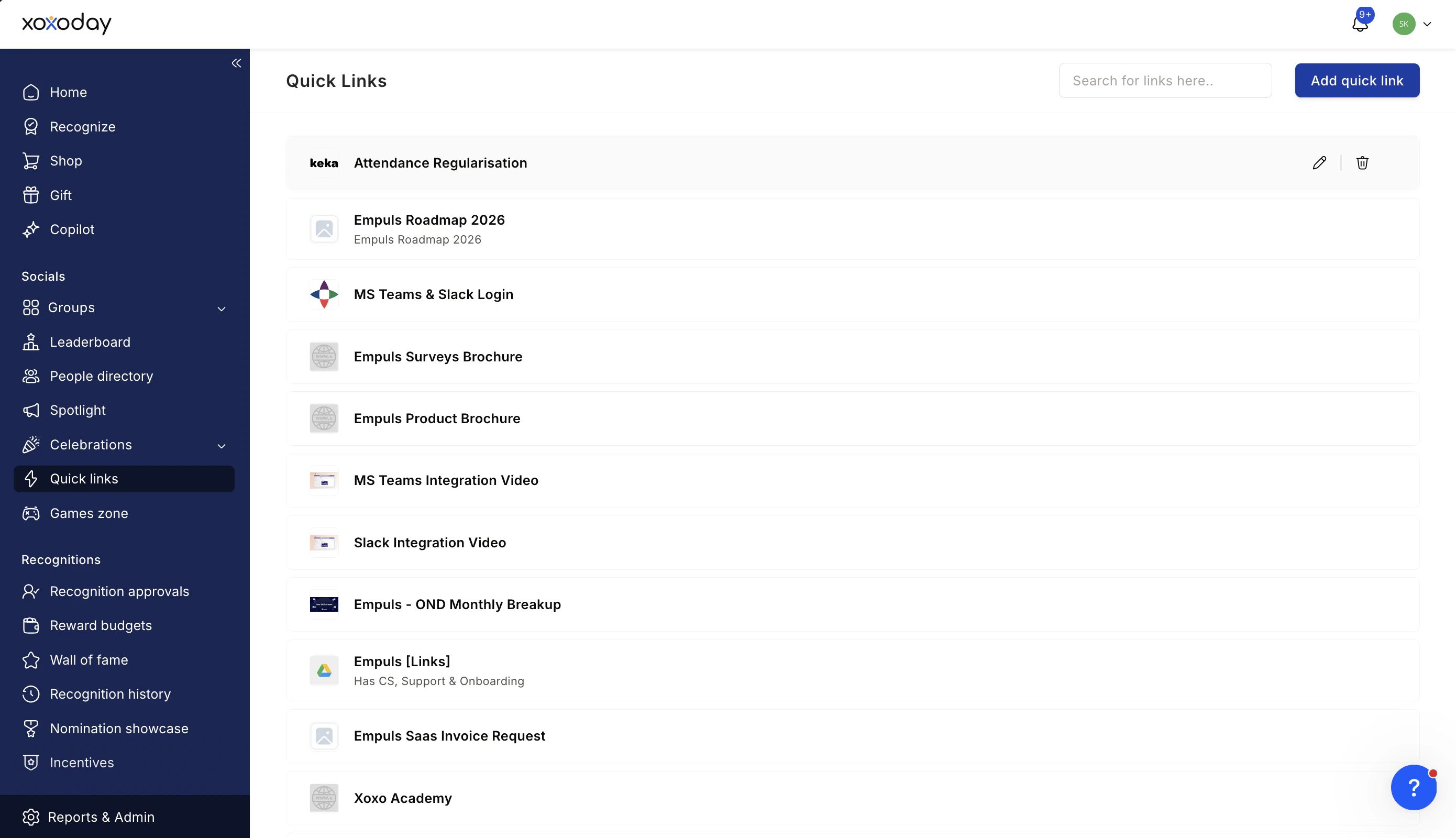
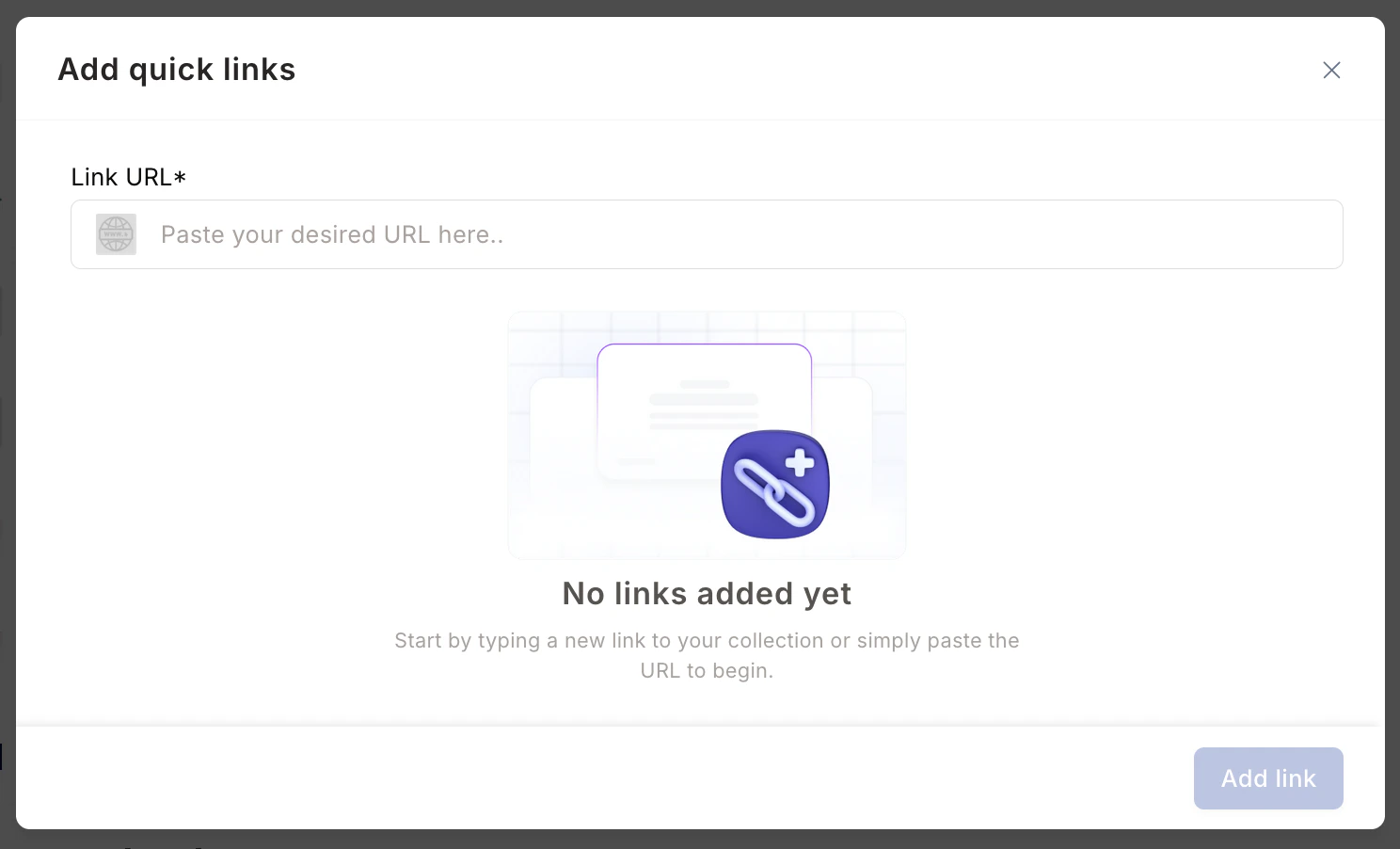
Add a link
Reorder links
Drag a link tile to a new position. Order is per-user — your colleague’s view stays unchanged.Edit or delete a link
Hover over any tile to reveal Edit and Delete icons. Edit updates the title, URL, or icon; delete removes the link permanently (no undo).Use across devices
Quick Links are tied to your Empuls account, so they appear on web, mobile, and Microsoft Teams. Adding a link on one device makes it instantly available on all of them.Tips
Limits and gotchas
- Quick Links is private. There’s no sharing with teammates from this page.
- A reasonable cap (around 20 links) keeps the page scannable; the system doesn’t hard-limit but performance favors small lists.
- Links to internal Empuls URLs work normally — they navigate within the app without a reload.
Related
Account preferences
Other personal settings.
Employee profile
Your profile and identity settings.