
Option 1: Bulk approve / decline from the UI
Step 1: Navigate to Recognition Approvals
Go to Recognitions > Recognition Approvals and click Review Nominations in Bulk.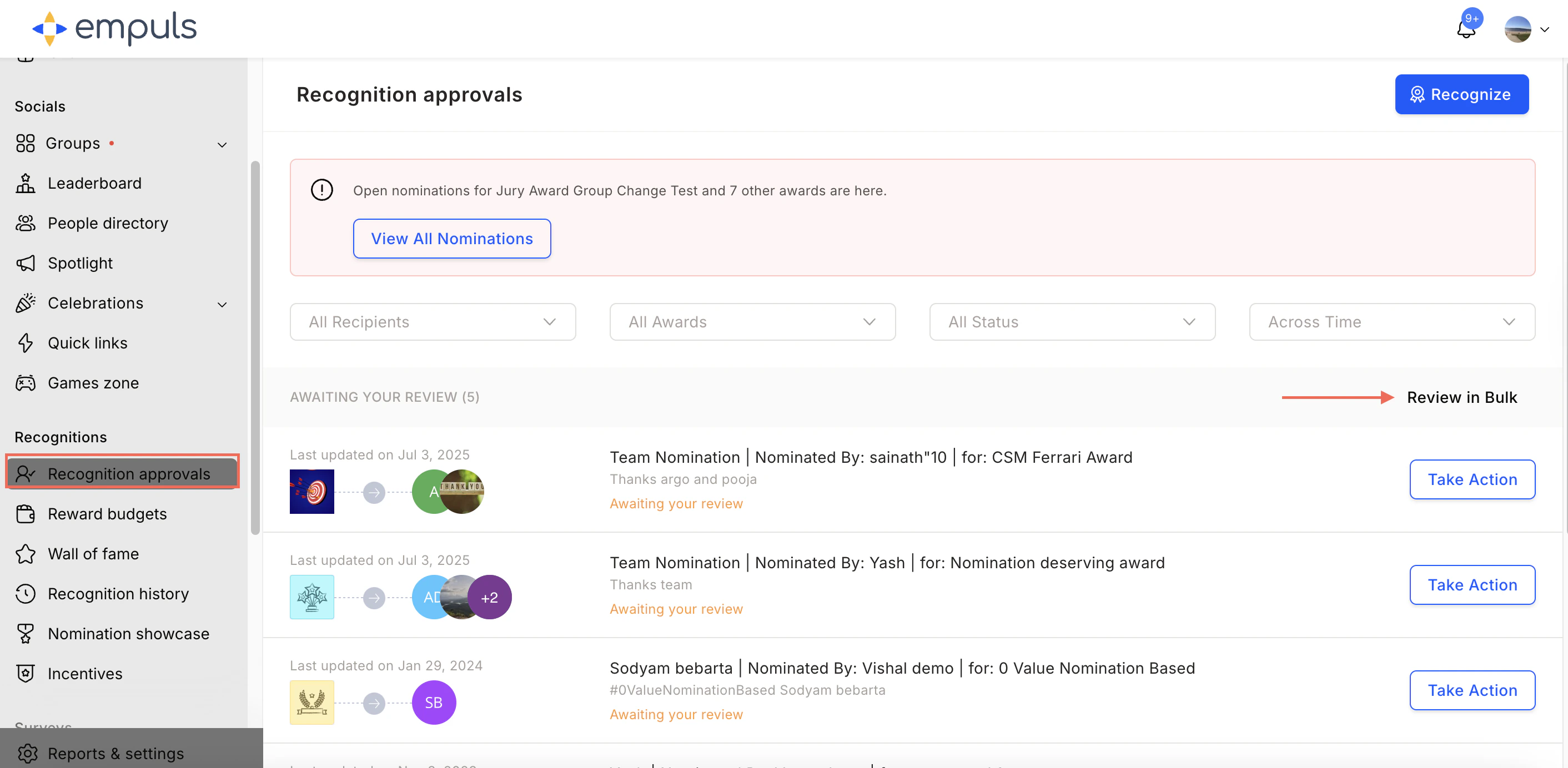
Step 2: Select nominations
Use the checkboxes to select multiple nominations.Step 3: Approve or decline
Click Approve or Decline from the on-screen action controls. Confirm your action to process the selected nominations instantly.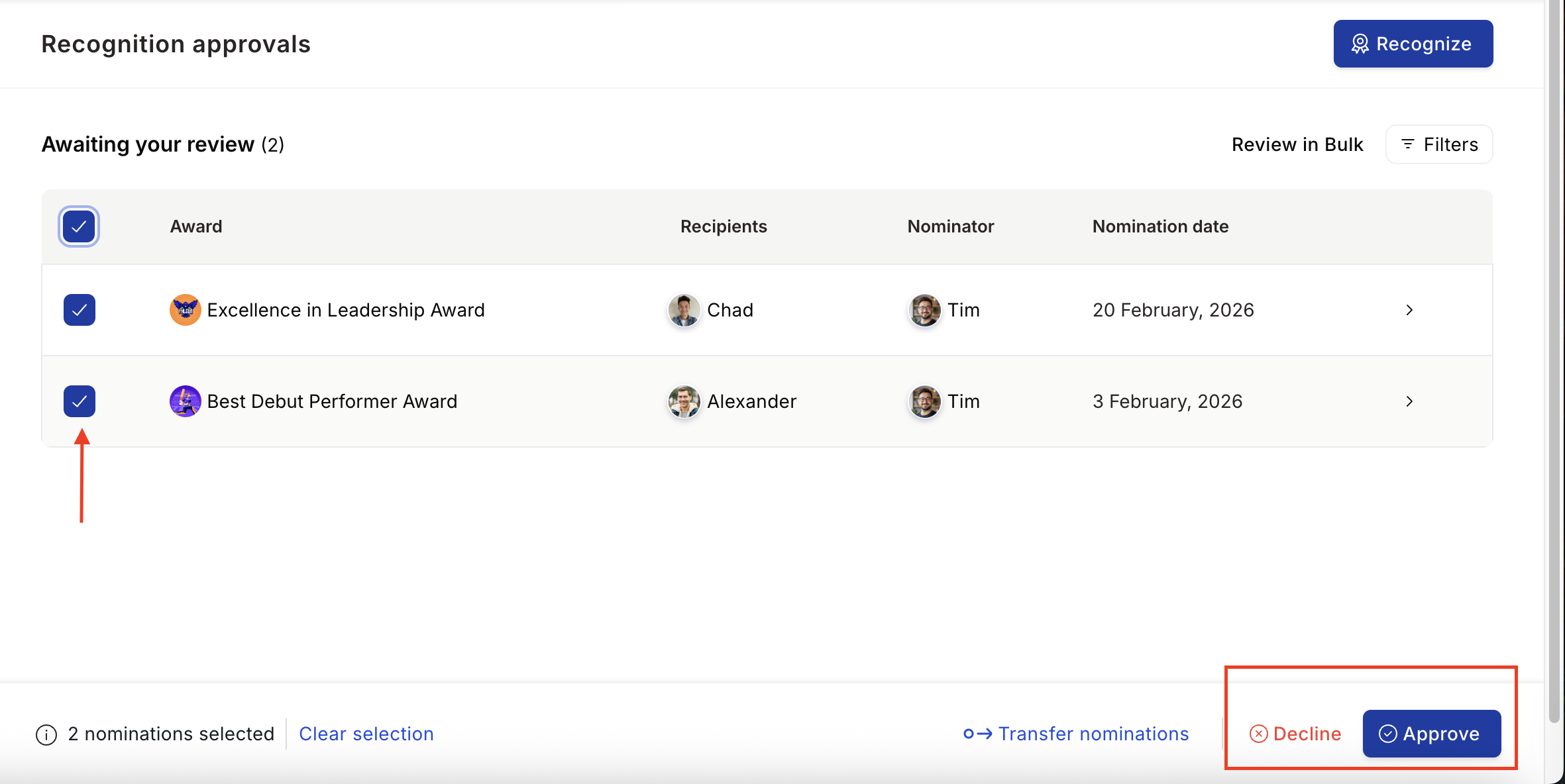
You can process up to 25 intermediate-level nominations at once from the UI. For more than 25 nominations, use the CSV upload option below.
Option 2: Bulk review via CSV upload
Step 1: Navigate to Recognition Approvals
Go to Recognitions > Recognition Approvals and click Review Nominations in Bulk.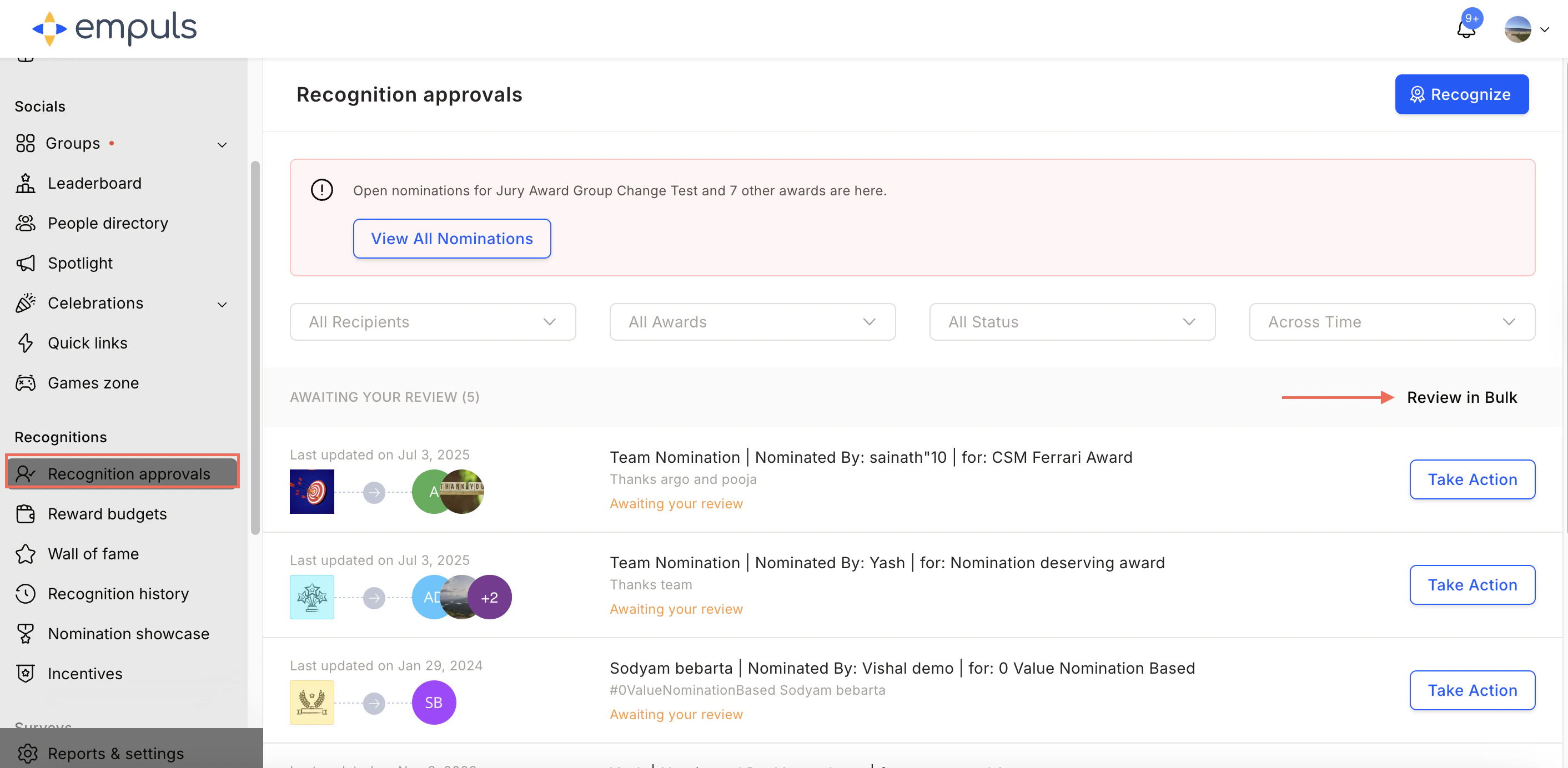
Step 2: Download nominations awaiting review
Click Download Now. A CSV file containing all nominations waiting for your approval or rejection will be downloaded to your computer.Step 3: Fill in the required fields
Open the downloaded CSV file. Two columns need to be filled: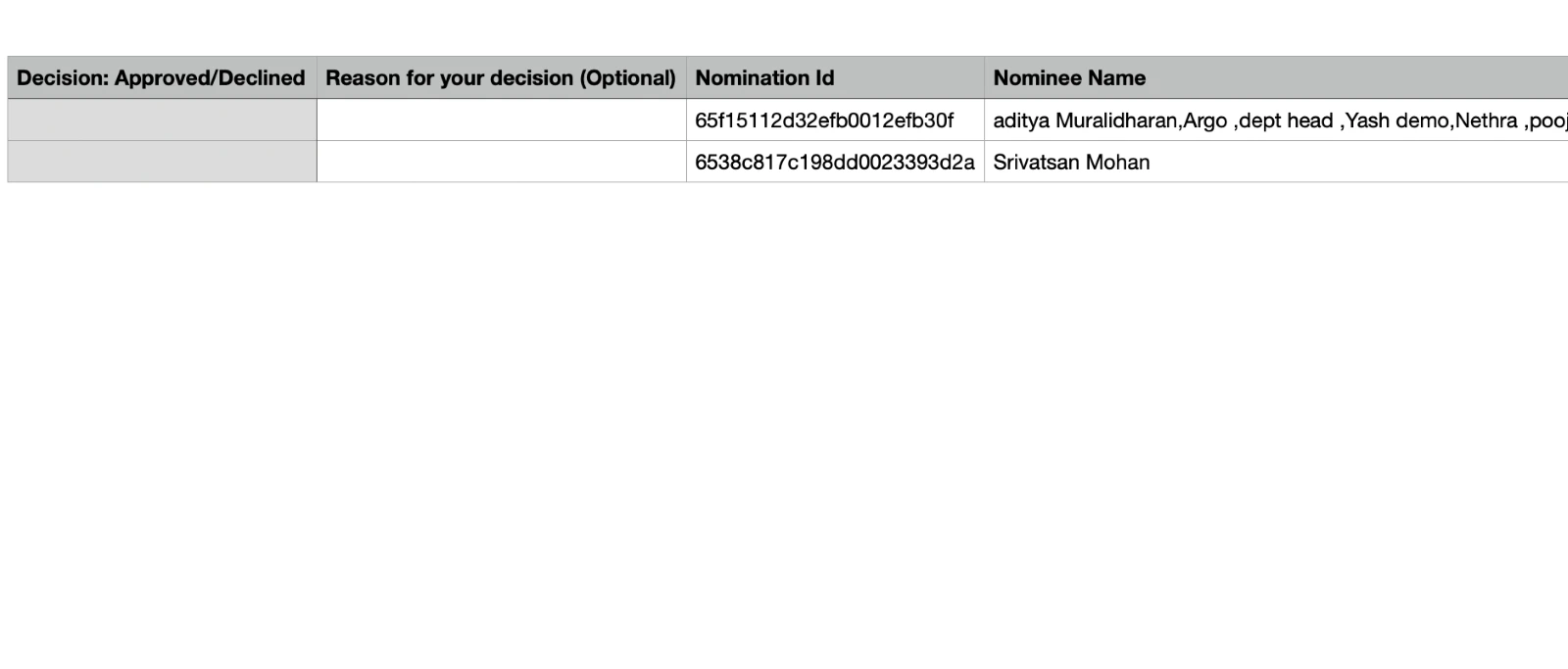
| Column | What to enter |
|---|---|
| A (Decision) | Enter Approved or Declined for each nomination |
| B (Reason) | Provide a reason for your decision |
Step 4: Upload the updated CSV file
Click Browse File and select the updated CSV from your computer.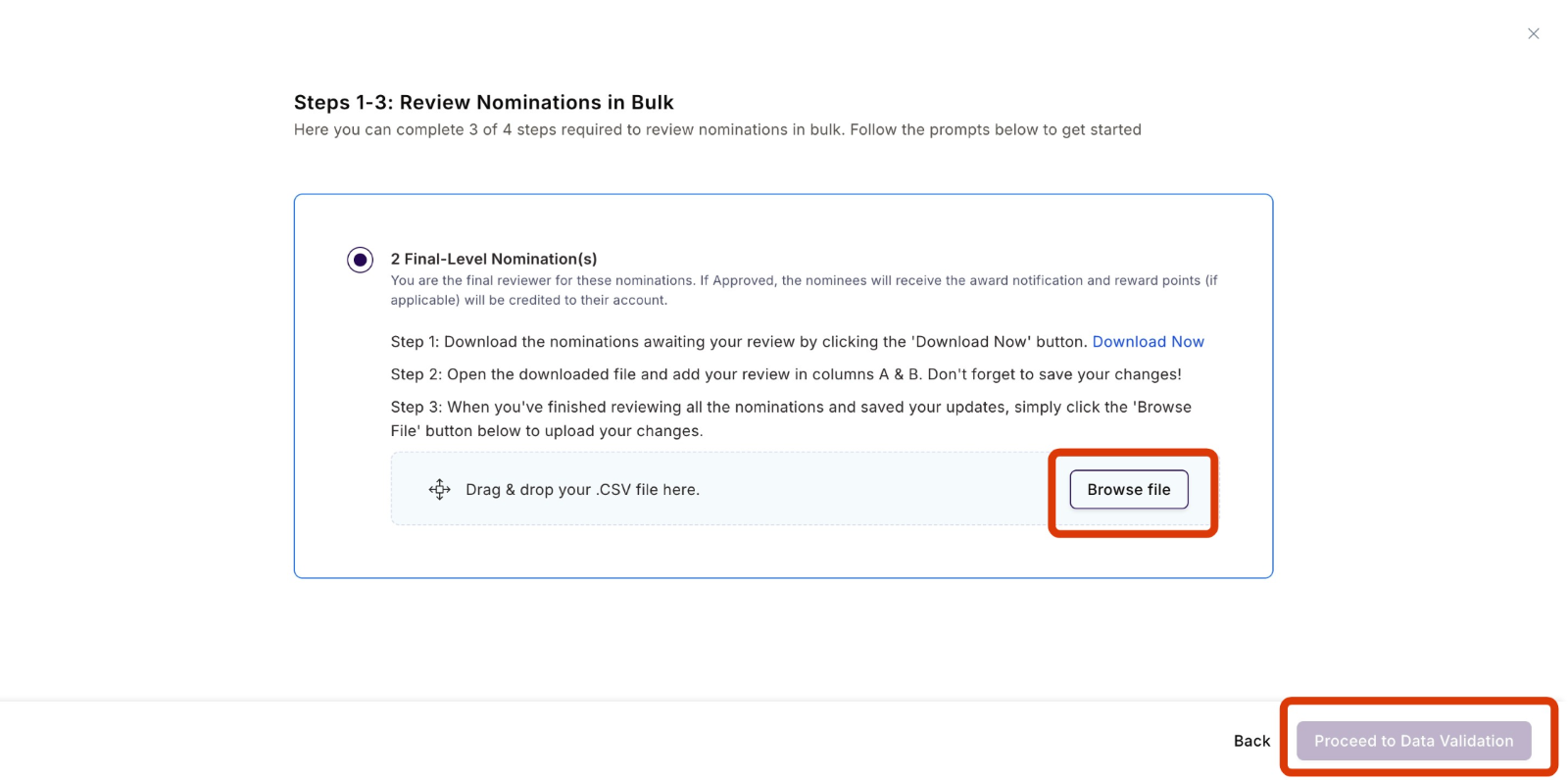
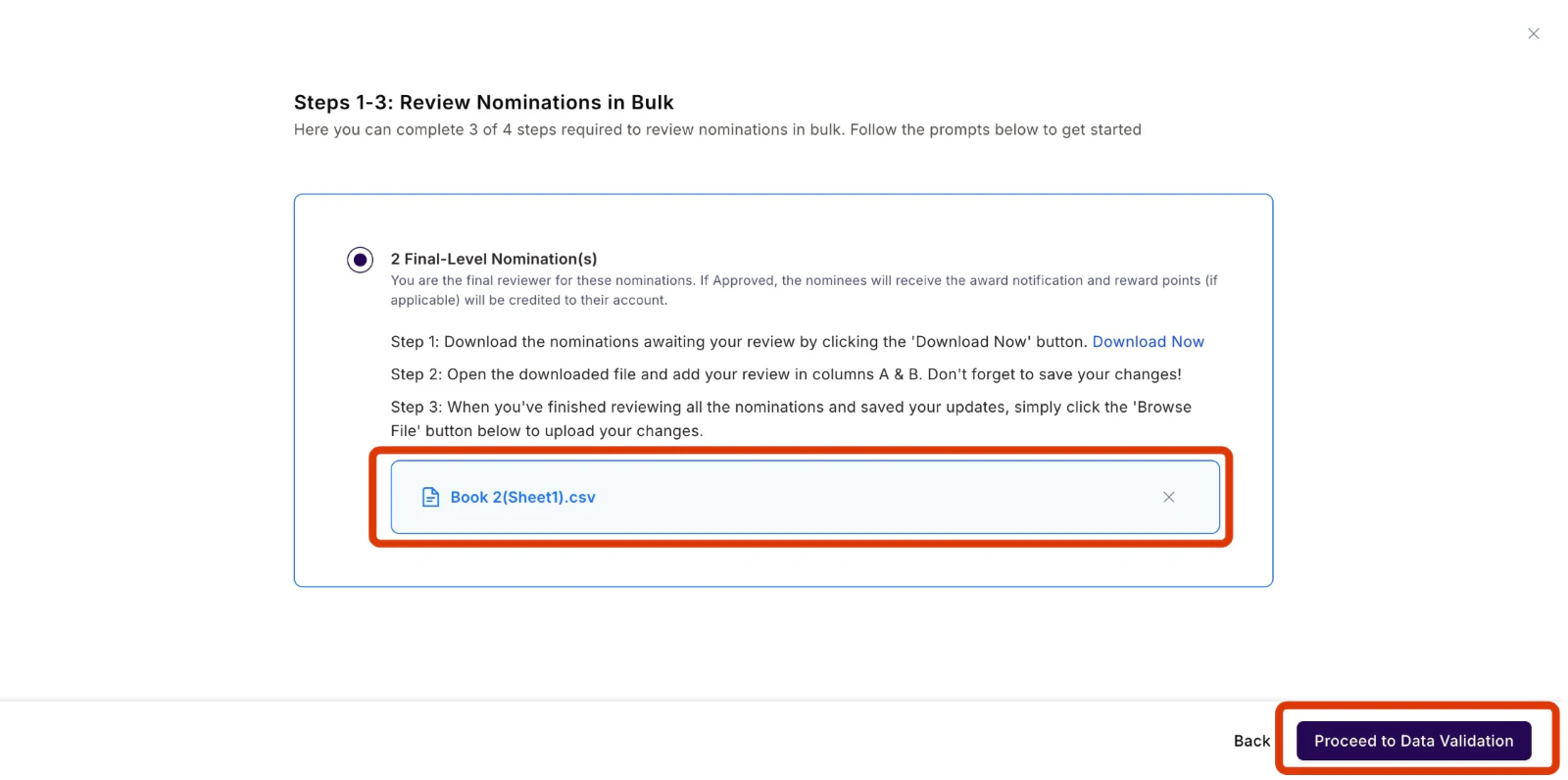
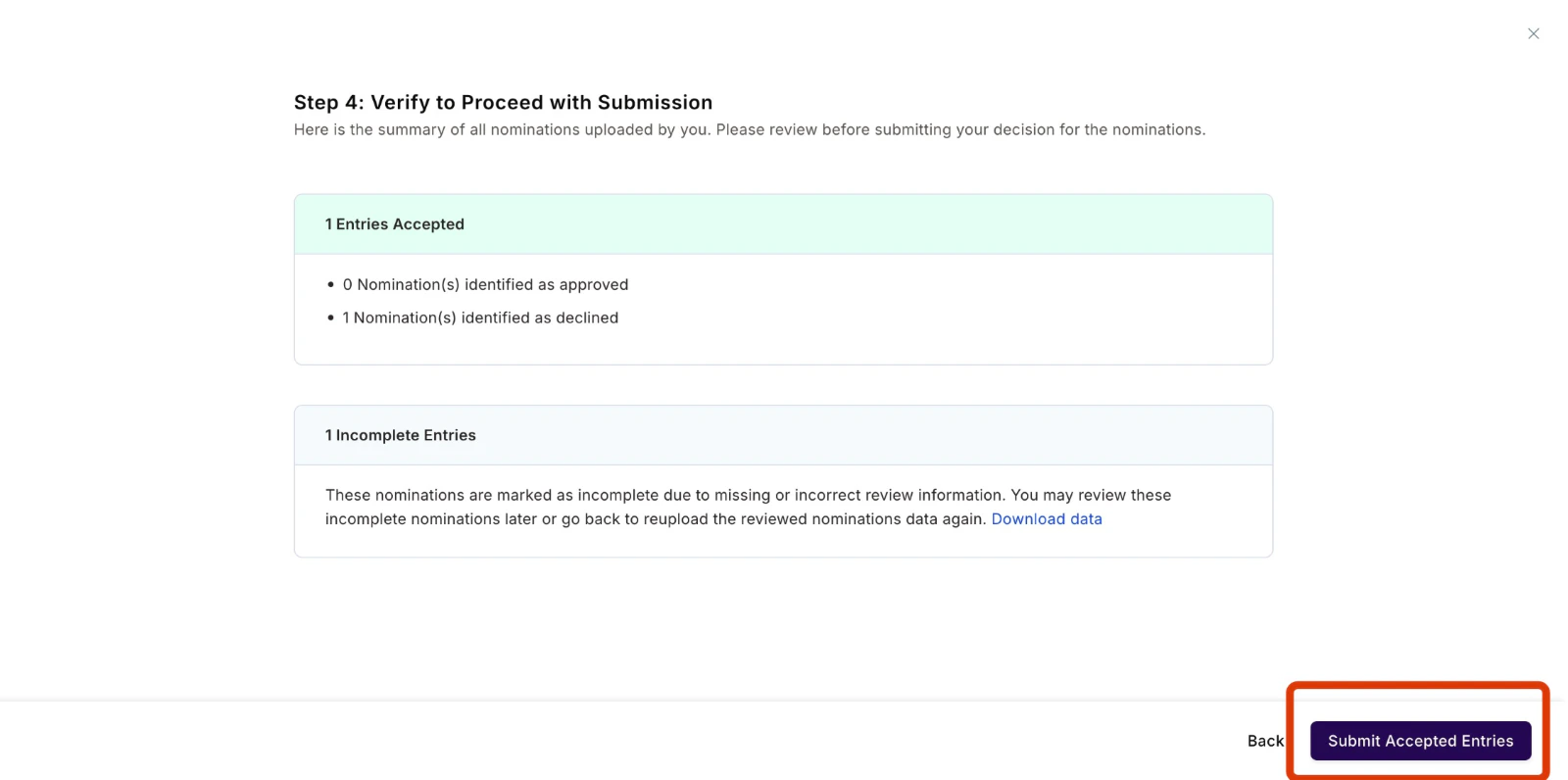
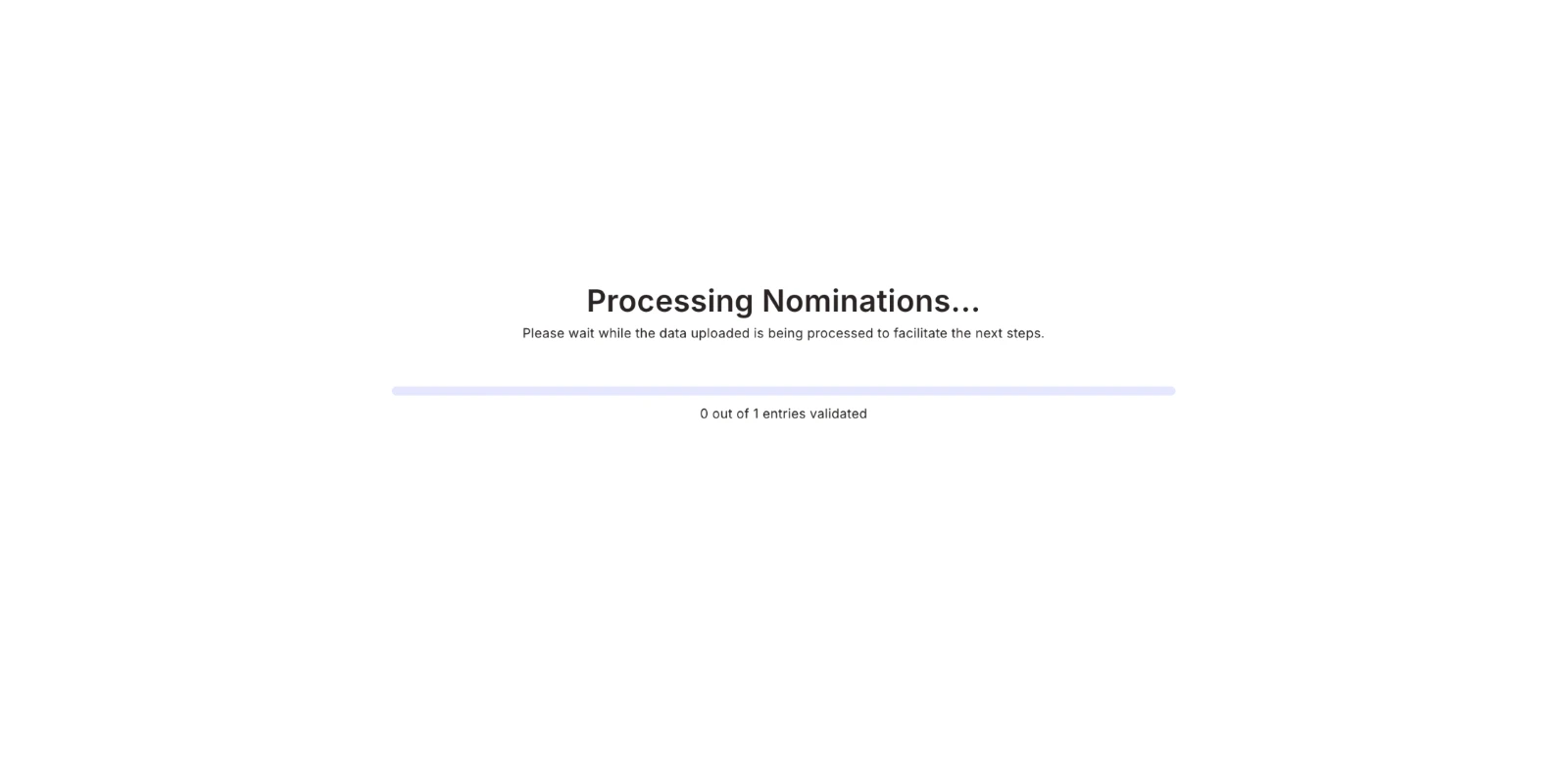
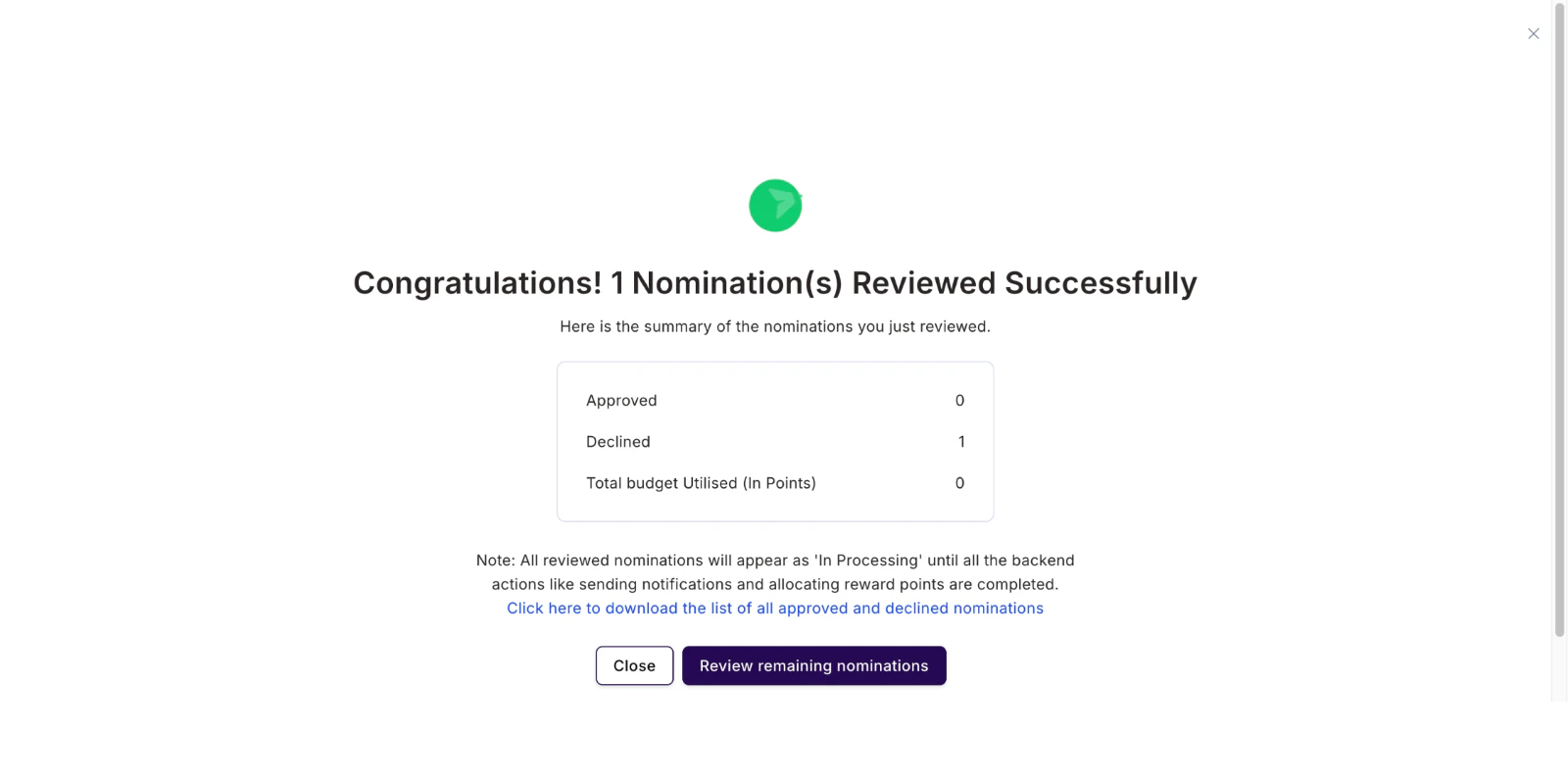
Step 5: Verify and submit
Empuls displays a summary showing:- Number of Approved nominations
- Number of Declined nominations
Quick tips
- Always save the file in CSV format only.
- Provide a clear reason for any declined nominations.