
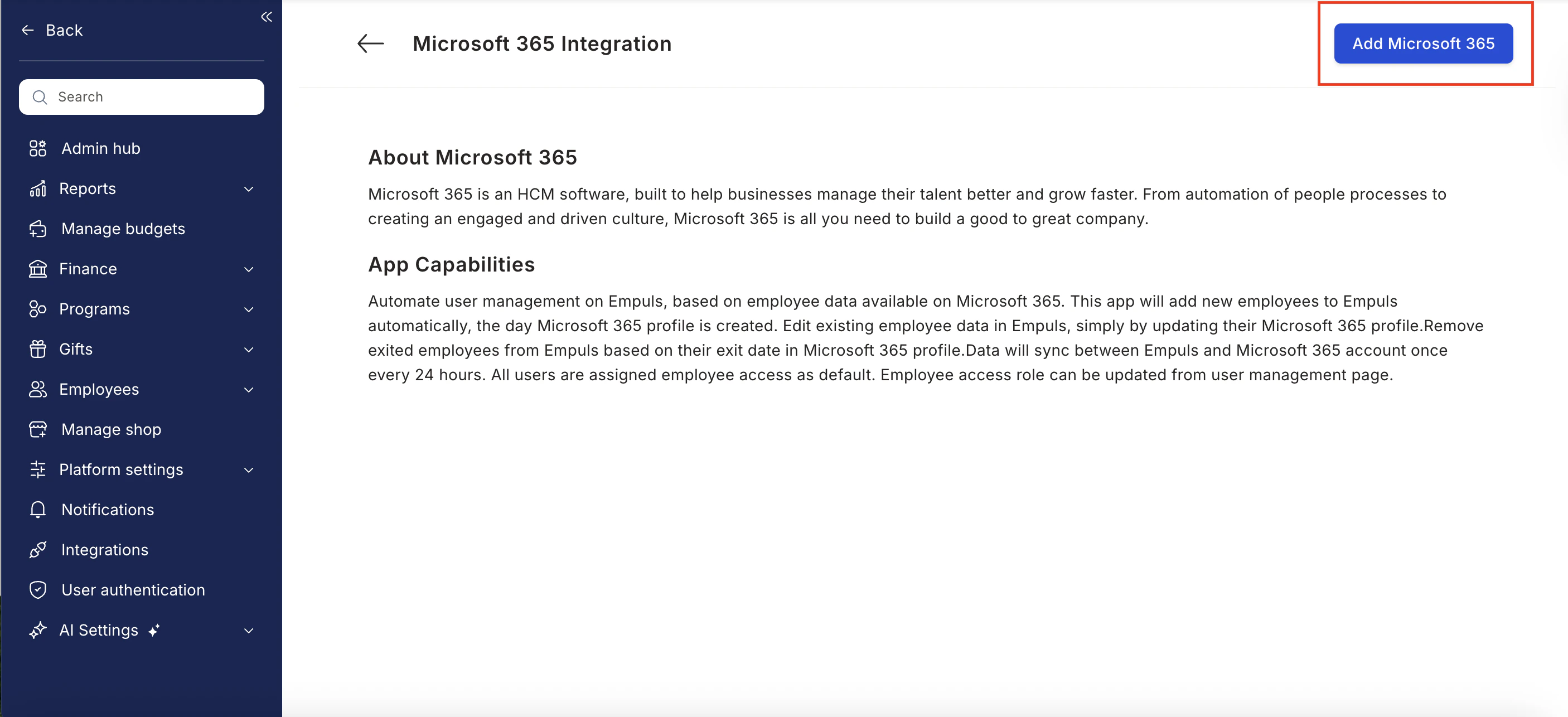
- Add new employees to Empuls automatically, the day their Microsoft 365 profile is created.
- Edit existing employee data in Empuls simply by updating the corresponding Microsoft 365 profile.
- Remove exited employees from Empuls based on their exit date in Microsoft 365.
How to Set Up This Integration
To set up the Microsoft 365 integration with Empuls:- Verify Access: Ensure the Microsoft 365 admin has access to the Integrations page in Empuls.
- Sign In to Empuls: Log in to your Empuls account.
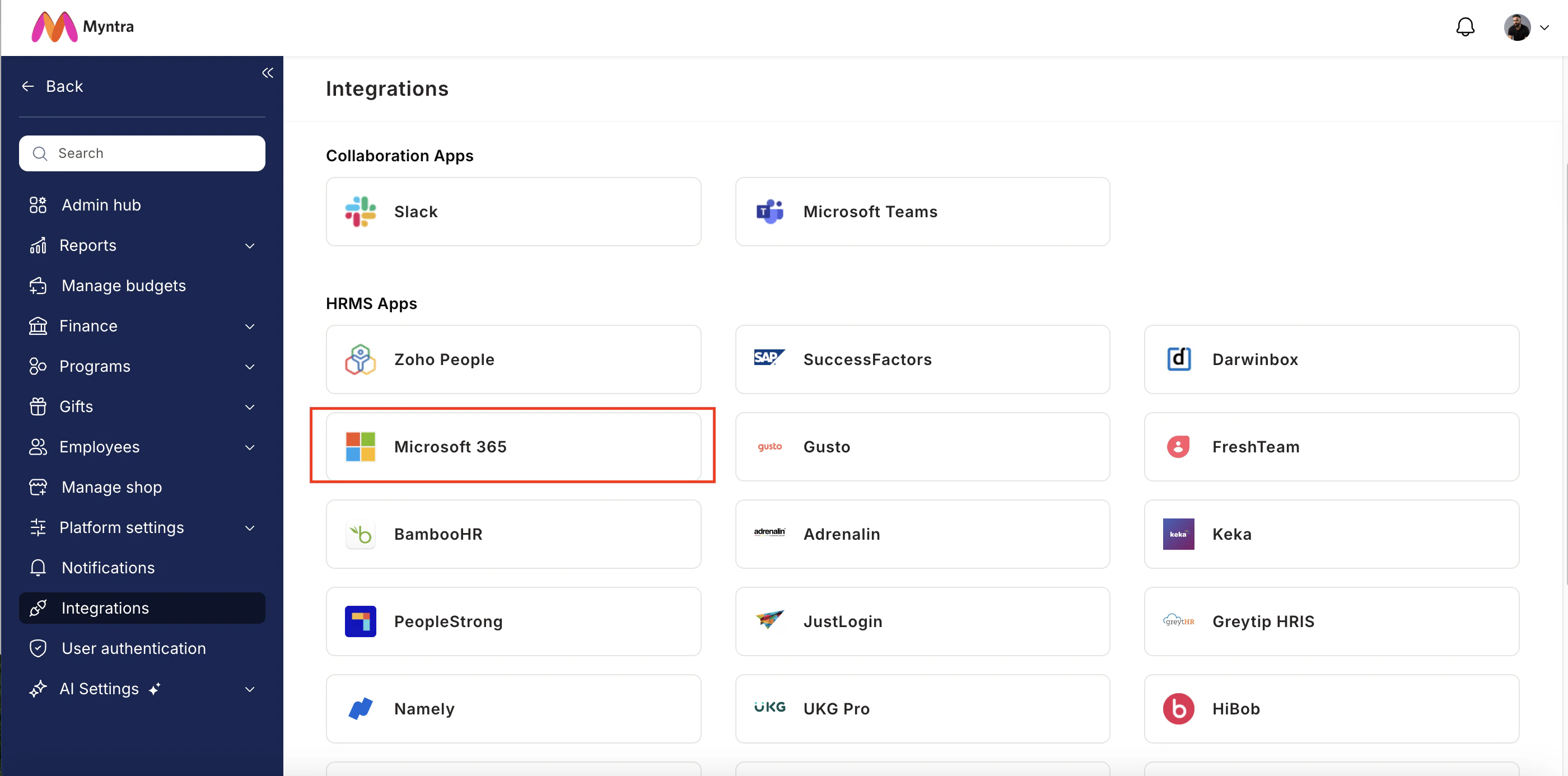
- Go to Integrations: Navigate to Reports & Admin >> Integrations.
- Select Microsoft 365: Choose Microsoft 365 from the list of available integrations and click Integrate.
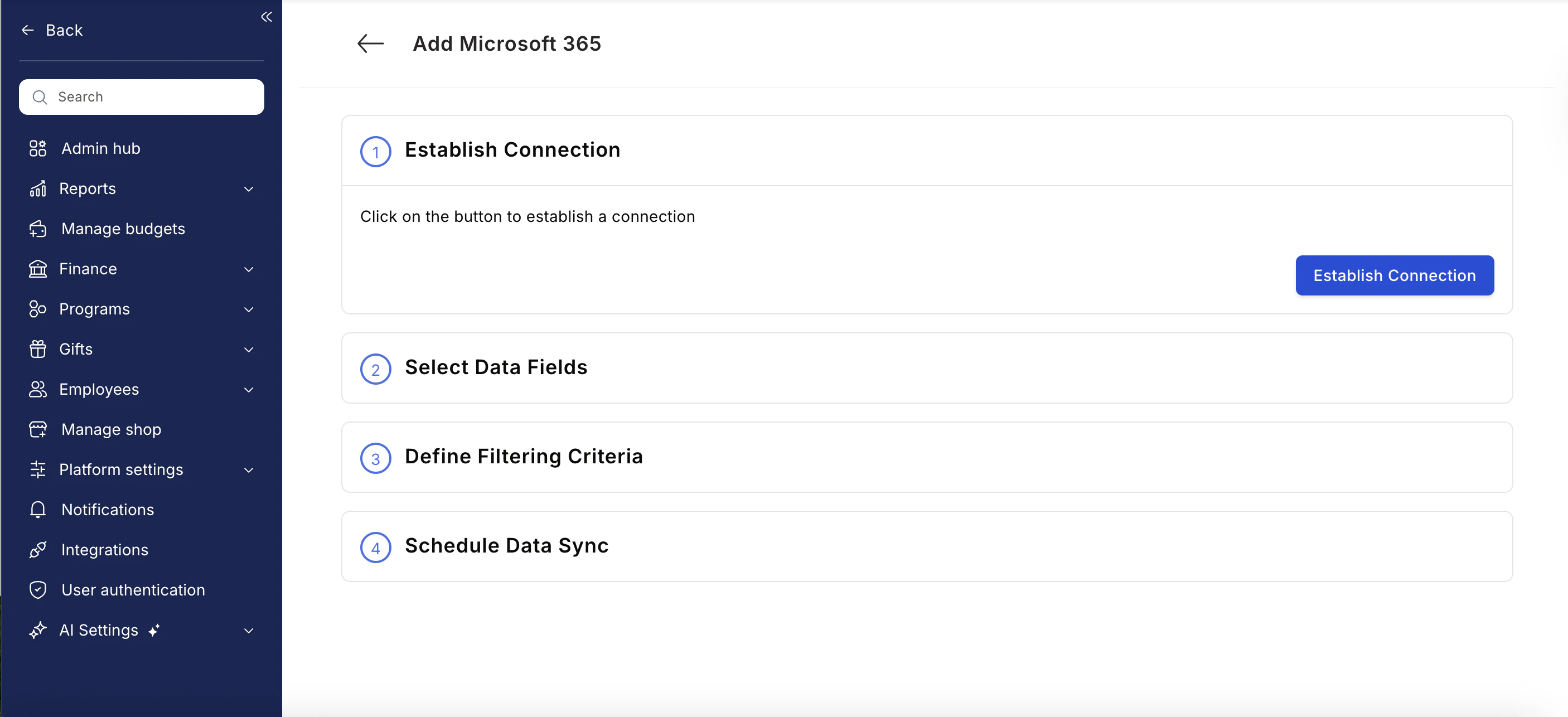
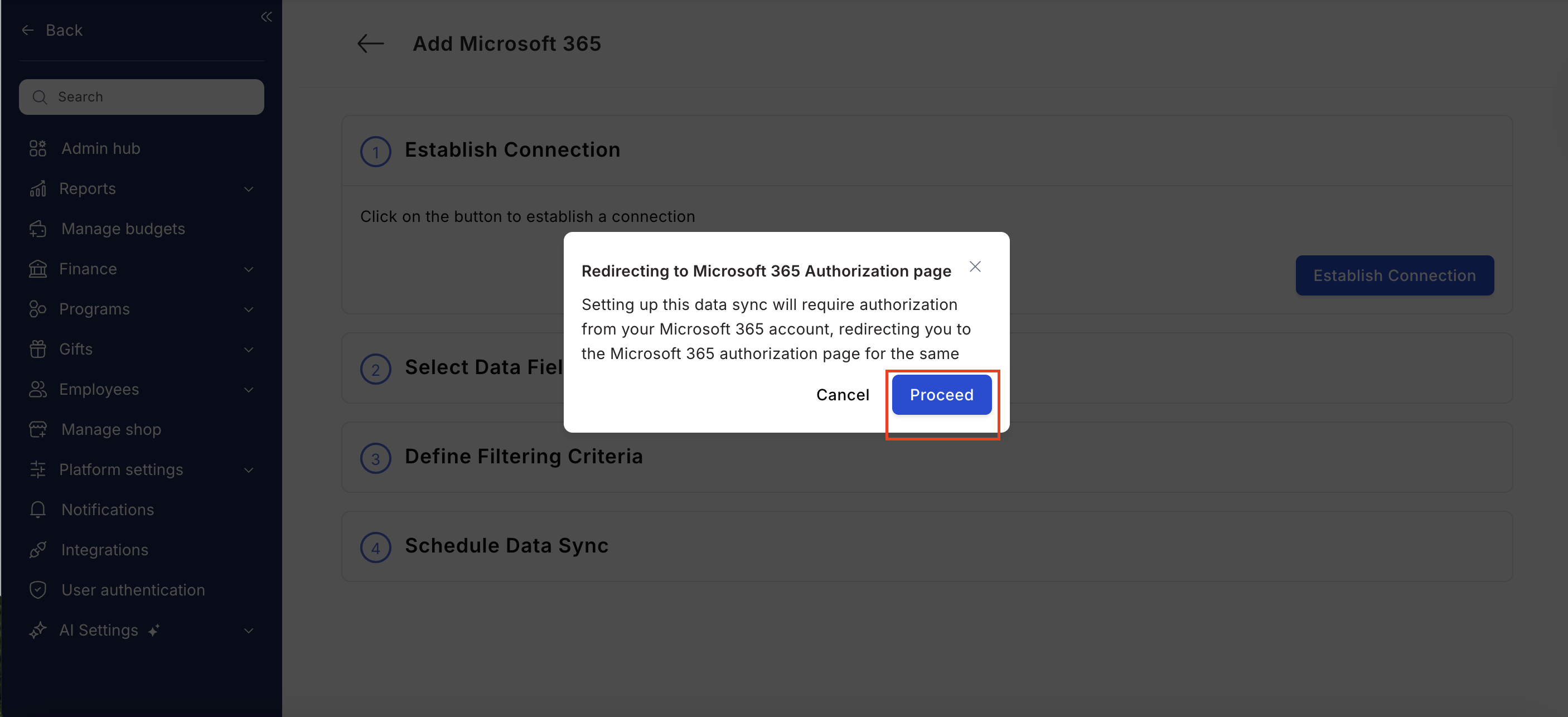
- Authorize the Connection: Click Establish Integration. You will be redirected to your Microsoft 365 admin account to authorize permissions.
- Map Data Fields: Select the employee data fields you want to sync from Microsoft 365 to Empuls.
- Apply Filters (Admin Only): Define filtering criteria such as departments or locations. Note: Only Microsoft IT Administrators can grant the required permissions for filtered data access.
- Schedule Sync: Set the synchronization frequency to automate ongoing data updates.
Data Fields Synced Between Empuls and Microsoft 365
| Empuls Field | Microsoft 365 Field |
|---|---|
| First Name | givenName |
| Last Name | surname |
| Official Email ID | |
| Employee ID | employeeId |
| Date of Joining | employeeHireDate (YYYY-MM-DD) |
| Department | department |
| Designation or Title | jobTitle |
| Office Location | officeLocation |
| Employee Status | accountEnabled |
| Cost Center | employeeOrgData |
Integration Capabilities Summary
- Automates user provisioning and de-provisioning on Empuls.
- Reflects updates from Microsoft 365 automatically in Empuls.
- Ensures daily sync to keep user data up to date.