
Overview
The Empuls integration with Microsoft Teams connects everyday collaboration with your organisation’s engagement, recognition, and feedback workflows. Employees can recognize teammates, redeem rewards, complete surveys, and view insights - all from within Teams, without switching tools. For administrators, Empuls can be deployed org-wide through the Microsoft Teams admin center, with controls to publish events, manage permissions, and customize how the app appears across Teams. Quick Links: • Click here to add Empuls to your Microsoft Teams account1. Installation & Setup (For IT Administrators)
This section guides Admins through installing the Empuls app on Microsoft Teams for their organization through the Microsoft Teams admin center. **1.1. Install Empuls for All Employees ** Use this to give every user access to Empuls in their personal Teams space. Steps:- Log in to the Microsoft Teams admin center. https://admin.teams.microsoft.com/dashboard)
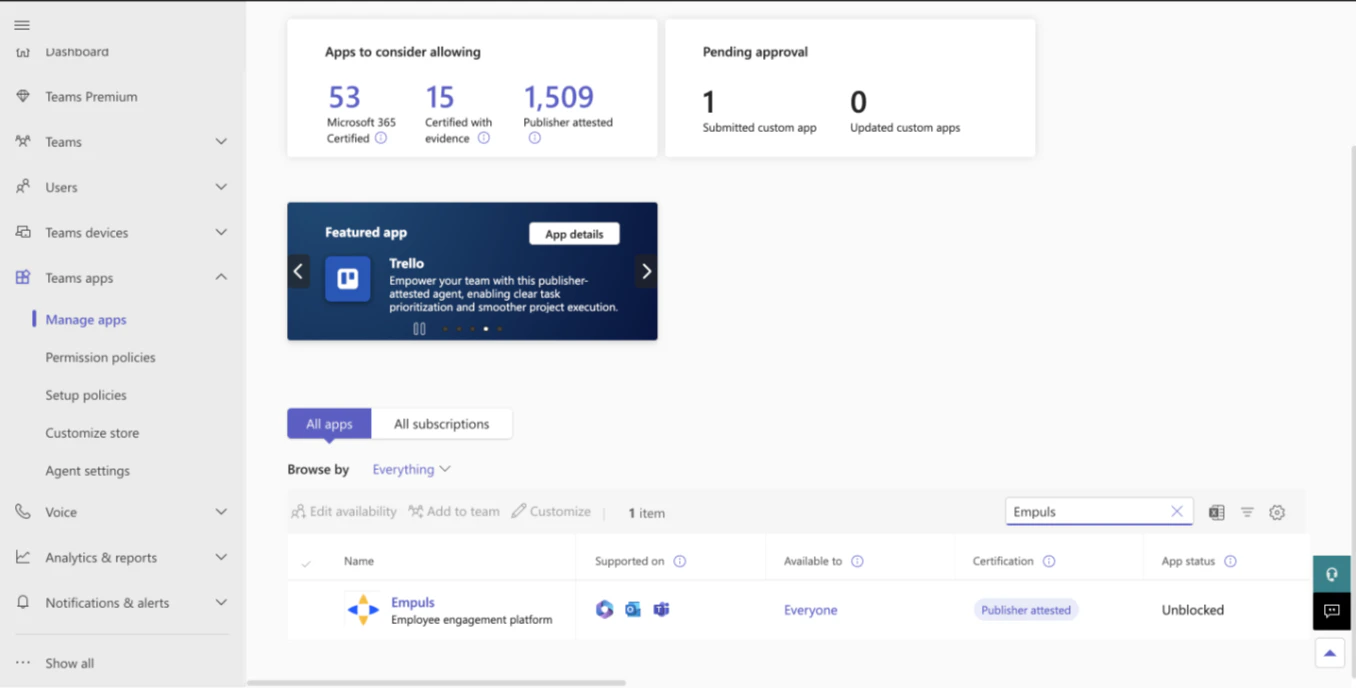
- Go to **Teams Apps → Manage Apps **and search for Empuls.
- Go to Setup Policies.
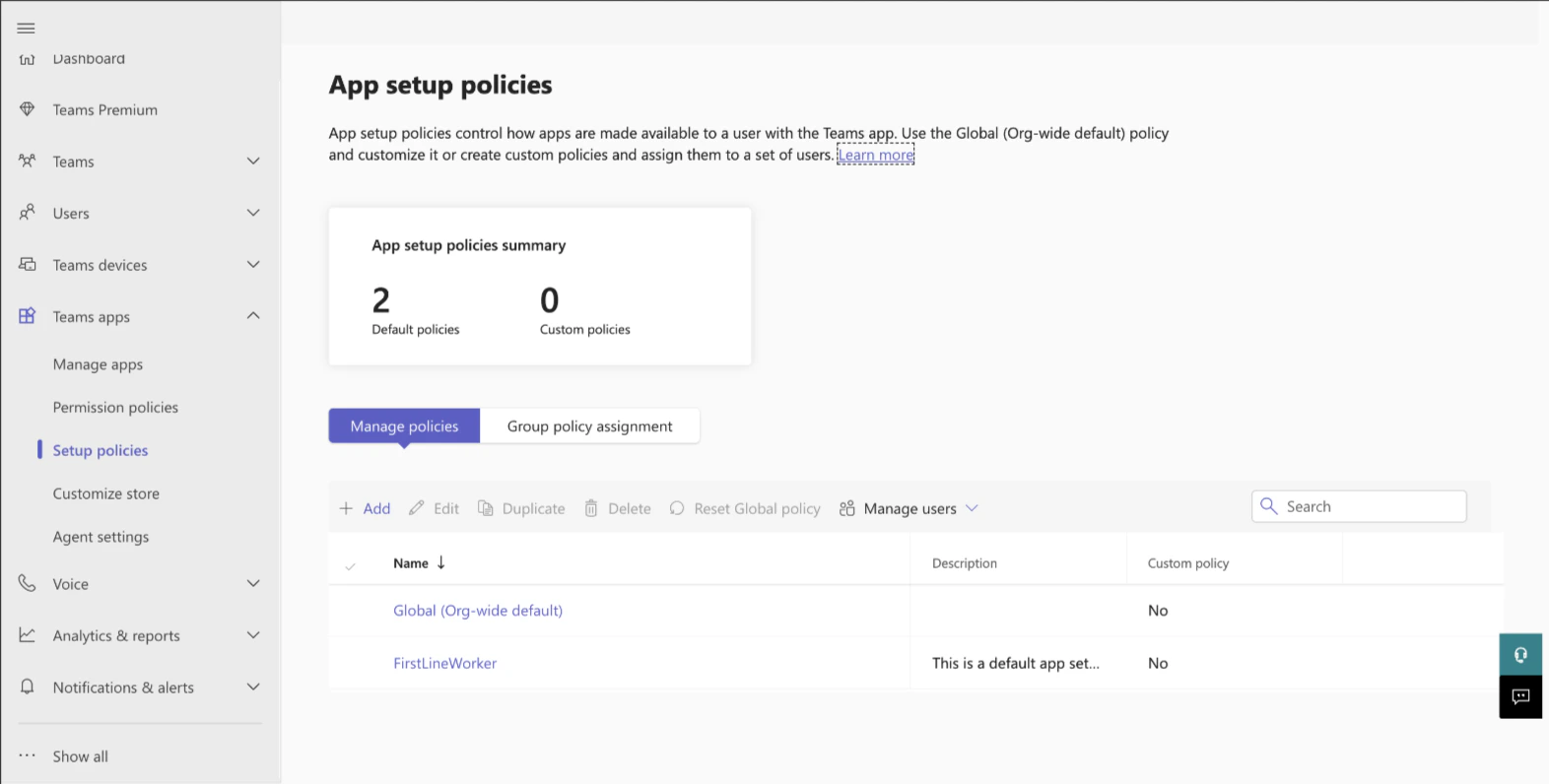
- Select Global (Org-wide default).
- Under Installed Apps, click Add Apps and add Empuls.
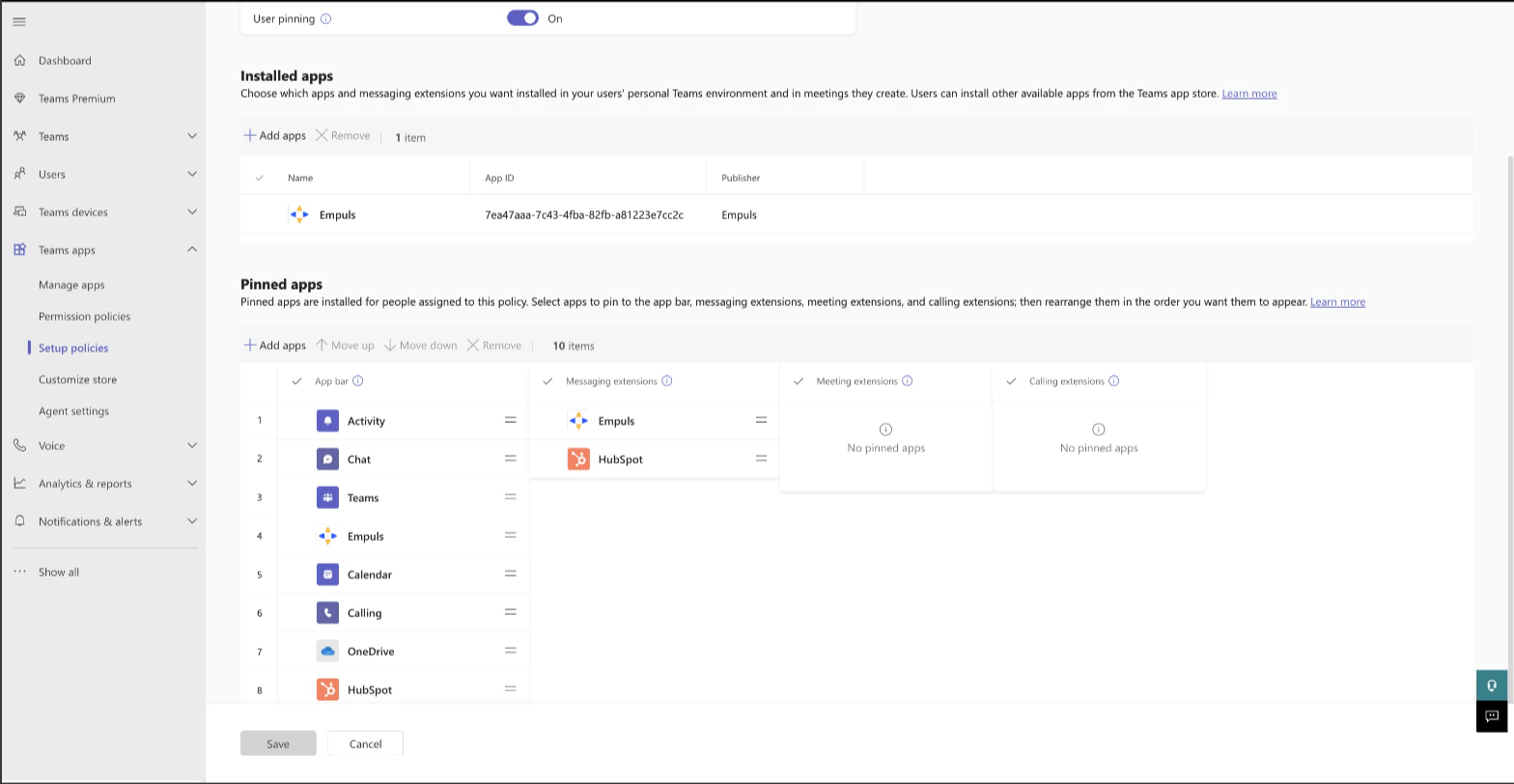
- Under Pinned Apps, click Add Apps to pin Empuls in the Teams app bar and messaging extensions.
- Scroll and Save.
- Log in to Microsoft Teams admin center at https://admin.teams.microsoft.com/dashboard.
- Go to Teams Apps → Manage Apps and search for Empuls.
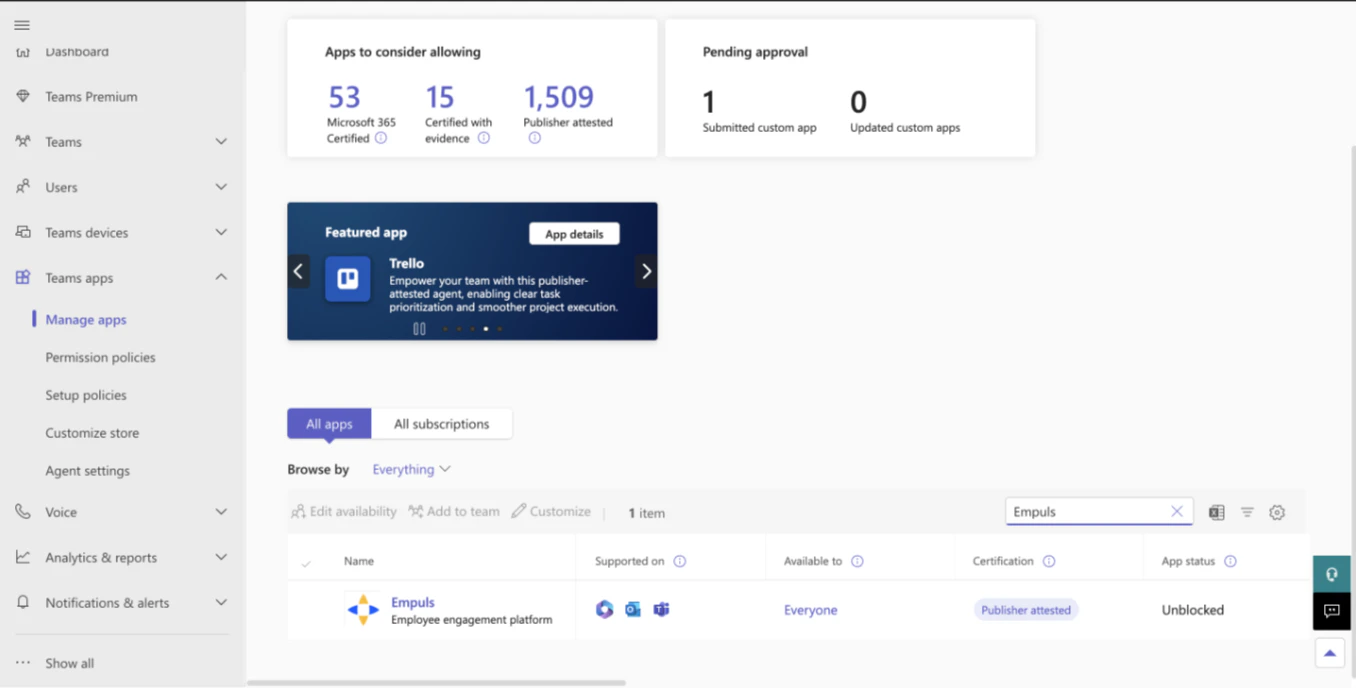
- Select Add to Teams.
- Choose the required channels and Save.
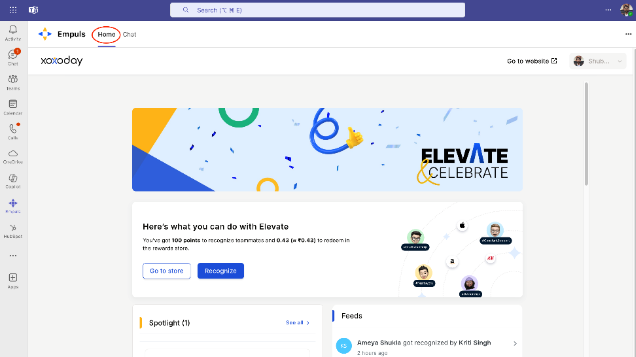
- User.Read
- openid
- profile
- offline_access
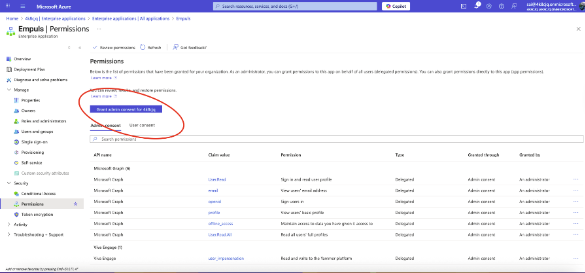
- User.Read.All
FAQs
I am unable to find the Empuls app in the Microsoft Teams app store. How do I proceed?
I am unable to find the Empuls app in the Microsoft Teams app store. How do I proceed?
You’ll not be able to find the Empuls App if your Microsoft Teams Admin has blocked users from accessing public (Third-party) apps from the store. Please ask your Admin to enable Empuls on the Microsoft Teams app store. Refer to the Installation guide for more information.
How do I uninstall the Empuls app from a Microsoft Teams channel?
How do I uninstall the Empuls app from a Microsoft Teams channel?
You can uninstall the app from a channel by navigating the Apps section from the Manage Team option.
How do I uninstall the Empuls bot from my chat section?
How do I uninstall the Empuls bot from my chat section?
You can uninstall the Empuls bot from your account by following these steps:
- Navigate to the chat section.
- Hover on the Empuls app.
- Right-click on the app and select Uninstall.
Facing "Approval Required" Error?
Facing "Approval Required" Error?
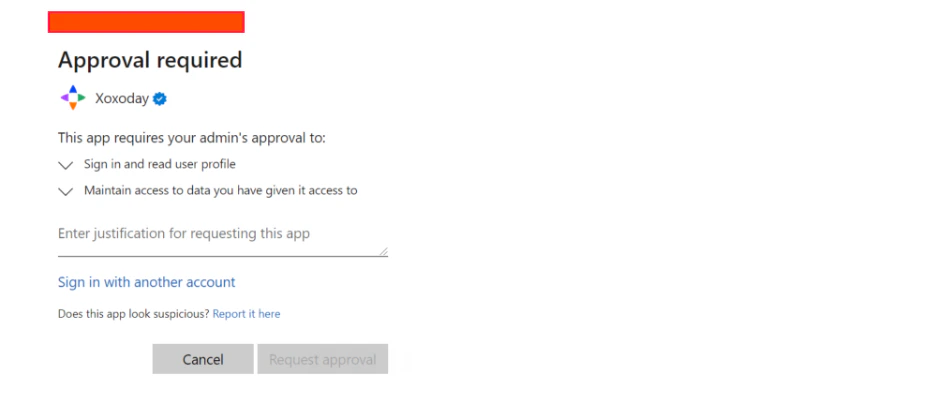
Why does this happen?
Why does this happen?
This page appears if the Microsoft Admins at your organization have added controls to prevent users from installing or using apps on Microsoft Store.
How to solve it?
How to solve it?
In the input box, Enter your reason for using the Empuls app and click on **Request Approval. **This will submit your request to your Microsoft Admin.B) Your Microsoft Admin can see your request in the Azure portal under the Enterprise applications section. (URL:https://portal.azure.com/#view/Microsoft_AAD_IAM/StartboardApplicationsMenuBlade//AppAppsPreview/menuId/null)Make sure to nudge your Microsoft Admin, as your request may get lost among the plethora of similar requests.C) The Microsoft Admin can allow the Empuls app to enable all users to sign in without any additional permissions from the administrators. Sample image below: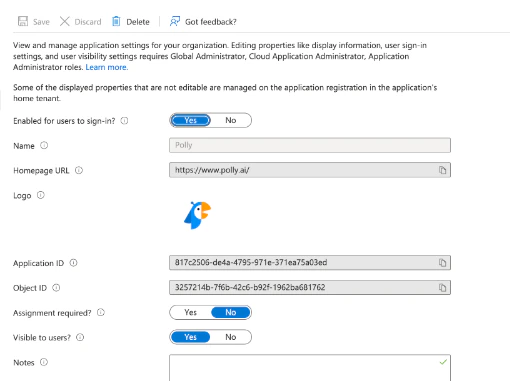
What permission does the Empuls app require, and why?
What permission does the Empuls app require, and why?
Empuls app on Microsoft Teams will have permission to:
- Receive messages and data that I provide to it: This permission allows users to interact with the Empuls bot (Em Bot).
- Send me messages and notifications: This permission allows Em bot to send notifications to users when the bot is installed.
- Access my profile information such as my name, email address, company name, and preferred language: This permission allows the Empuls app to identify the user and share relevant information with him.
- Receive messages and data that team or chat members provide to it in a channel or chat: This permission allows users to interact with the Empuls bot using tagging Empuls in the conversation.
- Send messages and notifications in a channel or chat: This permission allows the Empuls app to share appreciation messages on the channel and group chats.
- Access information from this team or chat such as team or chat name, channel list, and roster (including team or chat member’s names and email addresses) - and use this to contact them: This permission is a prerequisite of the previous permission. Empuls app needs to know the channels and group chats the user is part of to allow users to share appreciation messages there.
- Empuls uses Microsoft Graph API to authenticate users when they open the Personal Empuls Home tab. We get user’s basic details, like email, to validate the user. Admin can grant these permissions to provide hassle-free access for the end users.
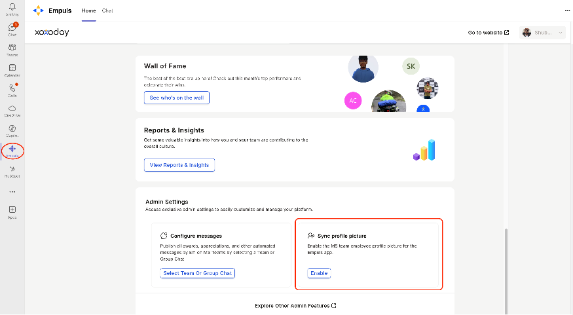
User.Read email openid profile offline_access- Empuls also uses another scope User.Read.All. This is required only if the admin wants to automatically sync MS Teams profile pictures of users with Empuls, instead of having users add them manually.