
Introduction
This document describes the process for integrating your native HRMS (that do not provide REST APIs) with Empuls for automating user data management.Data Fields Required from HRMS
The following data fields need to be shared for all employees in a CSV format. The nomenclature for the file shared should be ‘CompanyName_DD_MM_YYYY’. Data Fields are provided below:| Column | Data Fields | Required / Conditional | Data Type | Utility |
|---|---|---|---|---|
| A | Employee ID | Required | Varchar | Identity of the user |
| B | Required | Varchar | Identity of the user | |
| C | First Name | Required | Varchar | Identity of the user |
| D | Last Name | Conditional | Varchar | Identity of the user |
| E | Department | Conditional | Varchar | Set up rewarding/gifting rules |
| F | Department Head Email | Conditional | Varchar | Set up rewarding/gifting rules |
| G | Designation | Conditional | Varchar | Profile information visible to other users of the platform |
| H | Grade Name | Conditional | Varchar | Set up rewarding/gifting rules |
| I | HR Email | Conditional | Varchar | Individual Mapping for setting up rewarding rules |
| J | Manager Email | Conditional | Varchar | Individual Mapping for setting up rewarding rules, Org chart display and reports access to managers |
| K | Cost Centre | Conditional | Varchar | Set up rewarding/gifting rules |
| L | Cost Centre Head Email | Conditional | Varchar | Individual Mapping for setting up rewarding rules |
| M | Business Unit | Conditional | Varchar | Set up rewarding/gifting rules |
| N | Site / Location | Conditional | Varchar | Set up rewarding/gifting rules |
| O | Joining Date | Conditional | Date | Work Anniversary gifting & Public wishes on the milestone events. |
| P | Date Of Birth | Conditional | Date | Birthday gifting and public wishes on the occasion |
| Q | Contact No. | Conditional | Varchar | Profile Information visible to other employees. |
| R | Employee Status* | Required | Varchar | Empuls access blocked to disabled accounts. |
SFTP Integration Approach
Empuls uses the SFTP approach of data transfer, which follows the structure provided in the image below.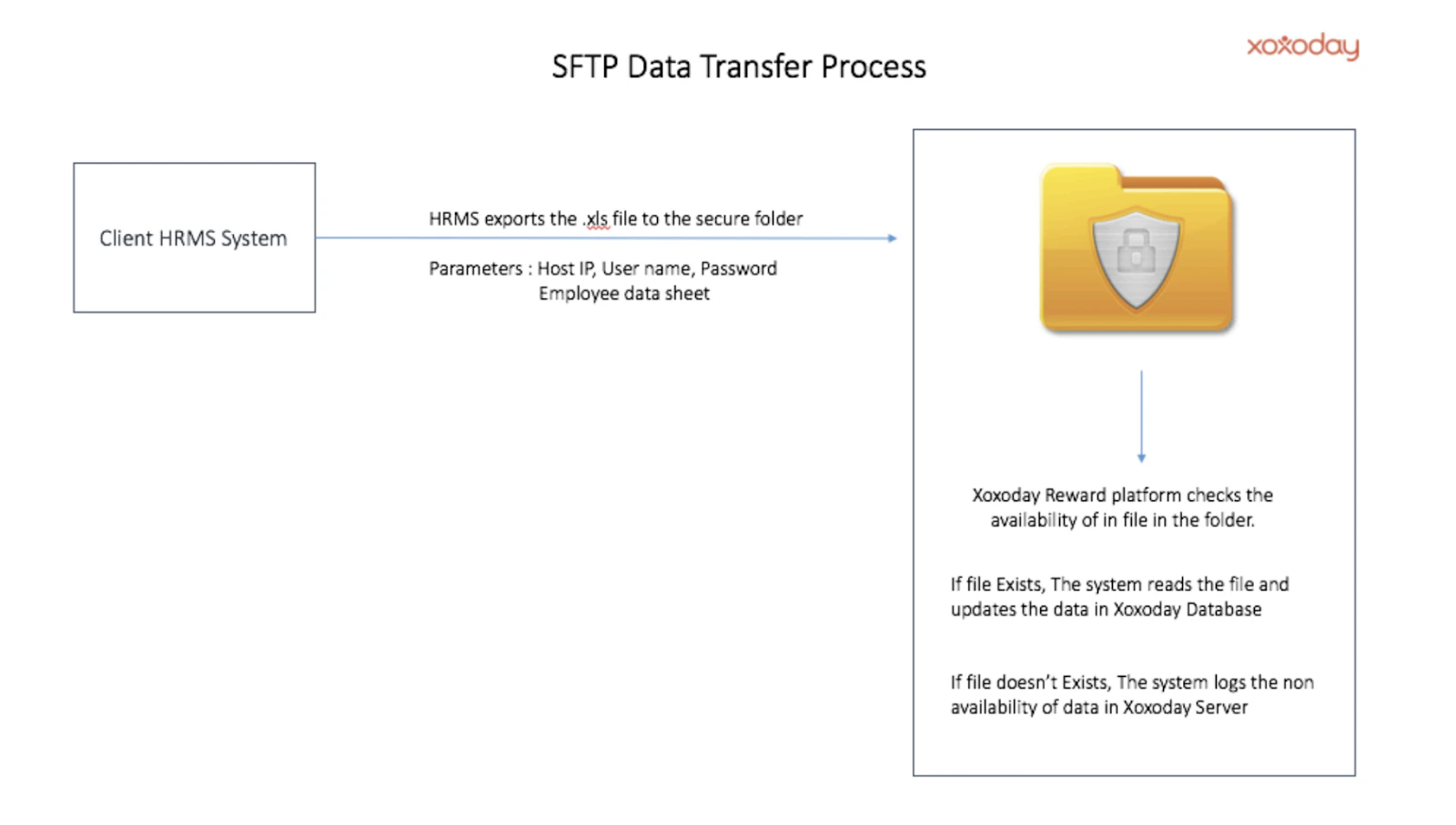
Integration Process
- Empuls team will provide the SFTP folder setup details i.e the Folder link, Username & Password. Please drop your request at cs@xoxoday.com or your account manager.
- The customer HRMS function is expected to push the CSV file to the SFTP folder. The data should be of the sequence as provided in the Data Requirements section above. The first row should contain column headers. It’s recommended you schedule the .CSV file push to the SFPT folder at 11 PM IST.
- The .CSV file shared will be processed by the Empuls application at 1 AM IST through a pre-scheduled data sync job.
- The system will log the data sync status and notify the Super Admin of the status of the data update via email.
Data Validation and Processing
Here are the sequence of steps followed for updating employee data on Empuls- Empuls scans the folder for .csv files, other format files are ignored.
- The .csv file is validated against the format as provided in the data requirements section
- Empuls will validate the data to ensure
- Mandatory fields are not empty.
- The data shared matches the standard template wrt to columns.
- The email id field has a valid email id.
- The primary email id field has a valid domain (among the whitelisted domain names).
- The data processing will follow the sequence below:
- The CSV data is read in rows wherein the email id in the first row is compared with the whole inactive list on Empuls.
- If the employee account exists in the inactive state on Empuls, Ignore it and proceed to the next row on the .csv file
- If the user does not exist, then the user account is created and flagged as ‘Active’. All data fields for the user are updated as per the data in .csv file
- If the user account already exists, the changes in data are scanned and updated on Empuls
- The process continues until the last row of the .csv file is read.
- The .csv file is deleted from the sftp folder and email notification is sent to the super admin.
- The CSV data is read in rows wherein the email id in the first row is compared with the whole inactive list on Empuls.
Xoxoday SFTP Server
To test connectivity pls use the command “telnetsftp1.xoxoday.com 22” If no connection is established, please check/confirm your public IP from where you are trying to push the file. The location that the file needs to be pushed to is./upload
Visit the page -https://whatismyipaddress.com/ to get your current active public IP and confirm if this is the same as what has been whitelisted.
If IP is correct, please check with your networking/infosec team if port 22 is allowed for outbound communication.
Client’s SFTP Server
If the client is providing their SFTP server for the integration process.- Clients are requested to whitelist the following Xoxoday Empuls Application Server NAT IPs based on their tenant URL:
- 44.224.115.77 — For tenants with
xoxoday.comin their URL - 15.207.209.75 — For tenants with
xoxoday.inin their URL - 40.119.169.124 — For tenants with
xoxoday.aein their URL - 84.8.119.164 — For tenants with
xoxoday-ksa.comin their URL
- 44.224.115.77 — For tenants with
- The client should provide the SFTP Server IP and login credentials. We support both *.pem file-based and password-based access.
- Please ensure that the SFTP server can be accessed via CLI - We use UNIX SSH/SFTP utilities to connect to SFTP Servers.
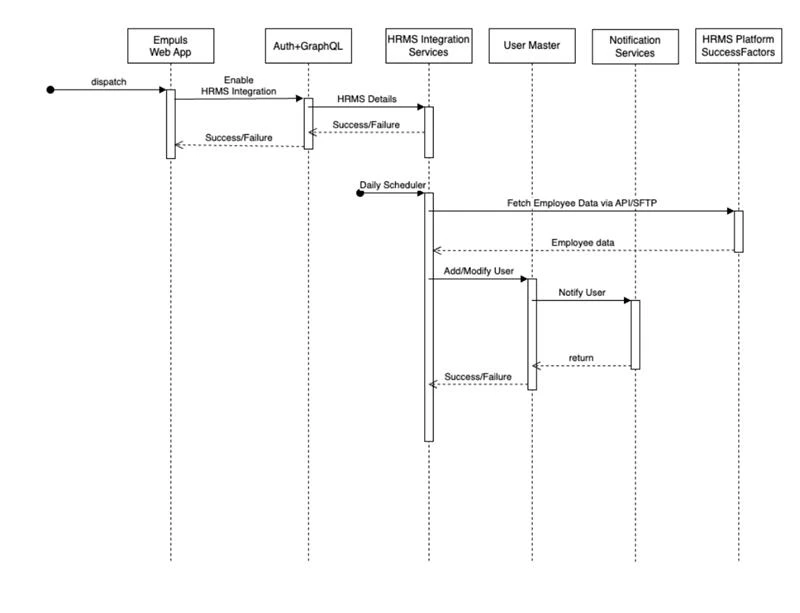
Data Flow Architecture
Feedback or Questions: Reach out to cs@xoxoday.com