
Before You Begin
You’ll need admin access to both Rippling and Empuls. Generate your Rippling API token from the Rippling admin dashboard.Why this Integration?
This integration automates the user account management processes in Empuls based on the employee data available in your Rippling account. With this integration, you can :- Add new employees to Empuls automatically when their Rippling profile is created.
- Edit existing employee data in Empuls simply by updating their Rippling profile.
- Remove exited employees from Empuls based on their exit date/status in Rippling.
How to set up this integration?
Log in to your Empuls account and go
Log in to your Empuls account and go to Admin Dashboard by clicking on “Reports and Admin”. Navigate to “**Integrations” **on the left hand dashboard.
Click on Establish Connection to initiate the integration
Click on Establish Connection to initiate the integration. This will redirect you to your Rippling portal in the new tab. Please make sure you allow popups.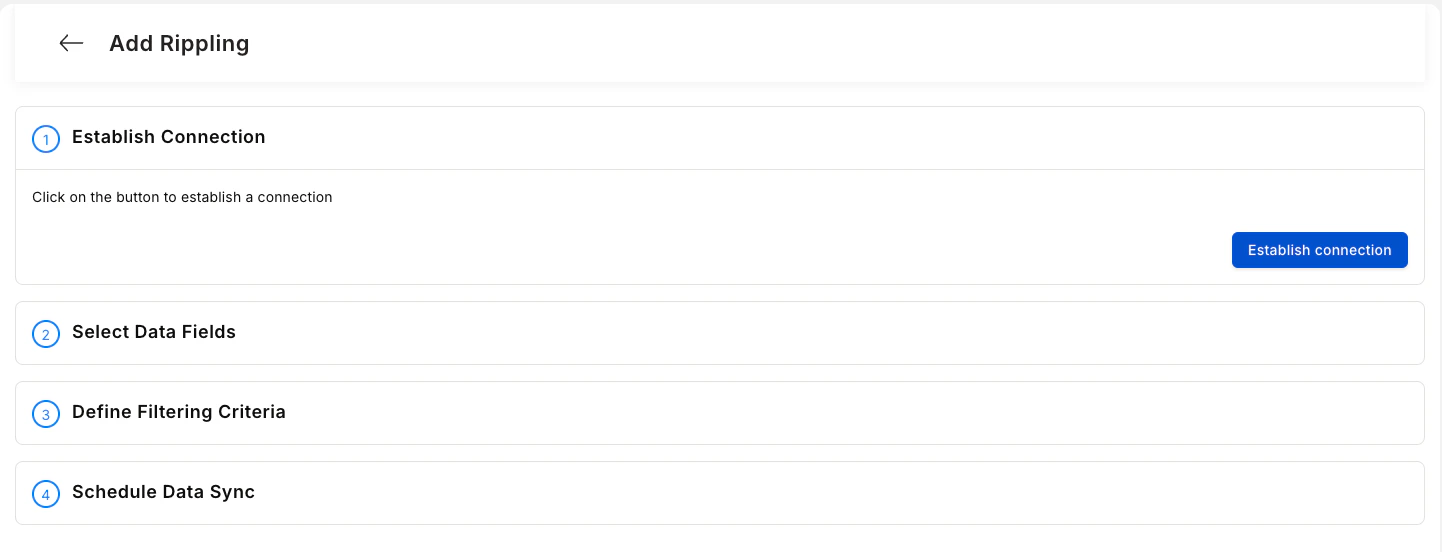
Select Data Fields
Select Data Fields. Once done, click on Continue.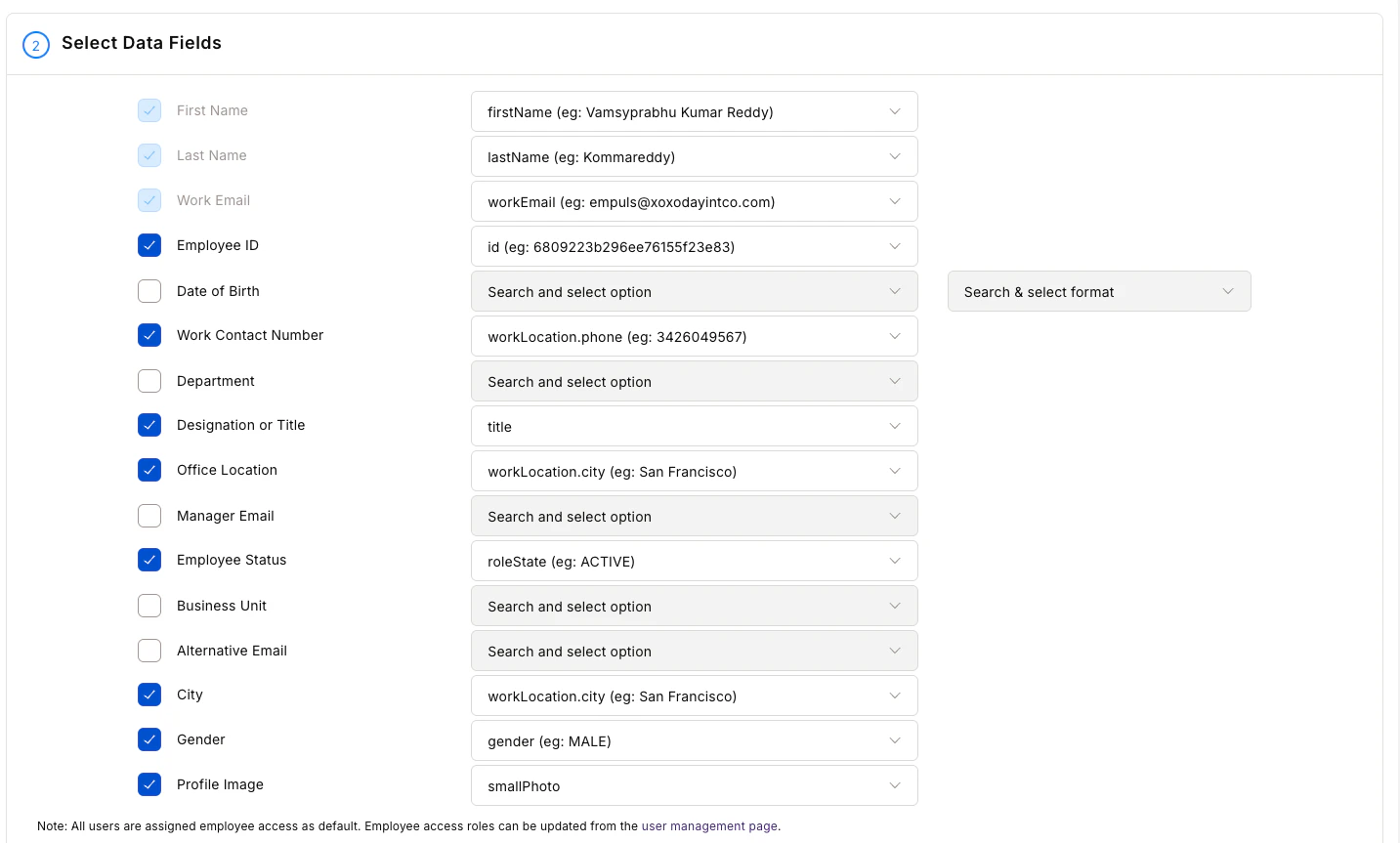
- First name
- Last name
- Official email
- Employee code/ID
- Grade
- Department
- Designation
- Date of birth
- Date of Joining
- Mobile number
- Business Unit
- Cost center
- Location
- Contact/Mobile number and many more
Define Filtering Criteria
**Define Filtering Criteria. **This is an optional step; you can also choose to do this at a later step. Continue to proceed.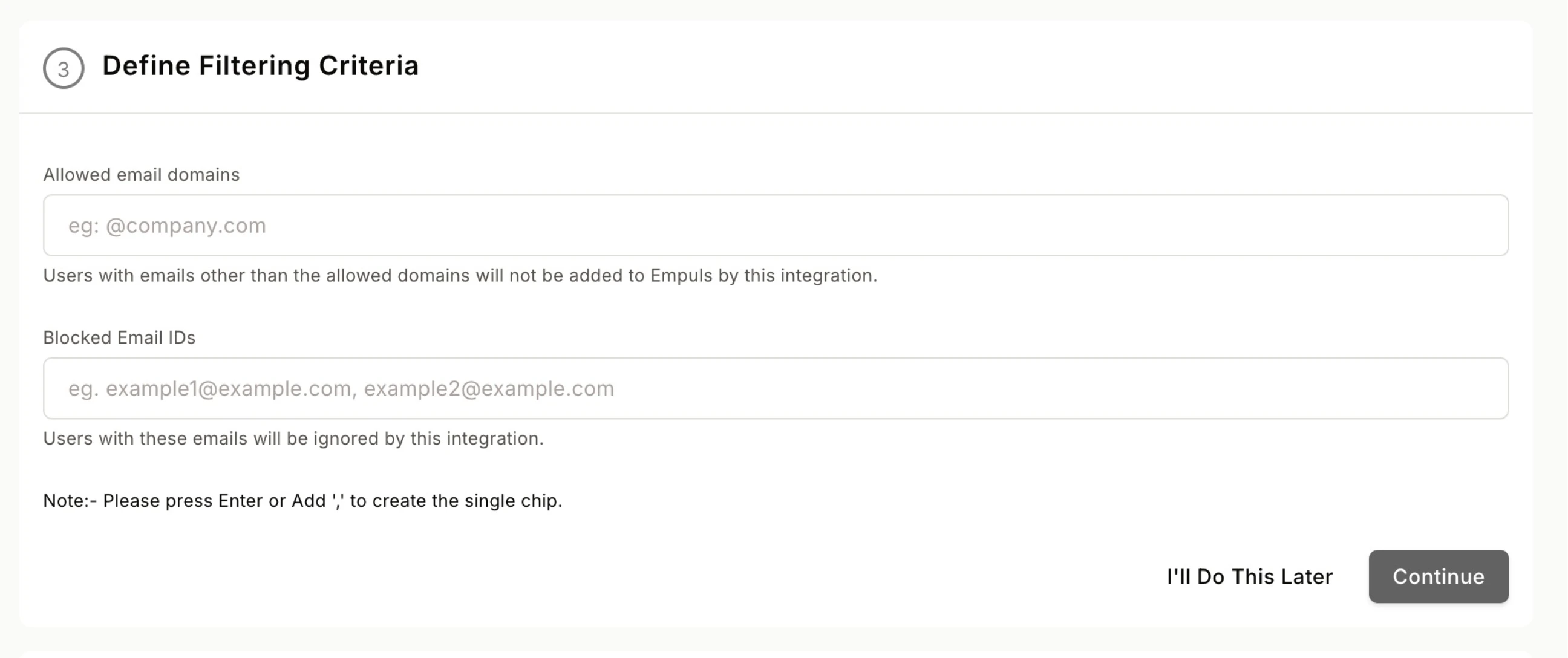
Download data to validate
Admins can download employee data in CSV format before uploading to Empuls to validate that the data fields are mapped and no record is repeated.
In this step, you can choose between two
In this step, you can choose between two data sync options: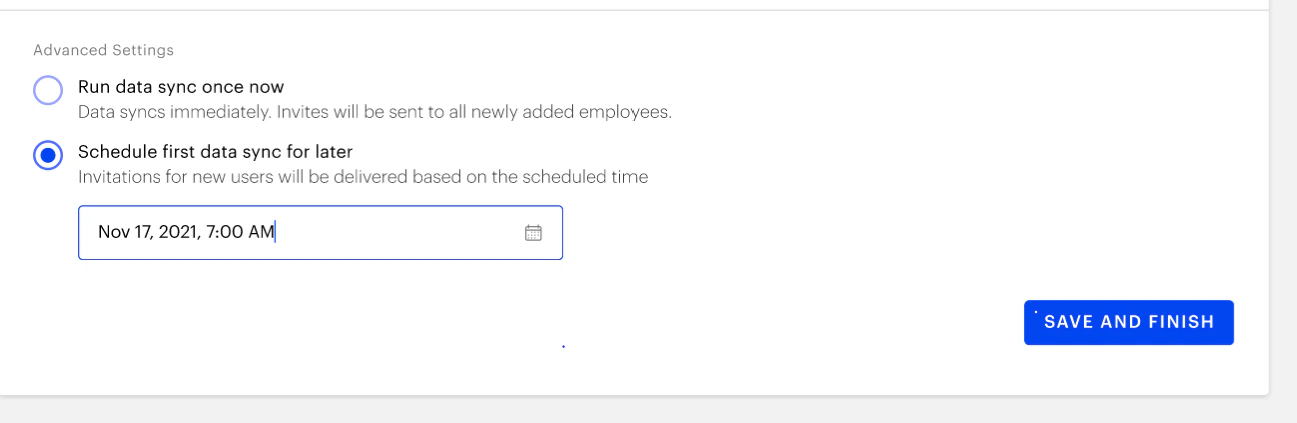
- **Run Date Sync Once Now: **Select this option to launch your Empuls account immediately. This will create accounts for all employees and send invites.
- Schedule First Data Sync for Later: Select this option to schedule employee account creation to a later date and time. This will help you plan and execute employee account creation on Empuls to coincide with your internal launch announcements.
How to edit this configuration
Go to Admin Dashboard by clicking on Reports
Go to Admin Dashboard by clicking on “Reports and Settings”.
Navigate to the Active Integrations section and click
Navigate to the Active Integrations section and click on the **Rippling **app.
Click the three dots beside
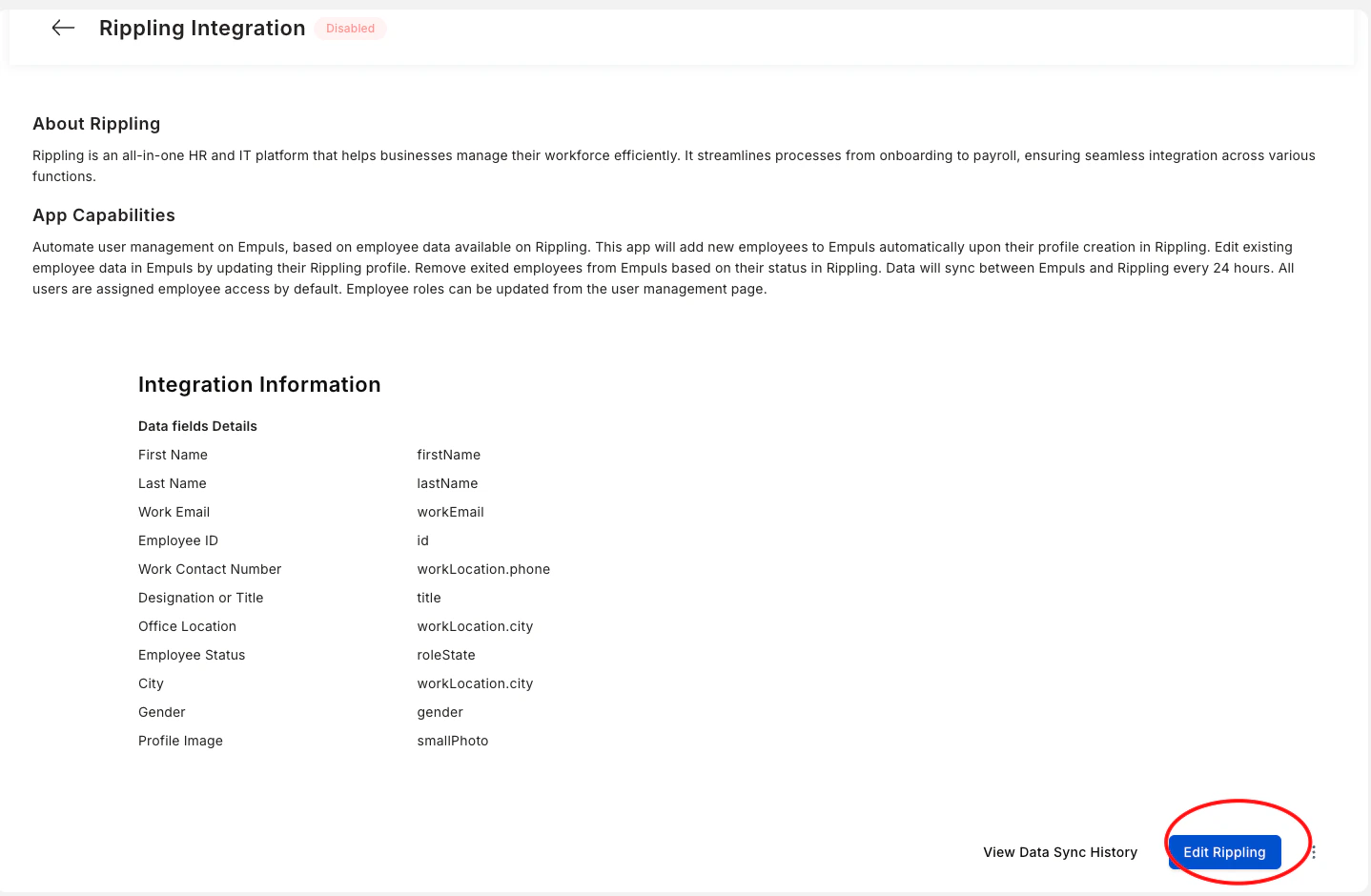
Click the three dots beside the REMOVE Ripplingtext box.Then click on** Disable Rippling.**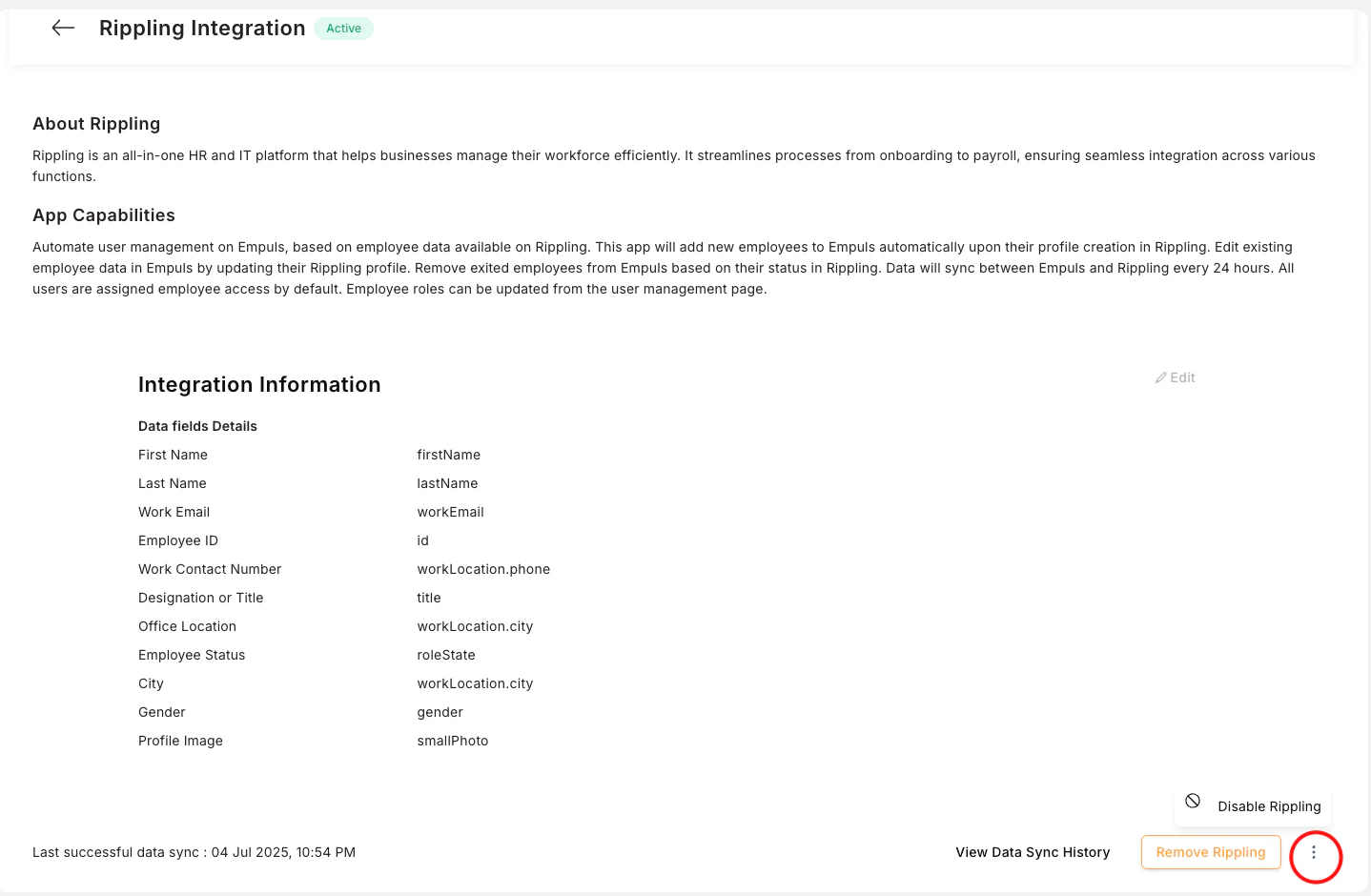
How to turn off this integration?
Go to Admin Dashboard by clicking on Reports
Go to Admin Dashboard by clicking on “Reports and Settings”.
Navigate to the Active Integrations section and click
Navigate to the Active Integrations section and click on the Rippling app.
You can turn off the integration
You can turn off the integration by simply clicking on **REMOVE Rippling HR. **
It will ask whether you want
It will ask whether you want to remove** Rippling HR.** Click on REMOVE.
Questions? Contact us at cs@xoxoday.com. We are more than happy to help you!