Jury-based awards are available in the enterprise version of Empuls. Contact your account manager or CSM to enable this feature.
How it works
The jury award process has four stages: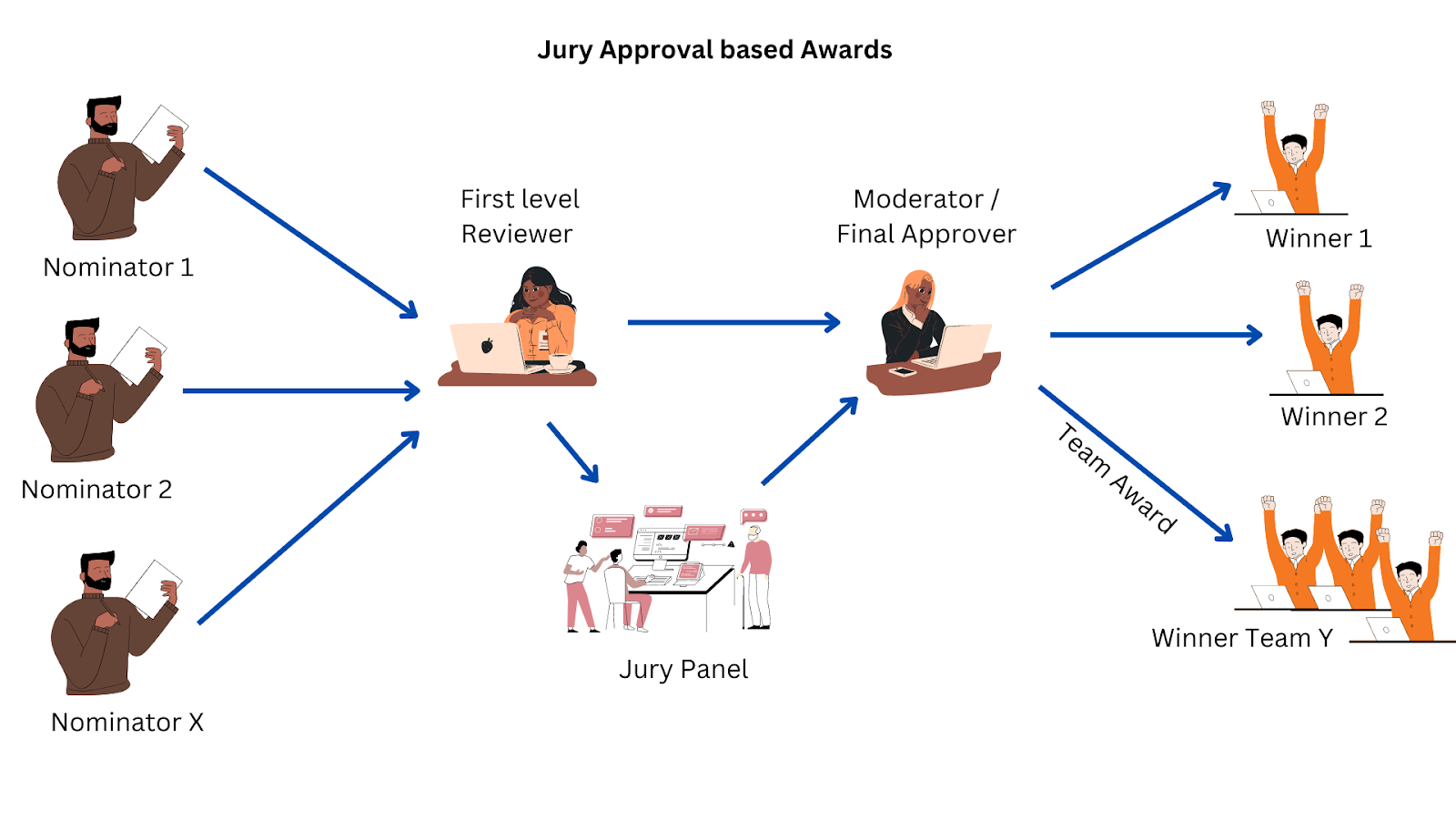
1. Nominator
The nominator nominates colleagues, direct reports, or themselves (based on admin-defined rules) by stating why the nominee deserves the award. The nominator may be required to provide a free-form justification or answer specific admin-defined questions.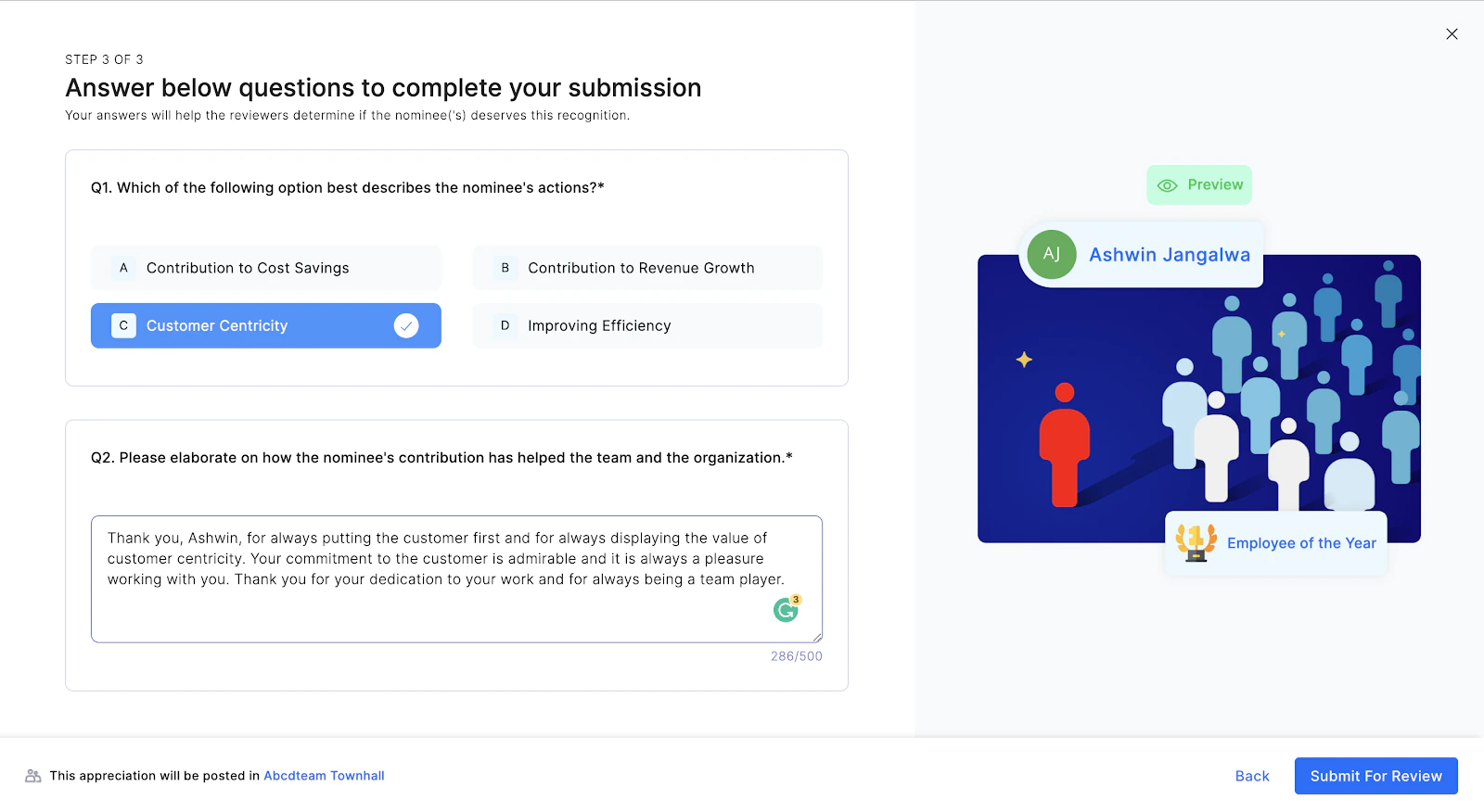
2. First-level reviewer
The first-level reviewer filters nominations to eliminate duplicates and subpar submissions. They either approve the nomination and forward it to the jury, or decline it.3. Jury panel
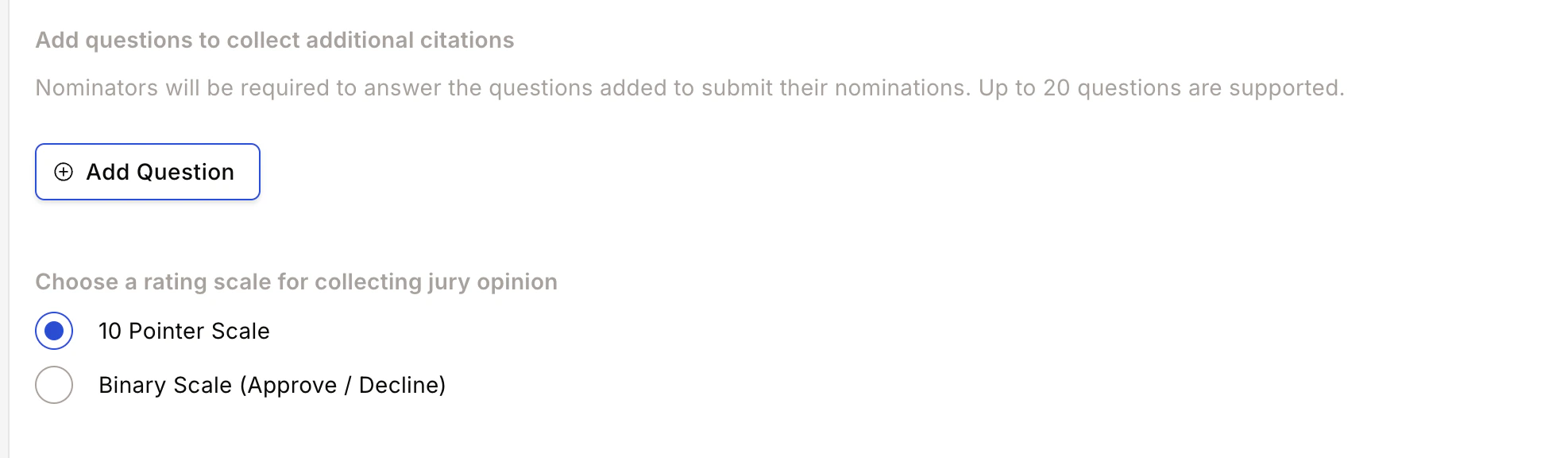
A group of users responsible for shortlisting the most deserving nominations. Each jury member rates nominations on a 10-point scale (or binary approve/decline), reading the justification provided by the nominator. Once all jury members rate the nominations, their opinions are sent to the moderator.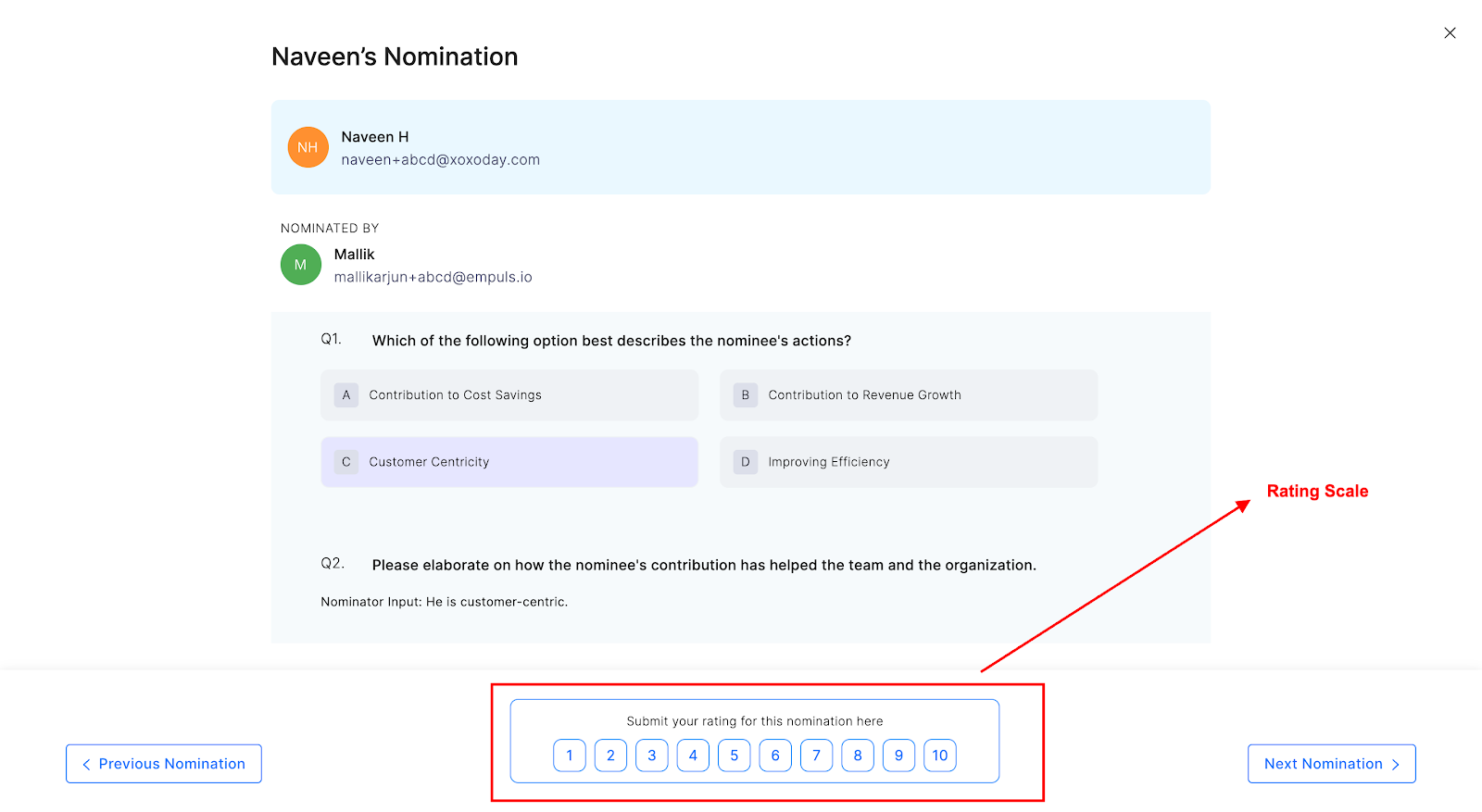
4. Moderator
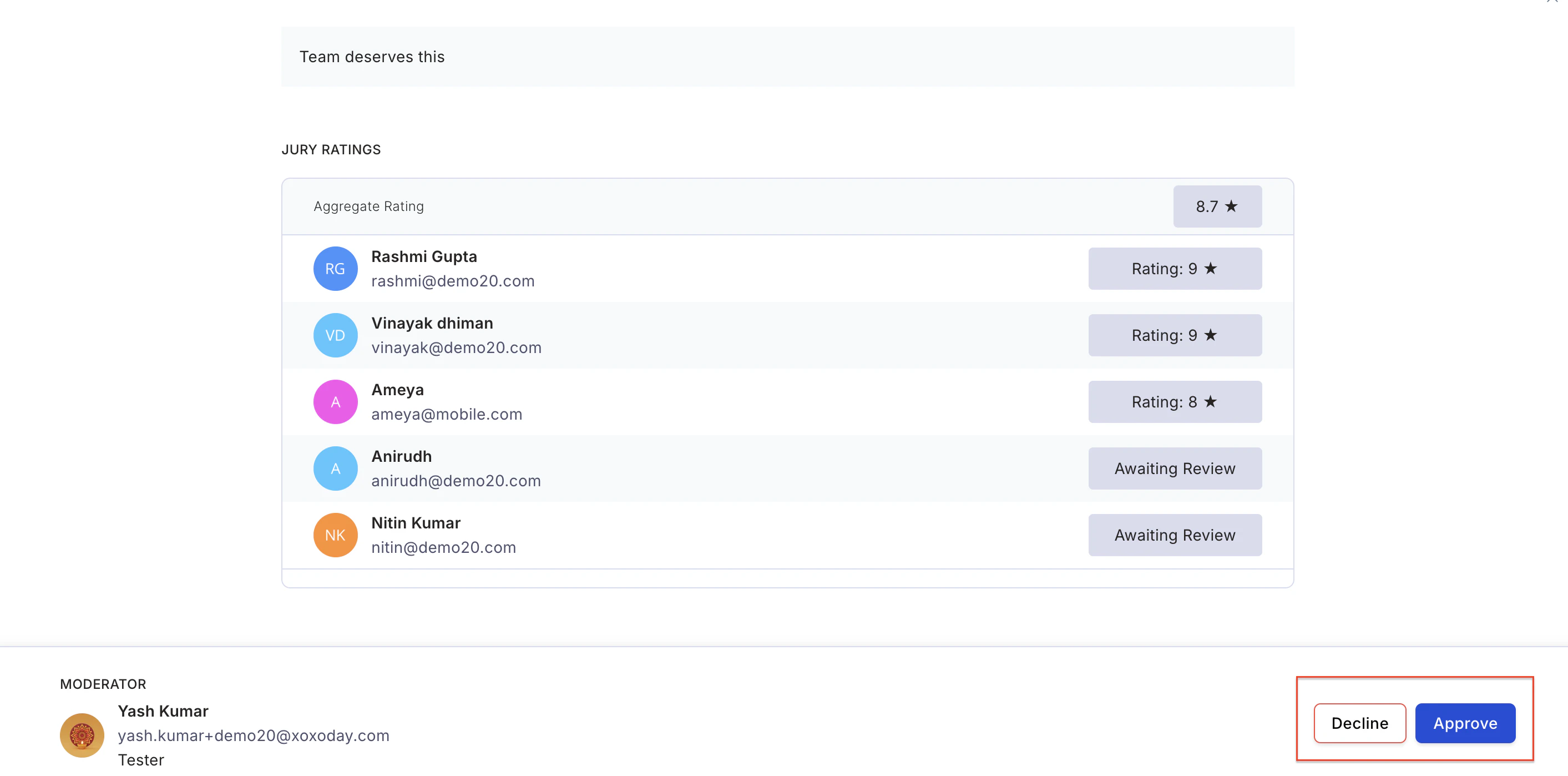
The moderator approves nominations based on jury ratings. They can view nomination ratings as soon as jury members begin scoring. The moderator shortlists the top nominations and approves them individually to announce winners. Budget points are deducted from the moderator’s account and credited to the winner’s account as rewards. The moderator then declines all other nominations.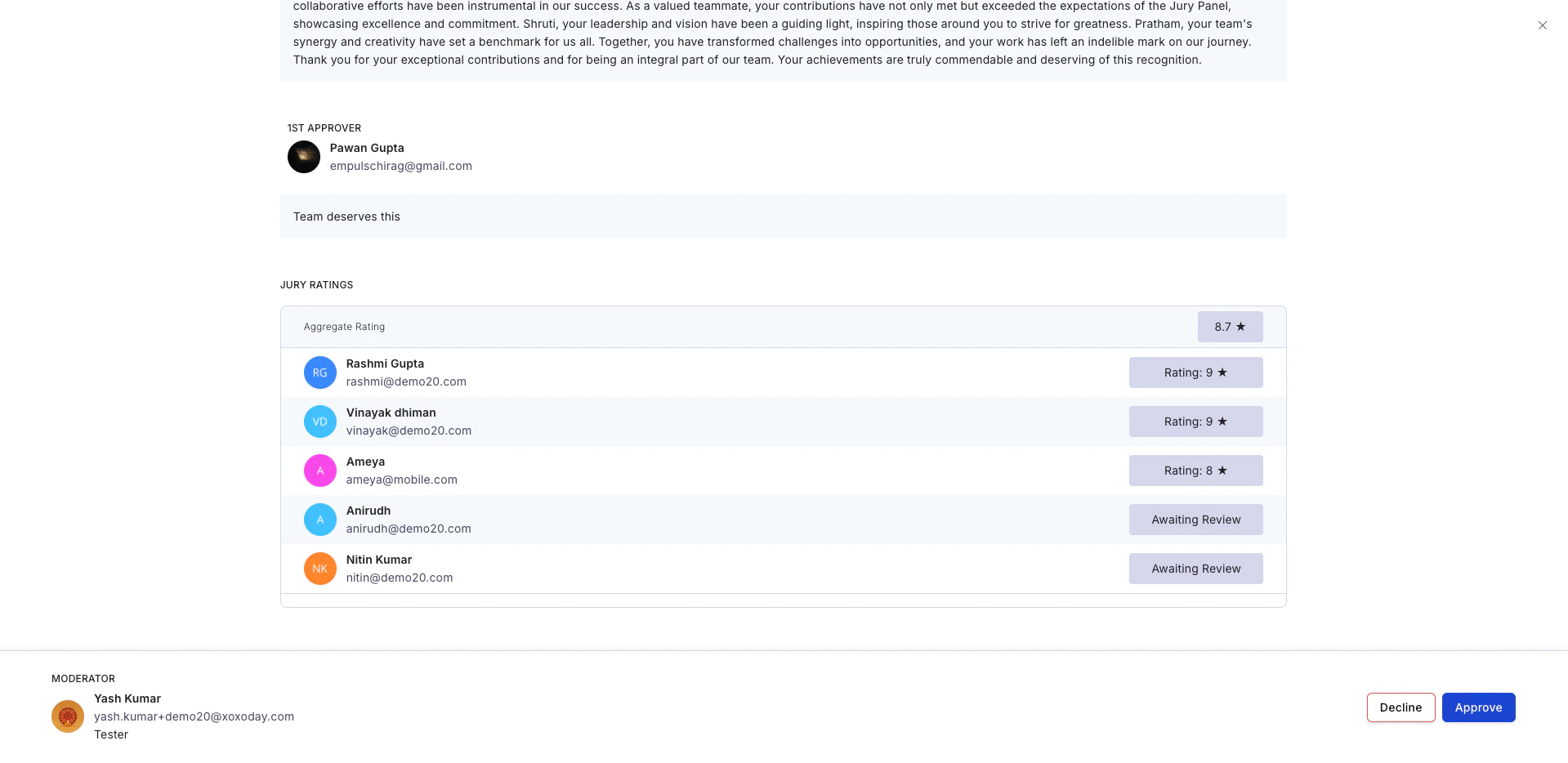
When to use jury-based awards
Jury awards are recommended when:- The award is given to the top 1% of the organisation in a year.
- Selection is assigned to senior employees such as CXOs or BU Heads.
- The award is issued half-yearly or annually.
Sample templates
a) Employee of the Year
Objective: Recognise the employee who has brought the organisation closest to its mission and vision by displaying organisational values. Evaluation criteria: The employee must be personally and independently responsible for the success of a project or initiative that resulted in organisational growth. Questions to answer:- What organisational value has the employee displayed?
- When and how did the employee demonstrate the organisational value that led to a successful outcome?
- What is the impact of the employee’s contribution towards organisational goals?
b) Sales Champion of the Year
Objective: Motivate the high sales achiever who contributed most towards the organisational revenue goal. Evaluation criteria: The employee must have achieved their own targets and contributed to their team’s overall targets. Questions to answer:- What is the employee’s revenue target vs achievement?
- What is the employee’s share of the overall revenue target for the team?
- Why does the employee deserve to be the Sales Champion of the Year?
Steps to set up a jury-based award
Navigate to the Admin Dashboard
Go to Reports and Admin > Programs > Awards & Core Values > Create Award.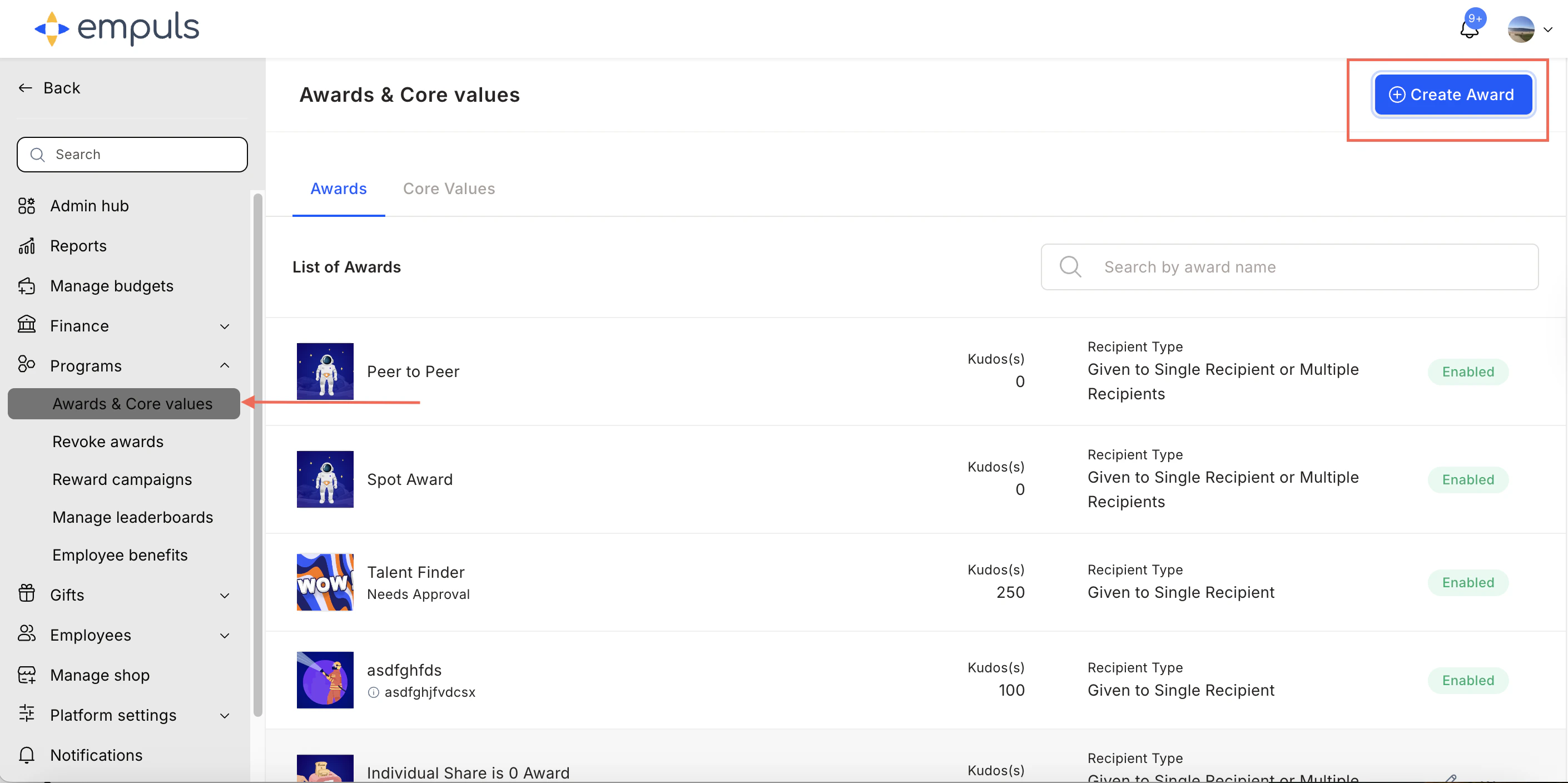
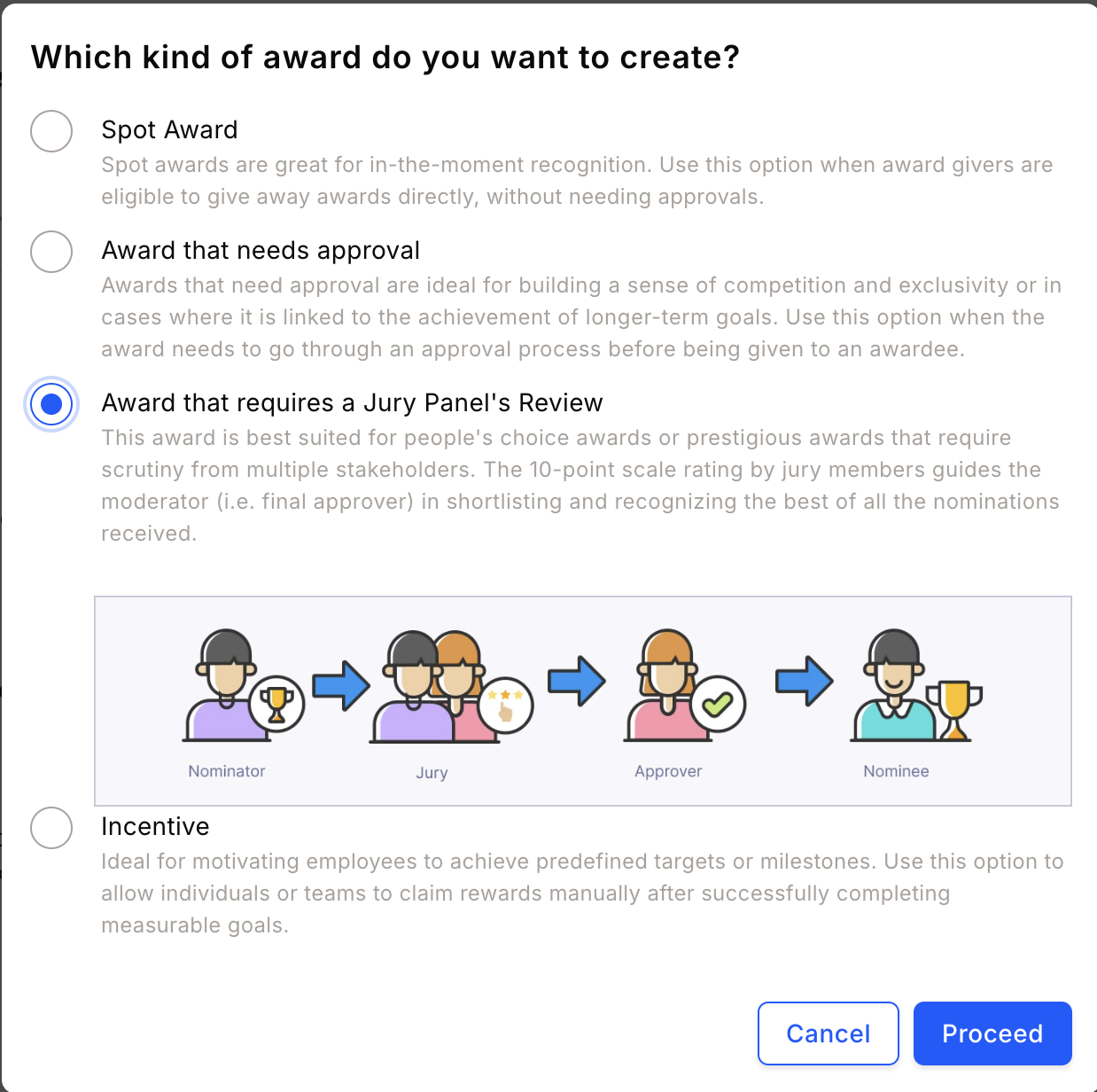
Fill in award details
Enter the award name, description, image, and recipient type. Click Continue.An award recipient can be an individual, a team, or kept flexible.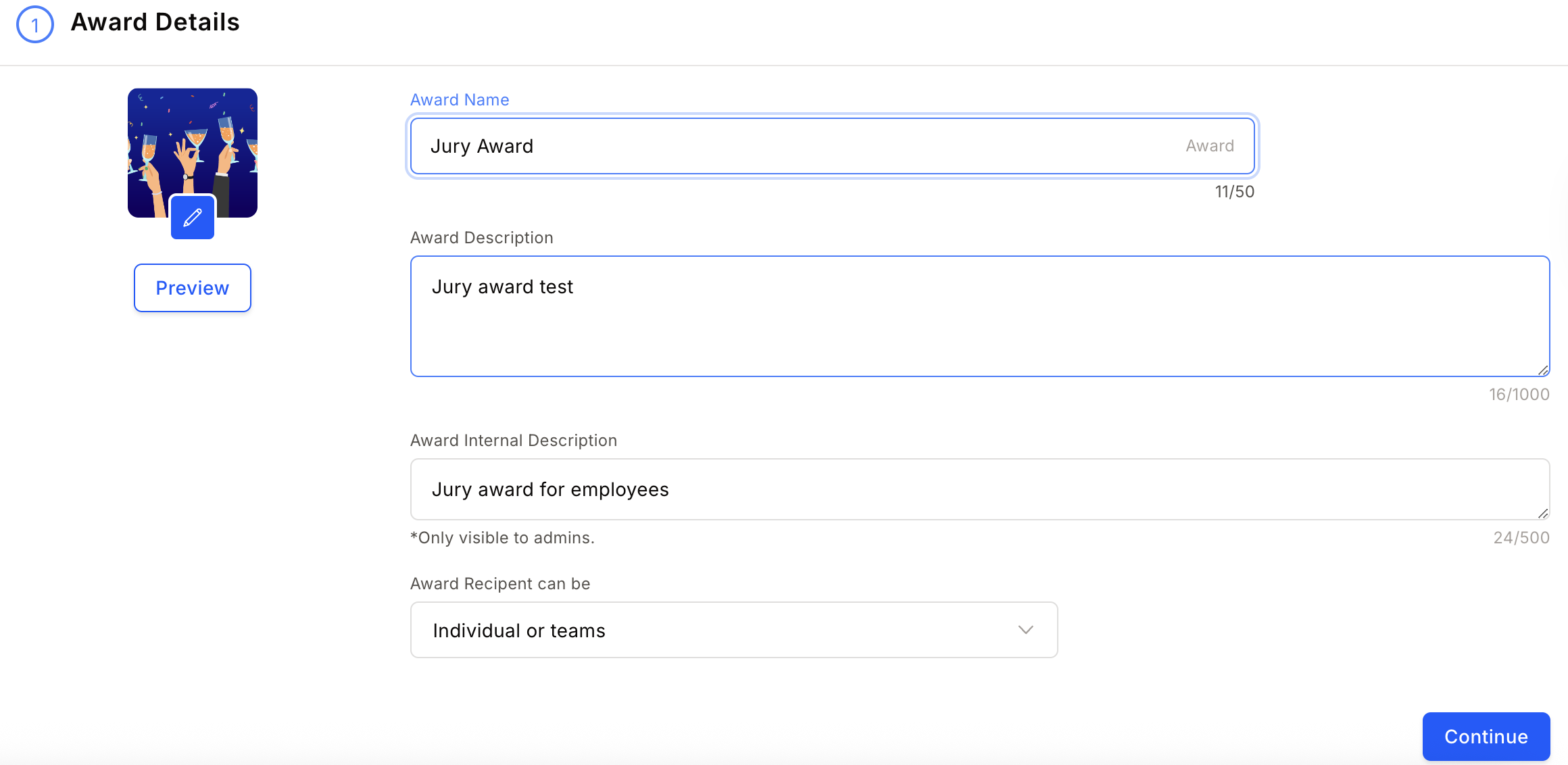
Configure the reward
Choose to reward points or gift cards and merchandise.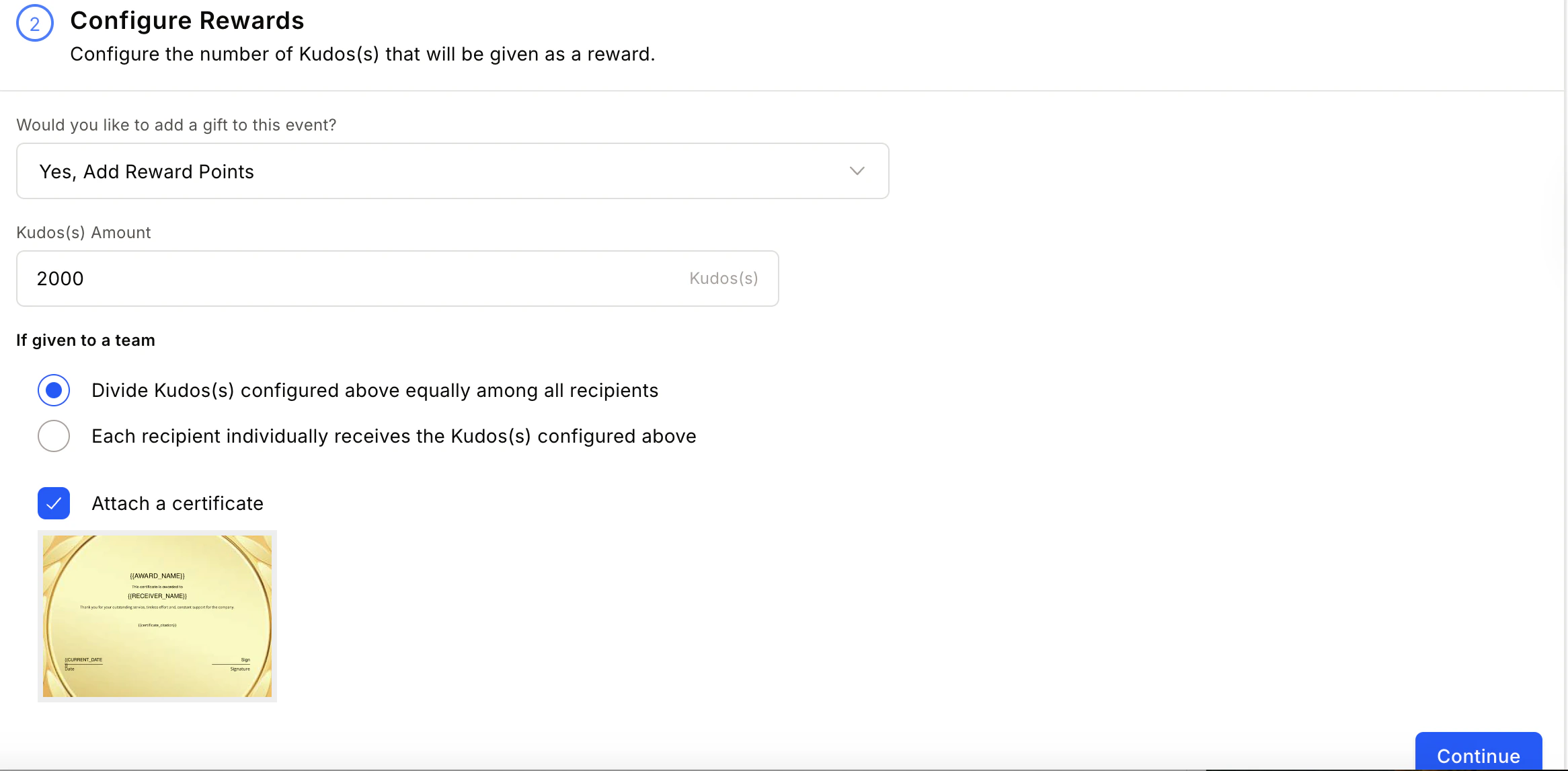
- Attach certificate — Attach a certificate template. See Add certificates to awards for detailed steps.
- Add products from store — Reward with merchandise and gift cards. See Set up product-based rewards for detailed steps.
Define nominee, nominator, and approver eligibility
Set constraints on who can nominate, who can be nominated, and who can approve.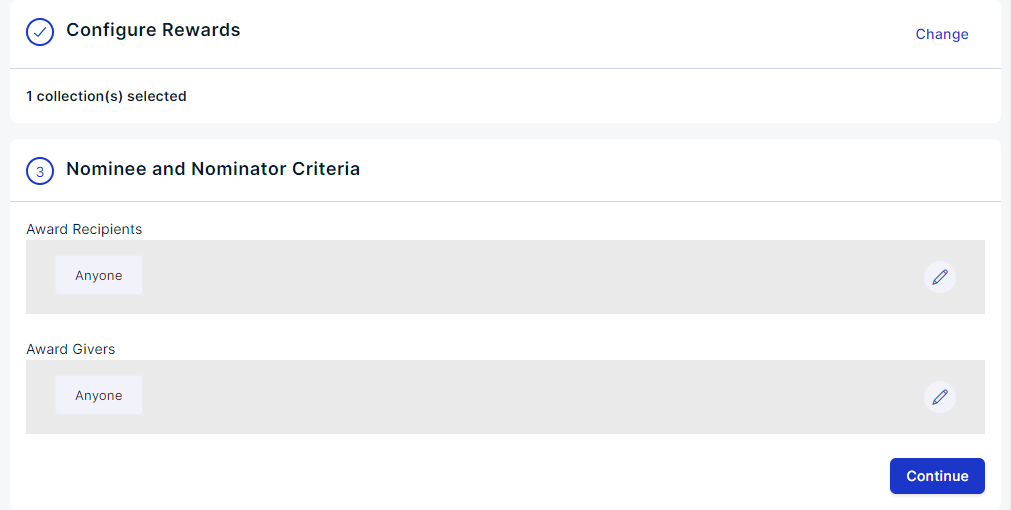
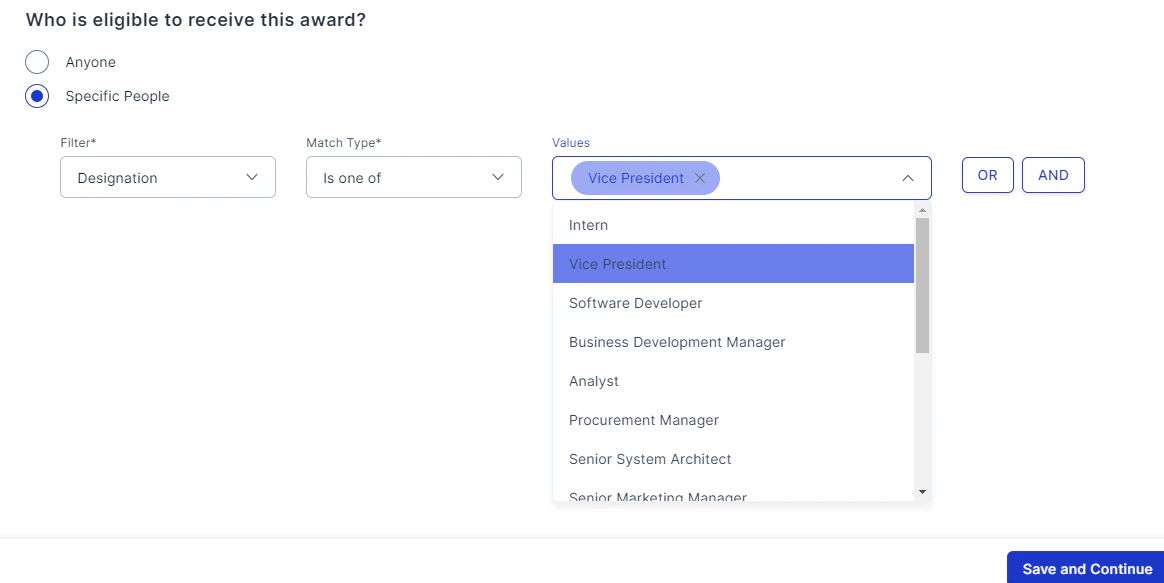
Set jury and approver selection
Click the pencil icon and select First Level Approver, Jury, and Moderator. Use advanced filters to refine your selection.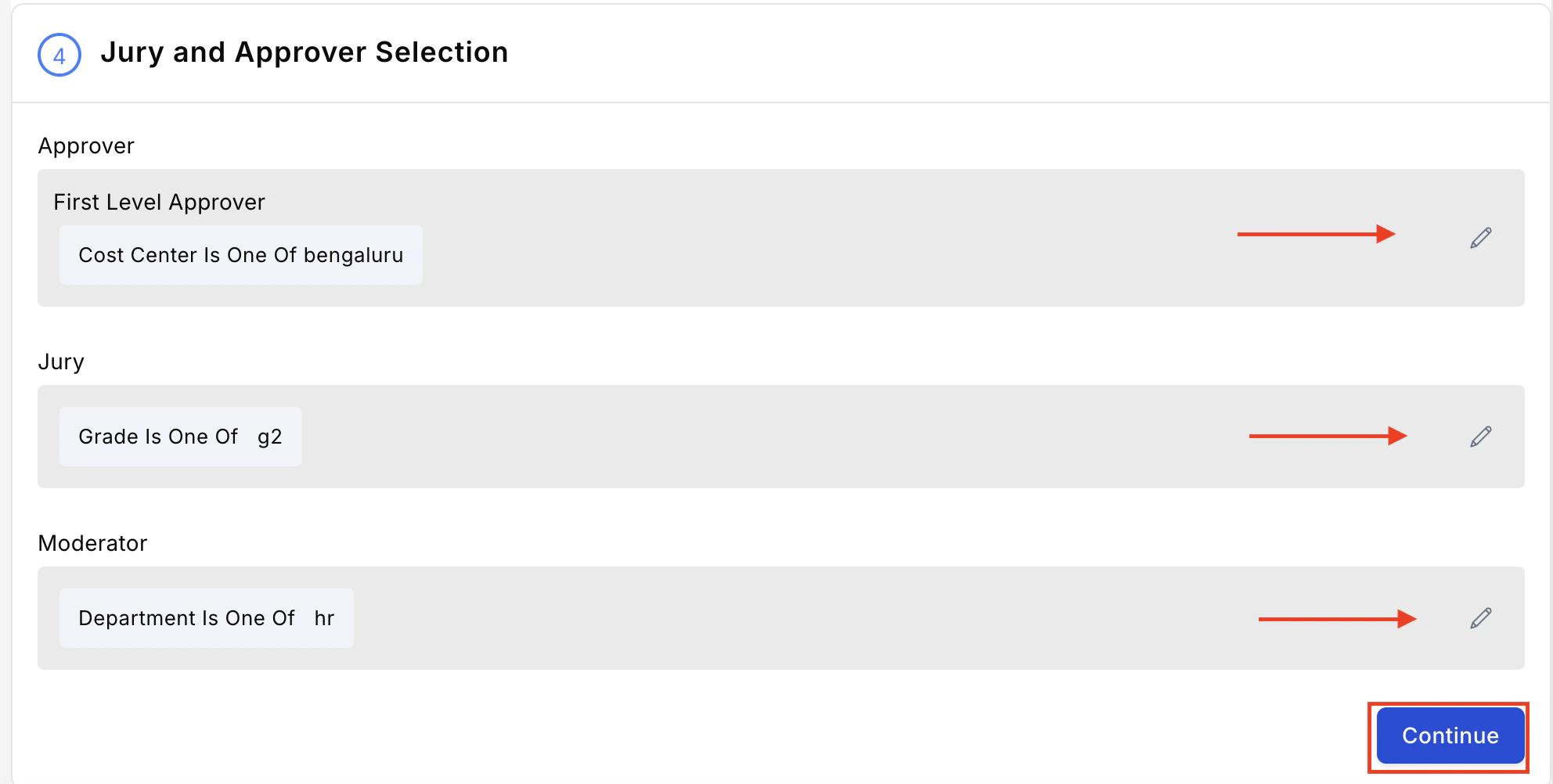
Configure advanced settings
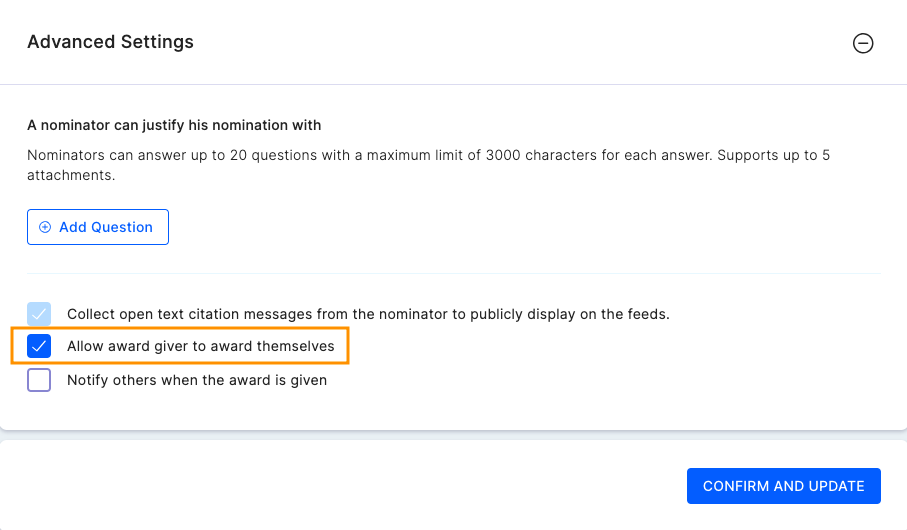
A. Set Questions for Nominator — Create up to 20 questions (multiple-choice or short text) for nominators to answer.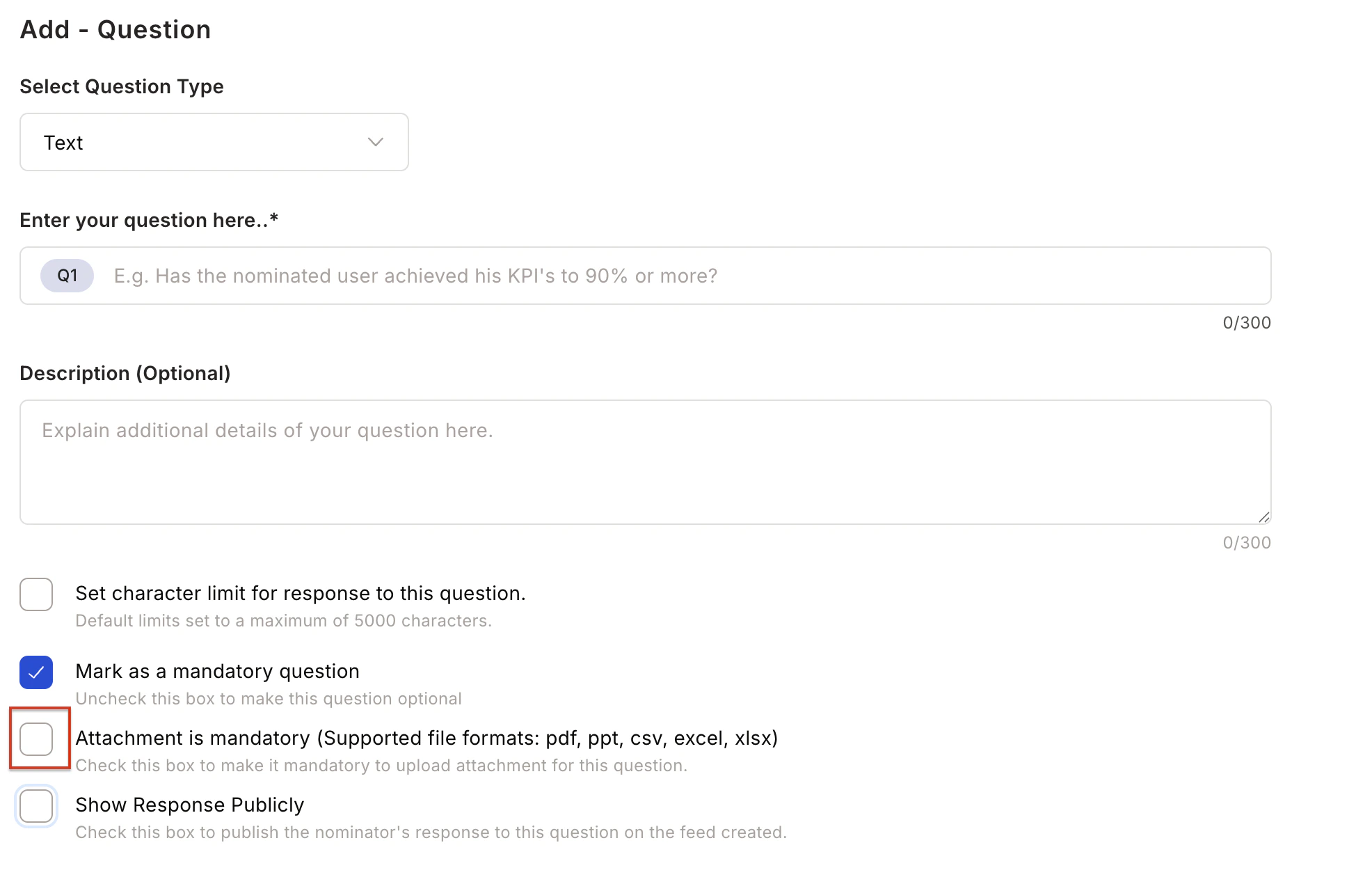
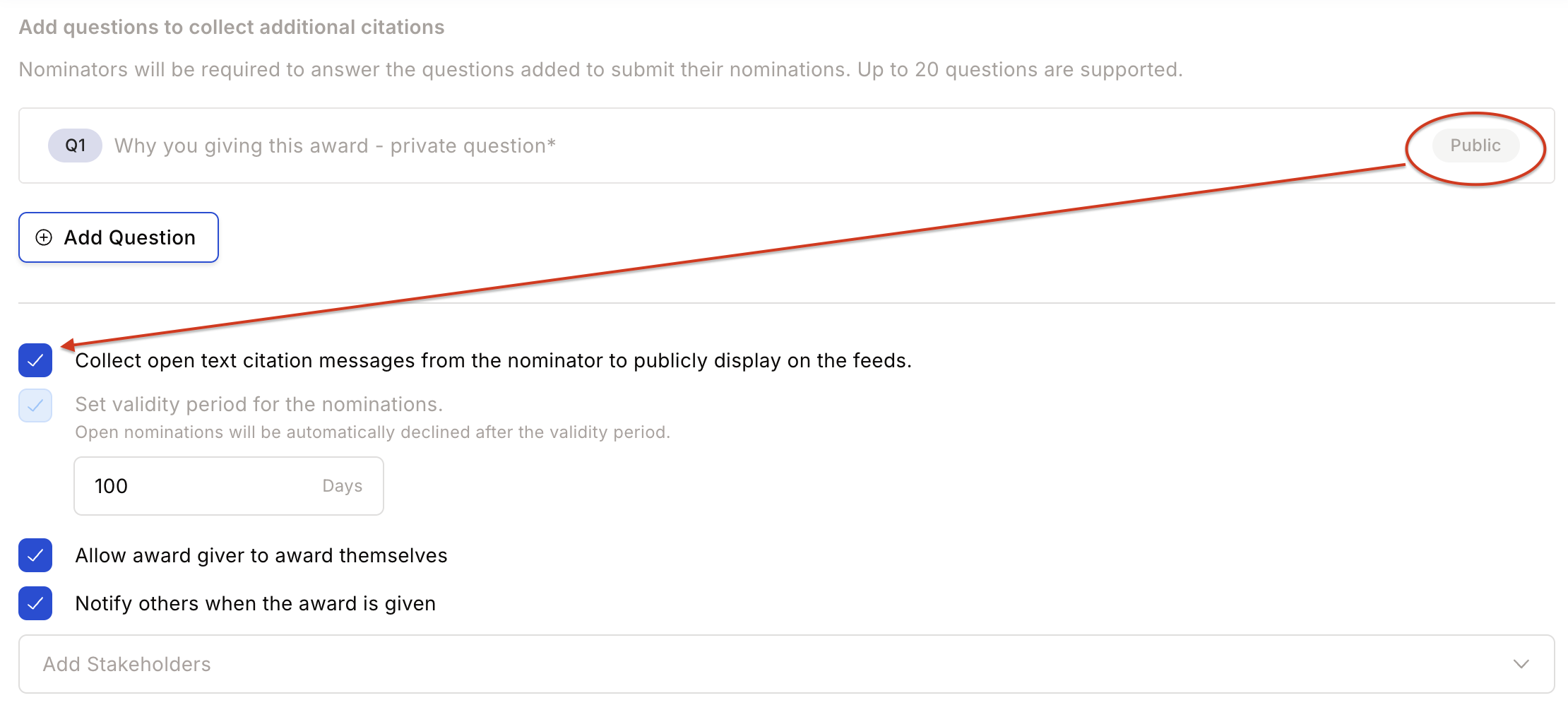
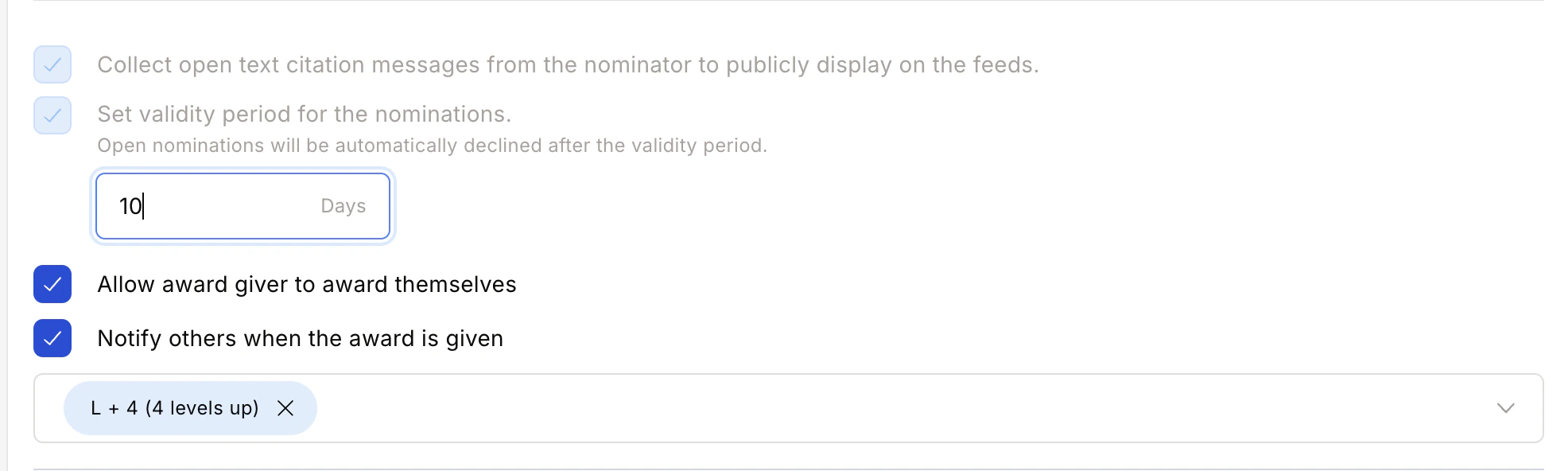

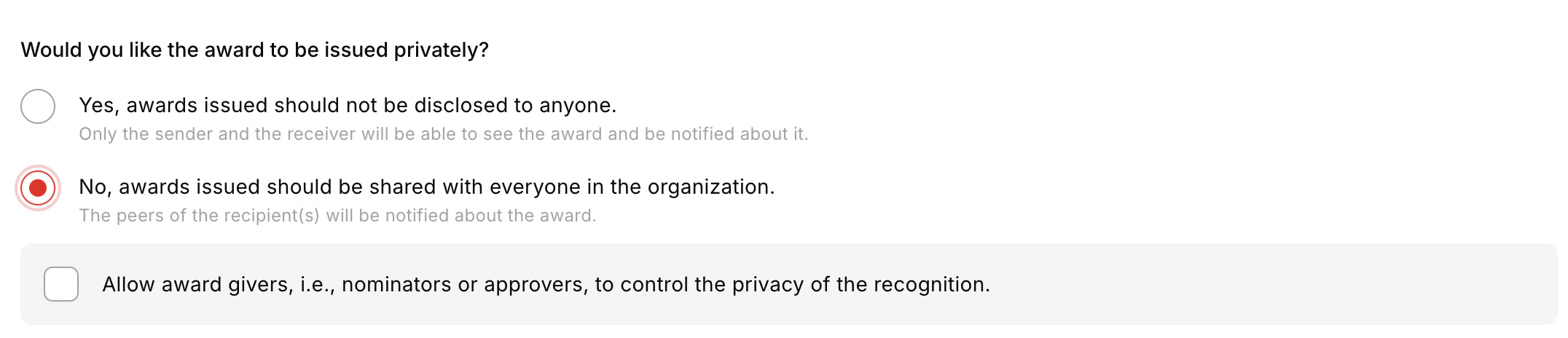
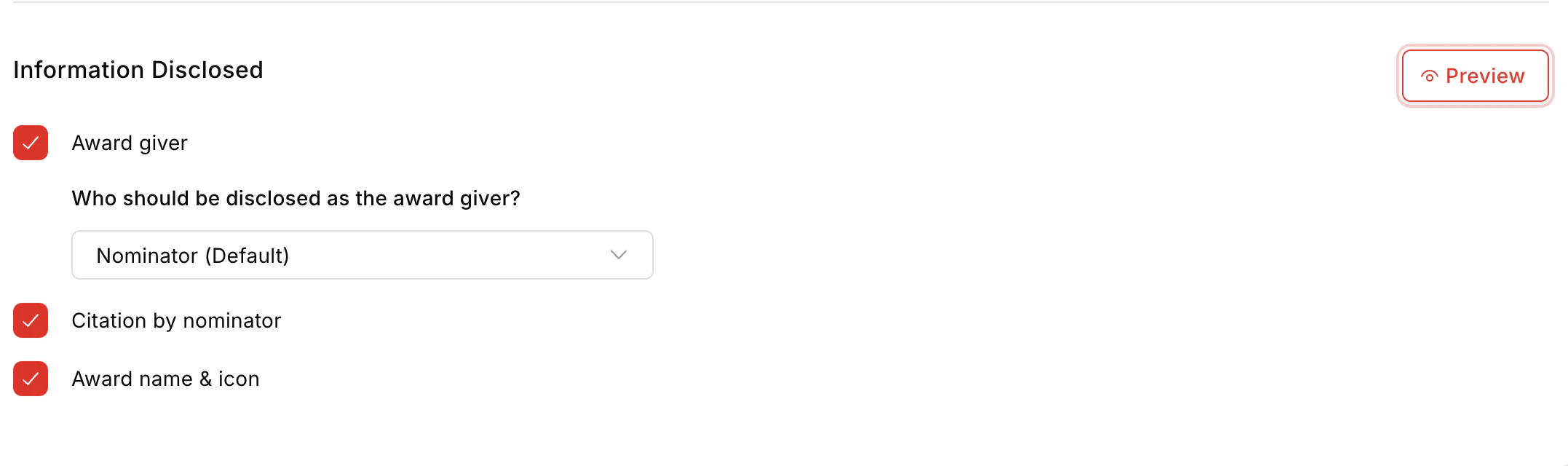

- Award Visibility — Public (visible to all) or Private (visible only to sender and recipient).
- Information Disclosed — Show/hide Award Giver, Citation by Nominator, and Award Name and Icon on the feed.
- Privacy Control — Centrally / Public / Private / By Nominator/Approver.
- Team Size — Minimum 1, maximum 50 members.
FAQs
Who should I include in a jury panel?
Who should I include in a jury panel?
Include senior leaders, managers, or employees who can objectively evaluate nominations. A group of 3–4 members ensures balanced decision-making.
Can a nominator nominate themselves?
Can a nominator nominate themselves?
Yes. Self-nomination can be enabled during the award setup under Advanced Settings.
Can the award be kept private?
Can the award be kept private?
Yes. Awards can be configured as public (visible to all) or private (visible only to sender and recipient).
Can I restrict nominations to specific departments or roles?
Can I restrict nominations to specific departments or roles?
Yes. Define eligibility criteria for nominators, nominees, and approvers using filters during award setup.
What rating scales are supported?
What rating scales are supported?
The jury can rate nominations using a 10-point scale or a binary (Approve/Decline) scale.
How can I give ratings as a jury member?
How can I give ratings as a jury member?
Go to Recognition Approvals > View all nominations > Select the award > Jury View tab > Select the nomination > Rate accordingly.
How can I approve or decline nominations as a moderator?
How can I approve or decline nominations as a moderator?
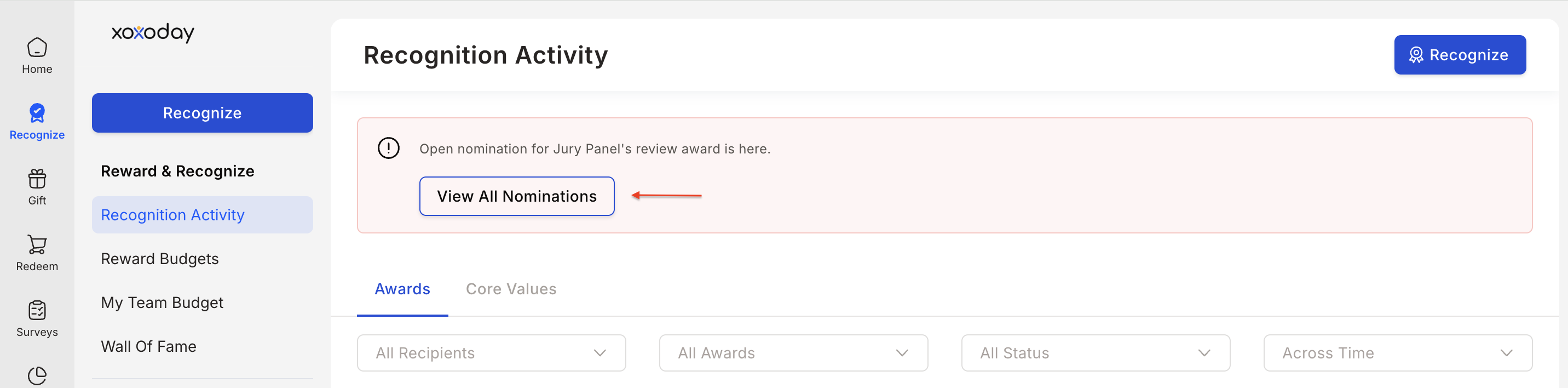
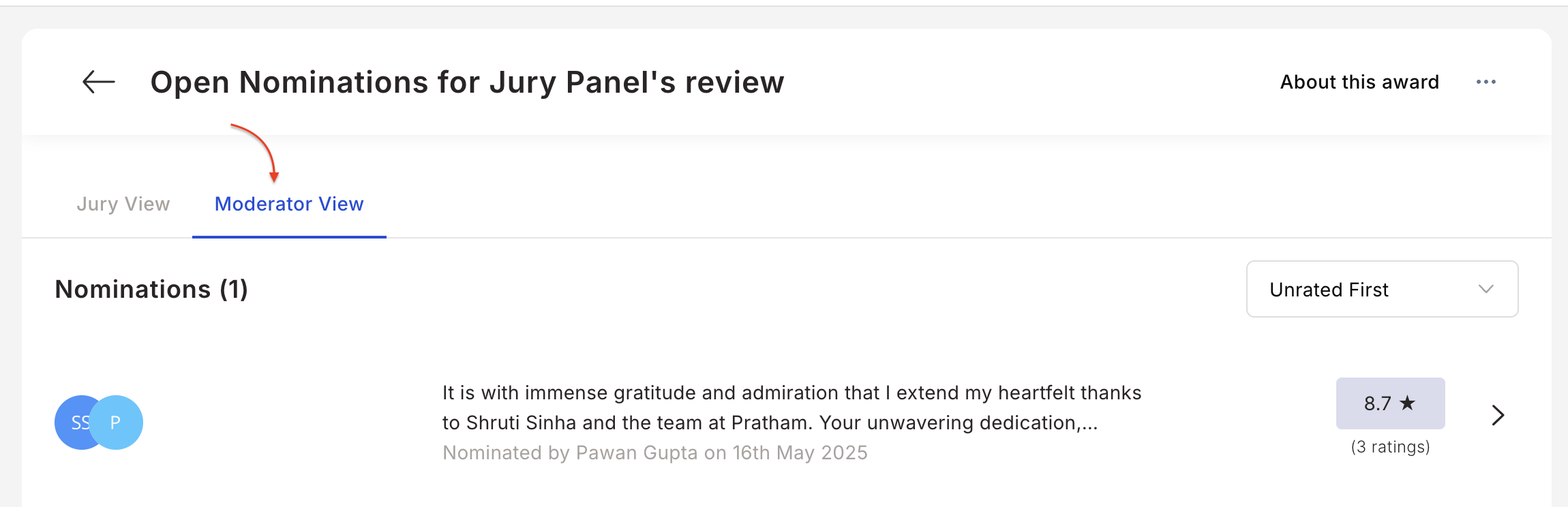
Go to Recognition Approvals > View all nominations > Select the award > Moderator View tab > Select the nomination > Approve or Decline.