
Steps to create an approval-based award
Navigate to the Admin Dashboard
Go to the Admin Dashboard by clicking Reports and Admin, then navigate to Programs > Awards & Core Values > Create Award.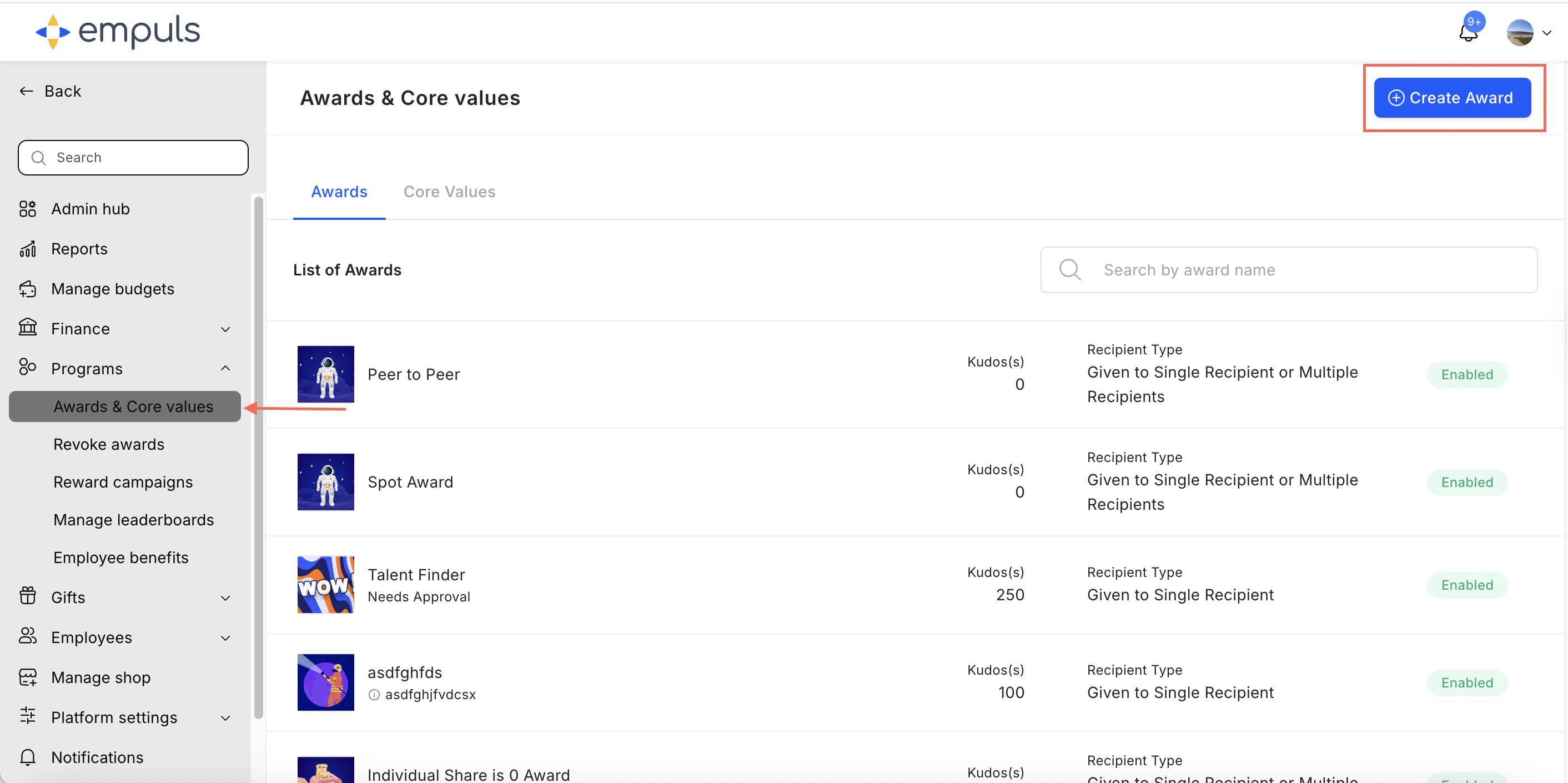
Select the award type
Select Award that needs approval and click Proceed.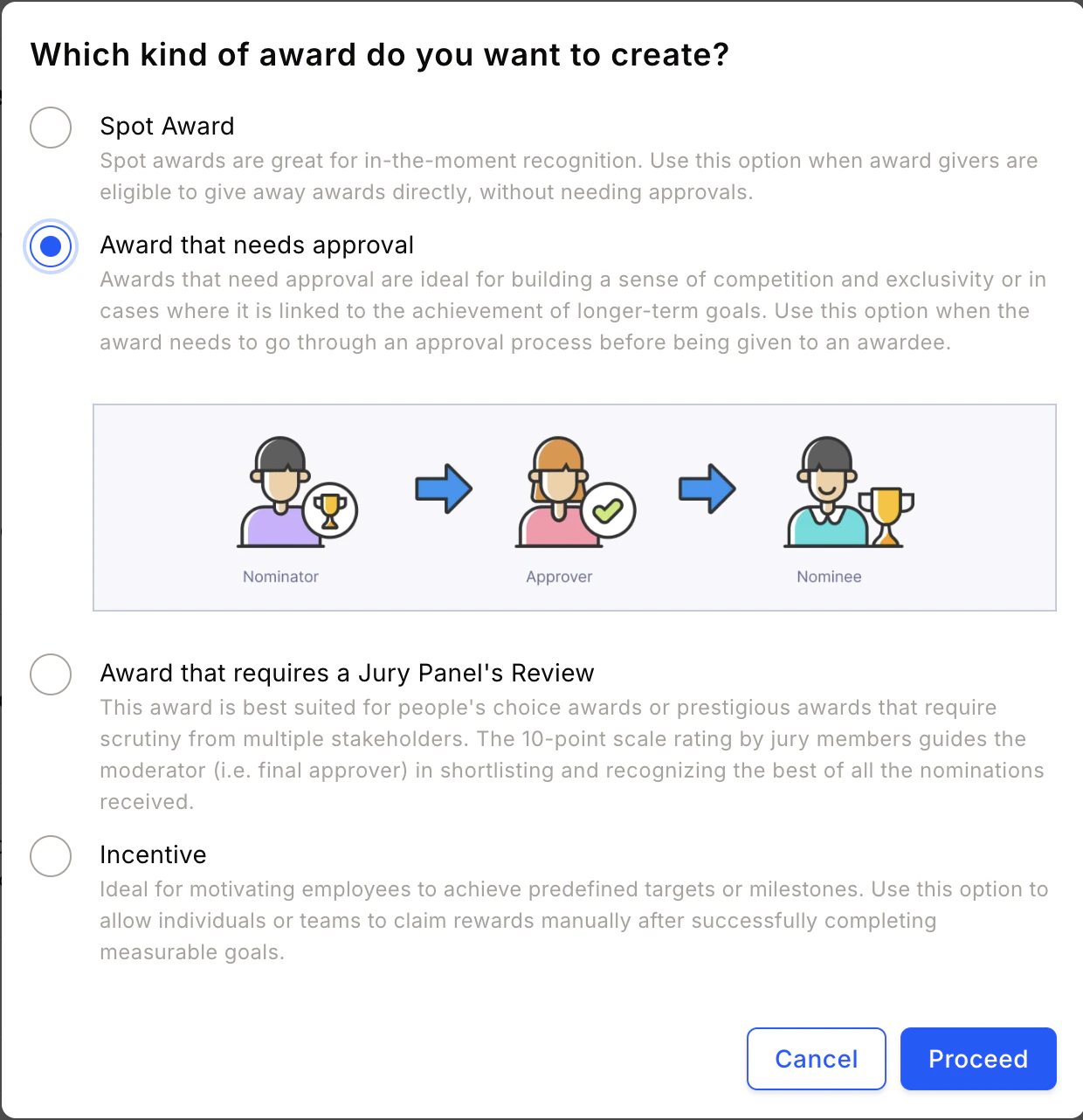
Best suited for high-value awards linked to long-term goals. Select this option when the award requires approval before being presented to the awardee.
Add award details
Fill in the award name, description, image, and recipient type, then click Continue.An award recipient can be an individual, a team, or kept flexible — letting the award presenter decide.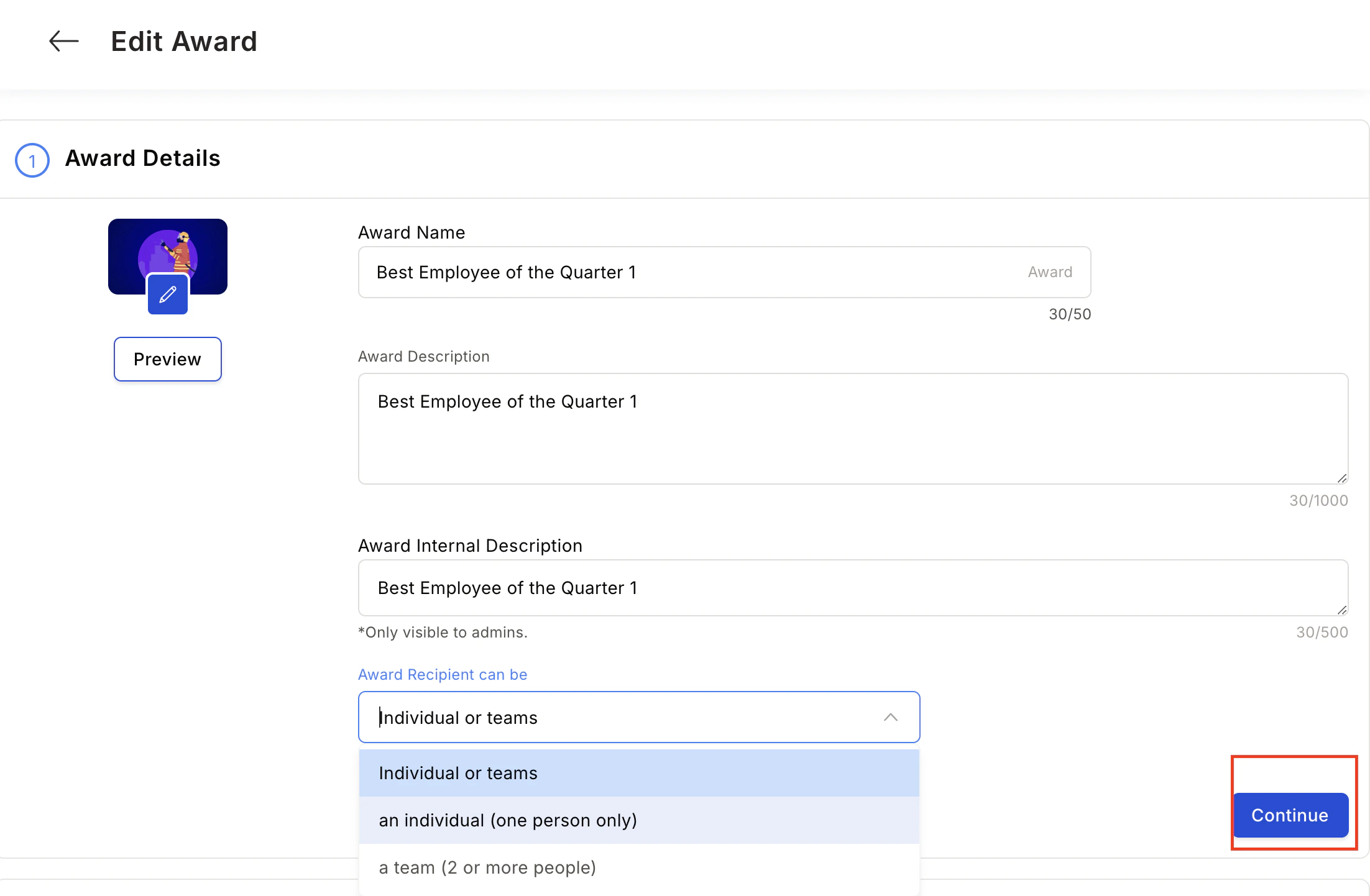
Configure the reward
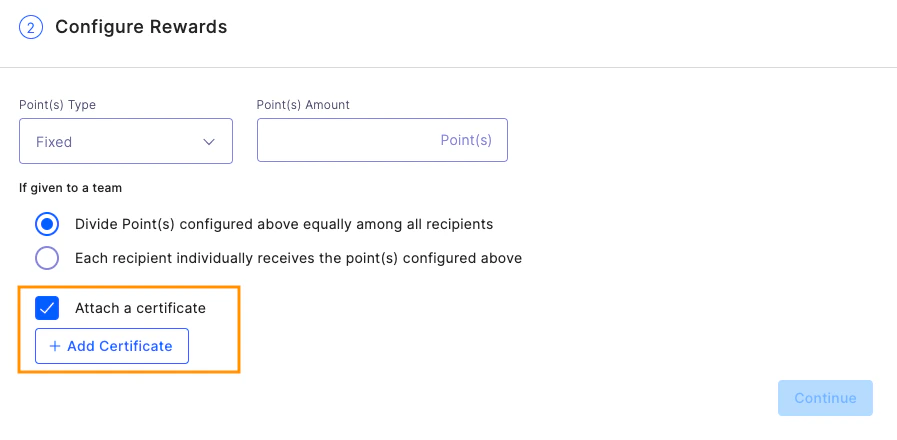
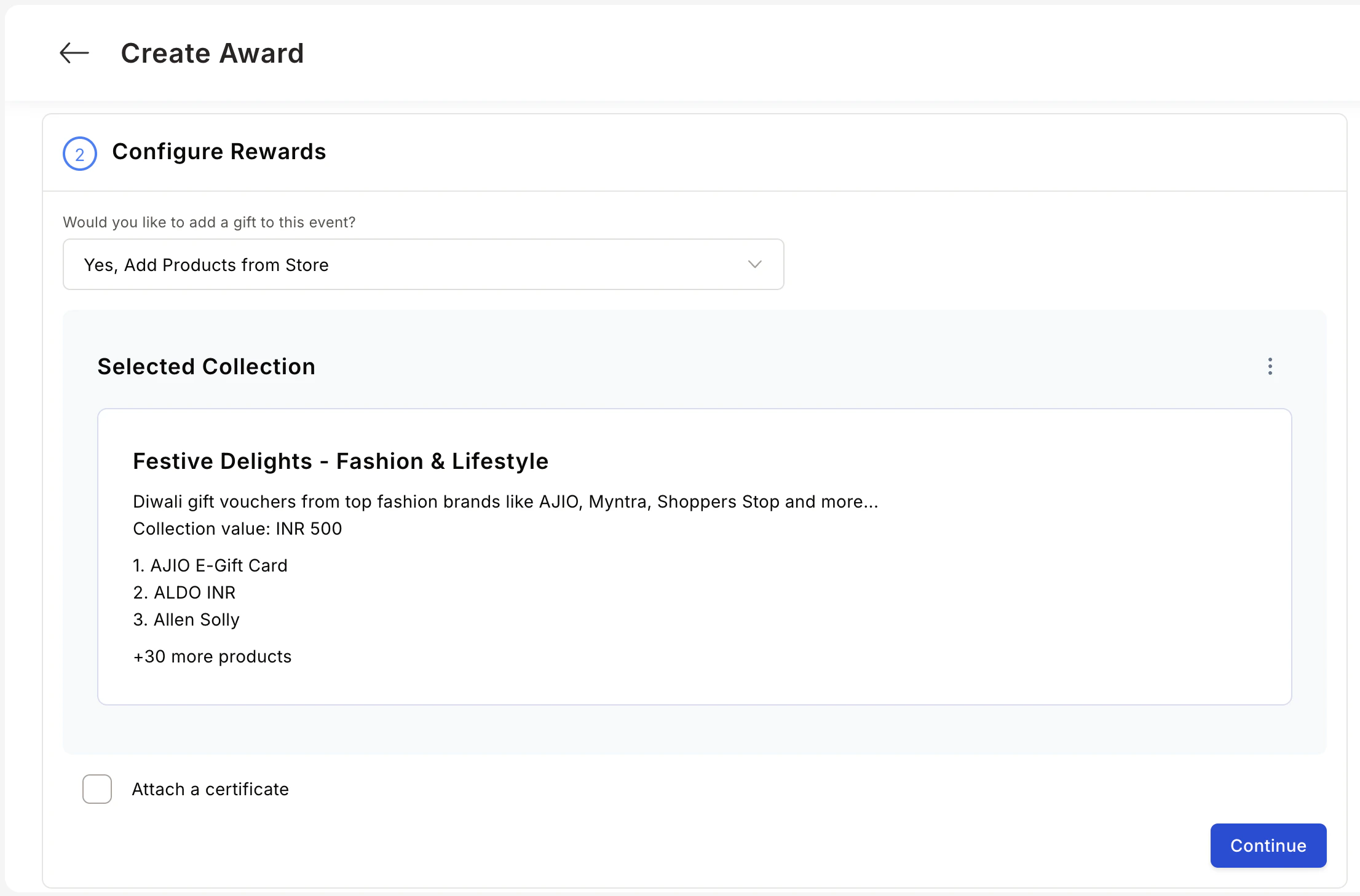
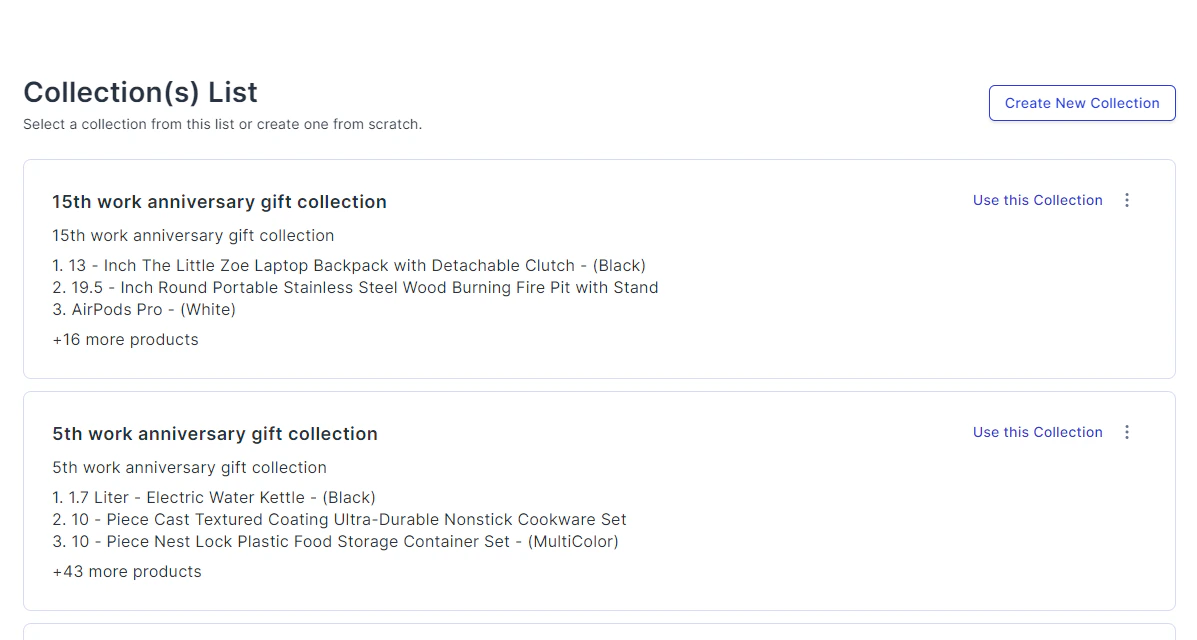
Choose whether to reward points or gift cards and merchandise.For spot awards, points can be: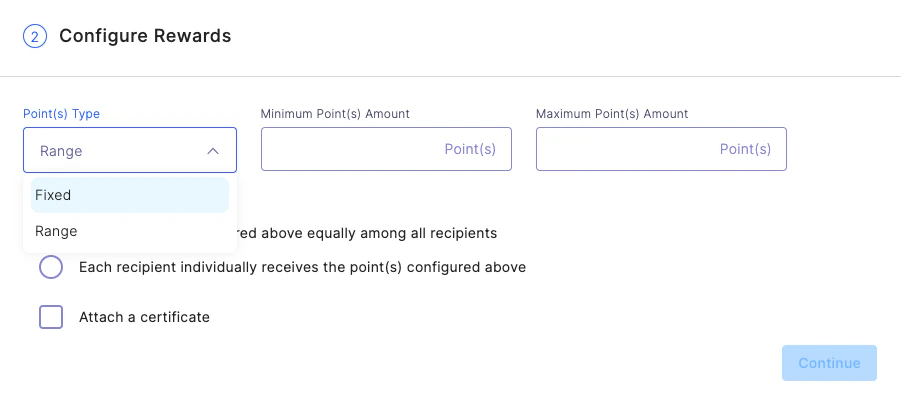
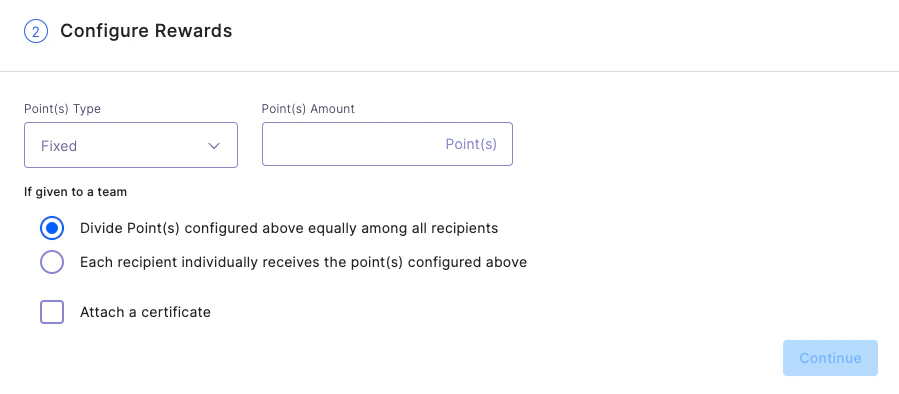
- Fixed — The same points every time; the presenter cannot modify.
- Range — The Super Admin sets a min/max range; the presenter allocates within it.
Define nominee, nominator, and approver eligibility
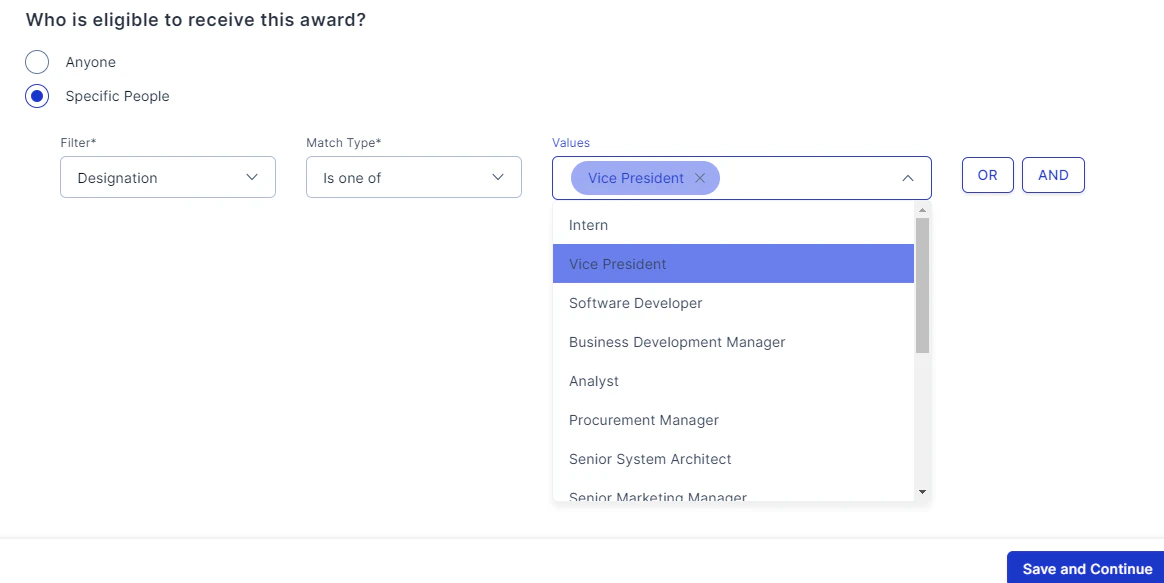
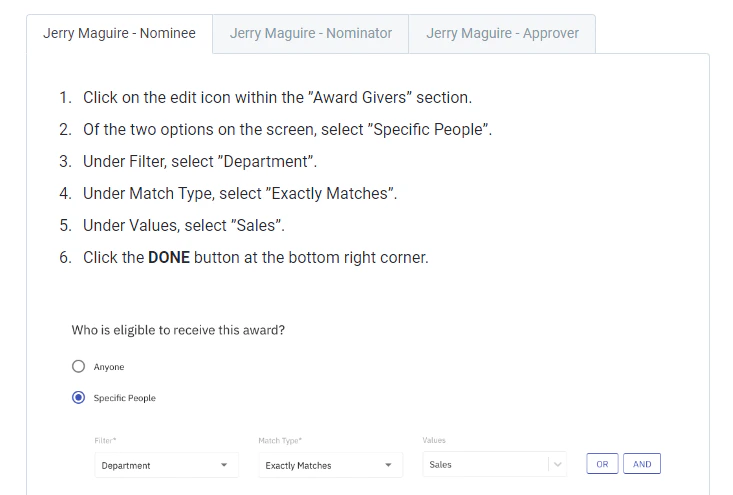
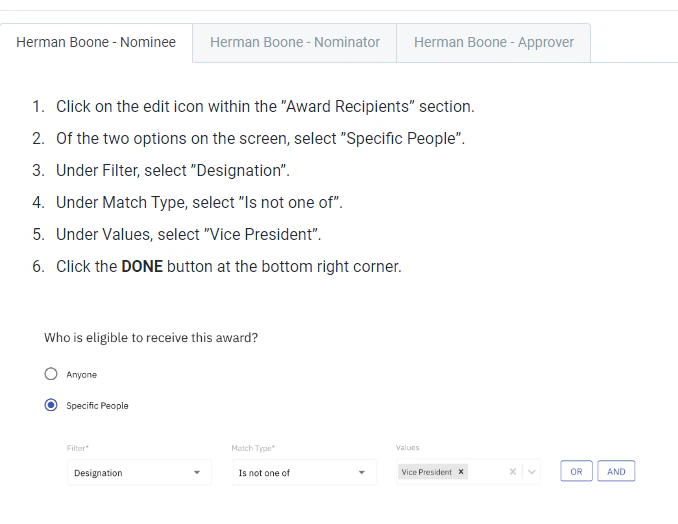
Restrict nominations to specific groups by setting constraints on who can nominate, who can be nominated, and who can approve.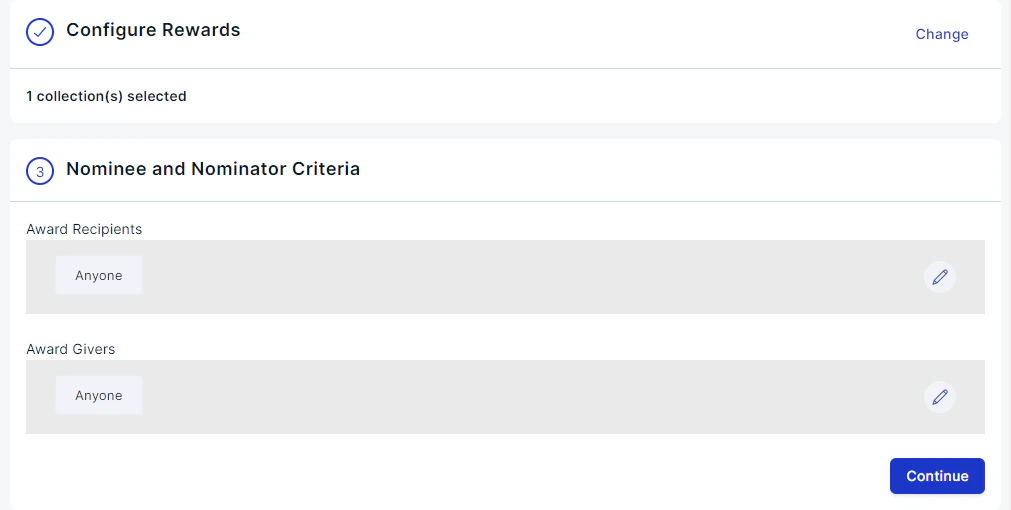
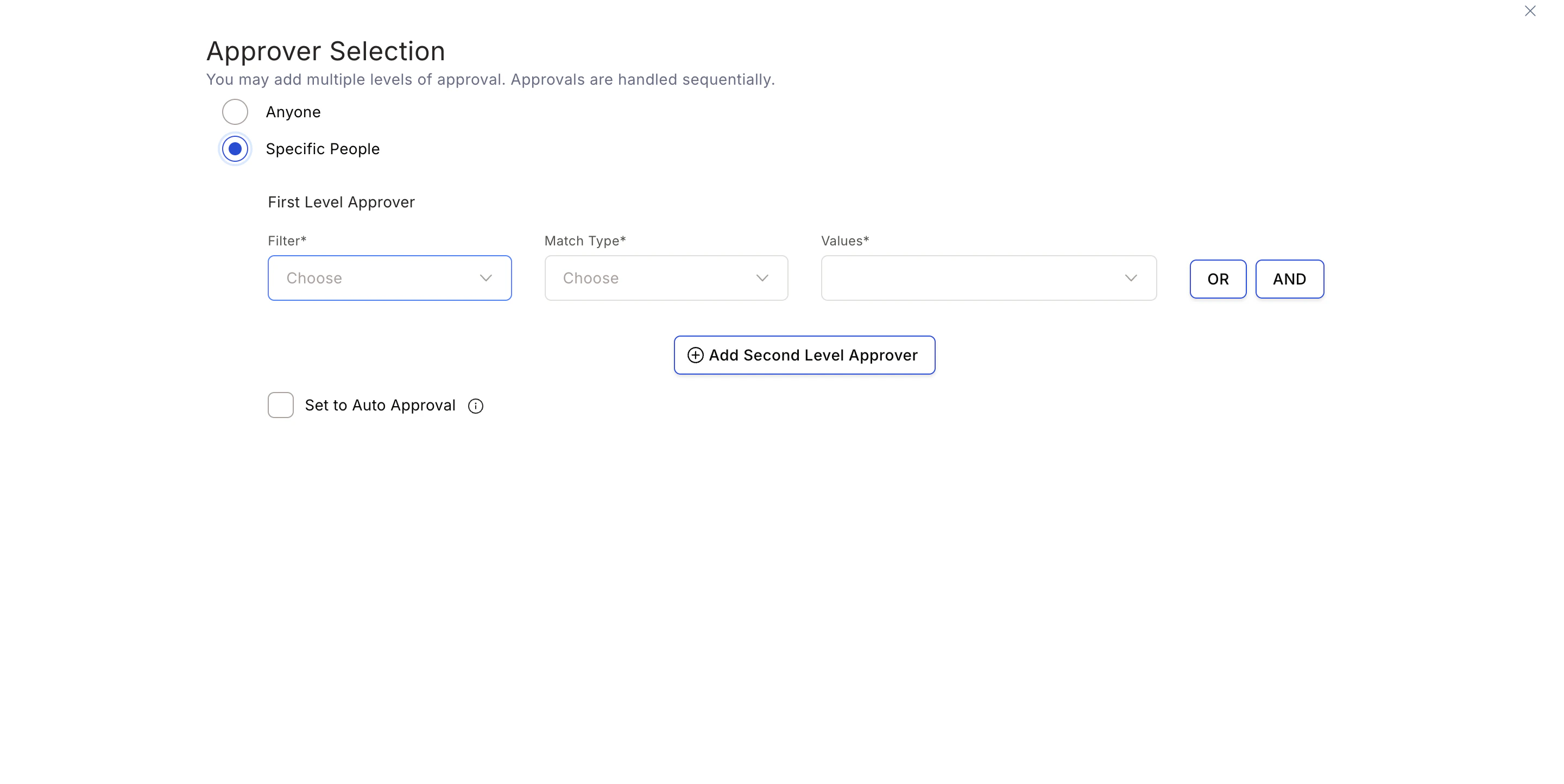
Configure approver selection
Click the pencil icon next to the Approver Selection card. Choose between: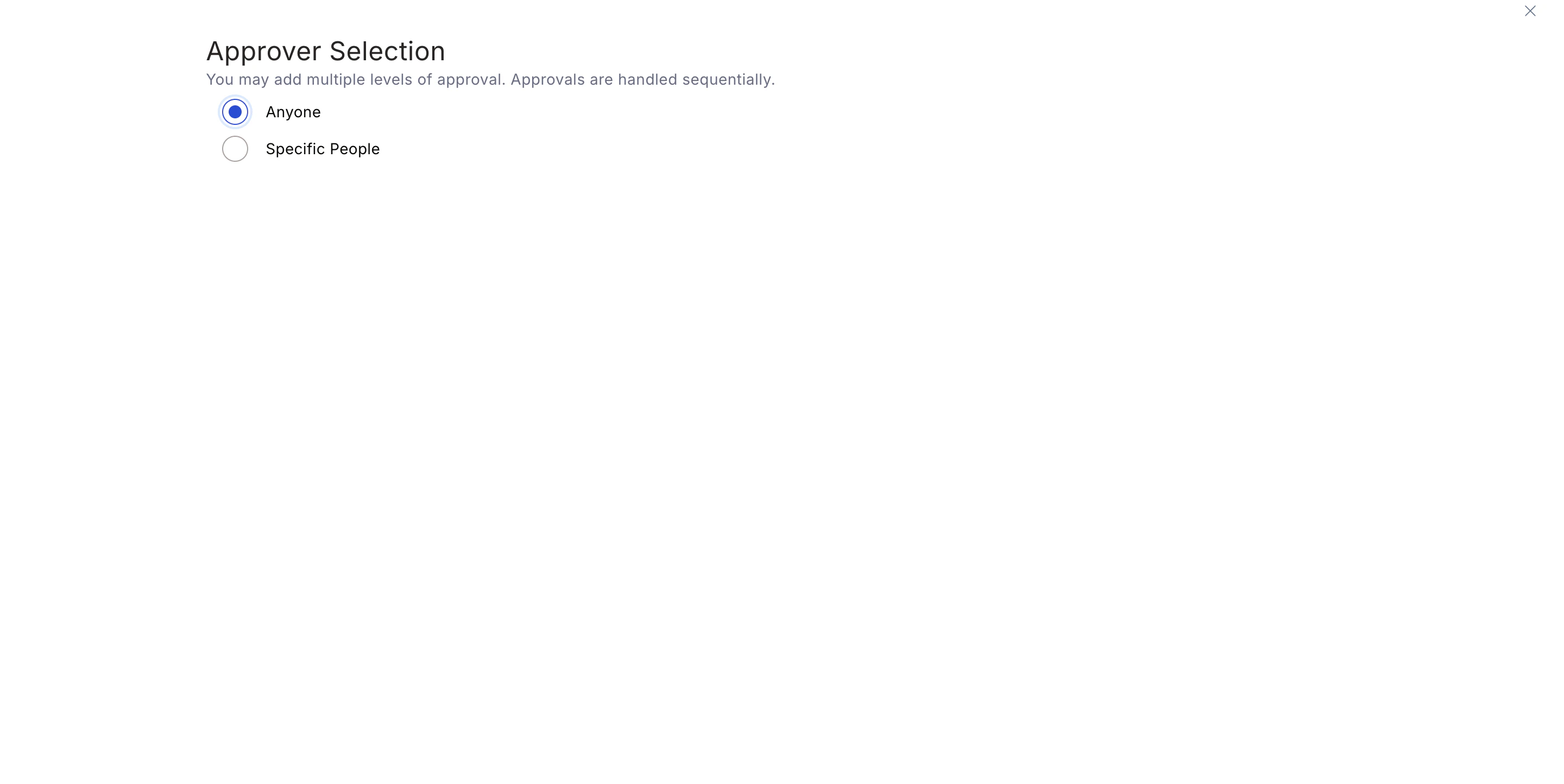
- Anyone — Any user can approve the award.
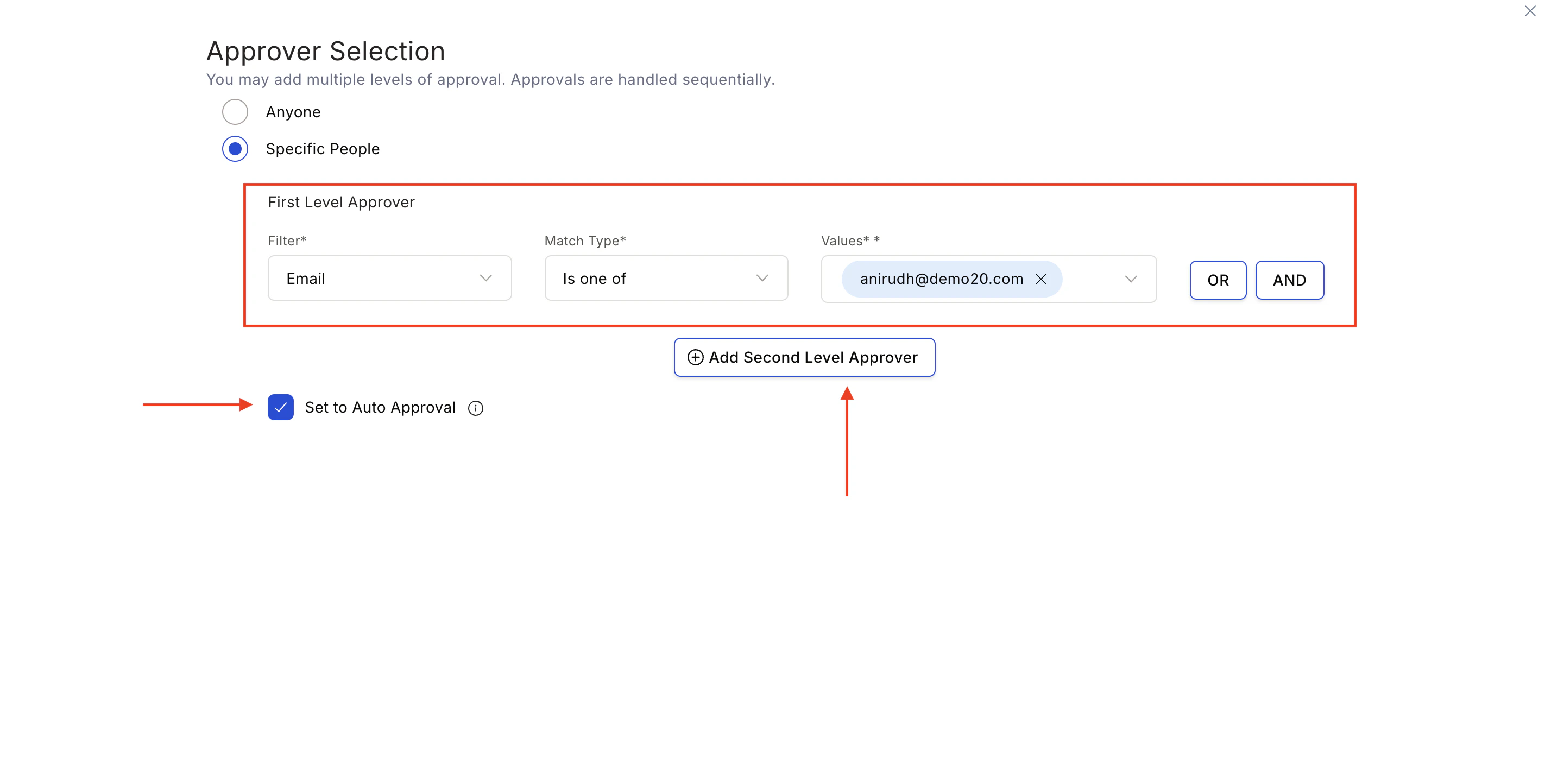
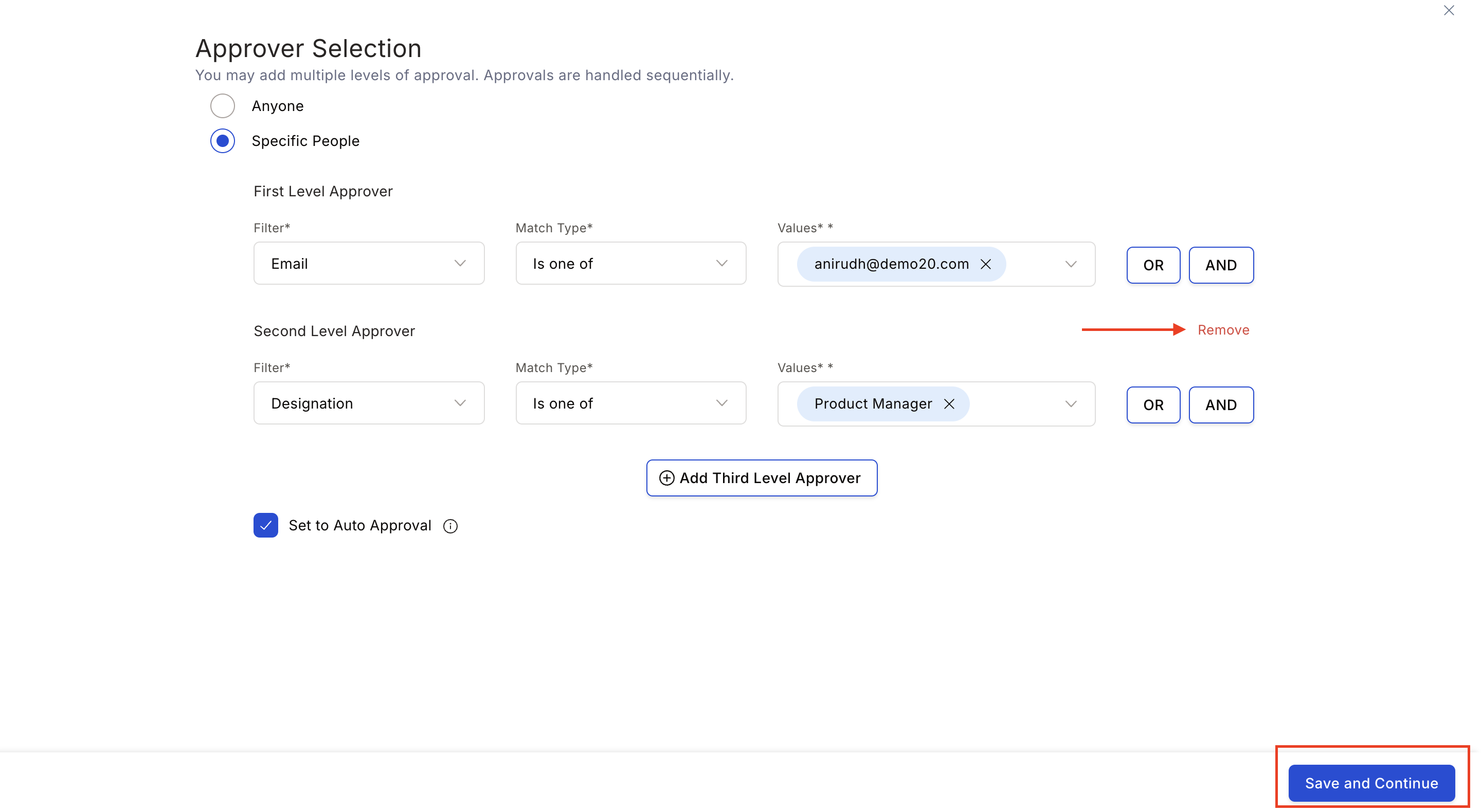
- Specific User — Define one or more specific approvers. Use filters to select the approver type and add multiple approval levels.
If an approver marked for Auto-Approval does not have sufficient budget, all Super Admins receive an email notification that the nomination is in a pending state.
Configure advanced settings
A. Set Questions for Nominator — Create up to 20 questions (multiple-choice or short text) that nominators must answer. If a text-based question is mandatory, you can also mark an attachment as mandatory.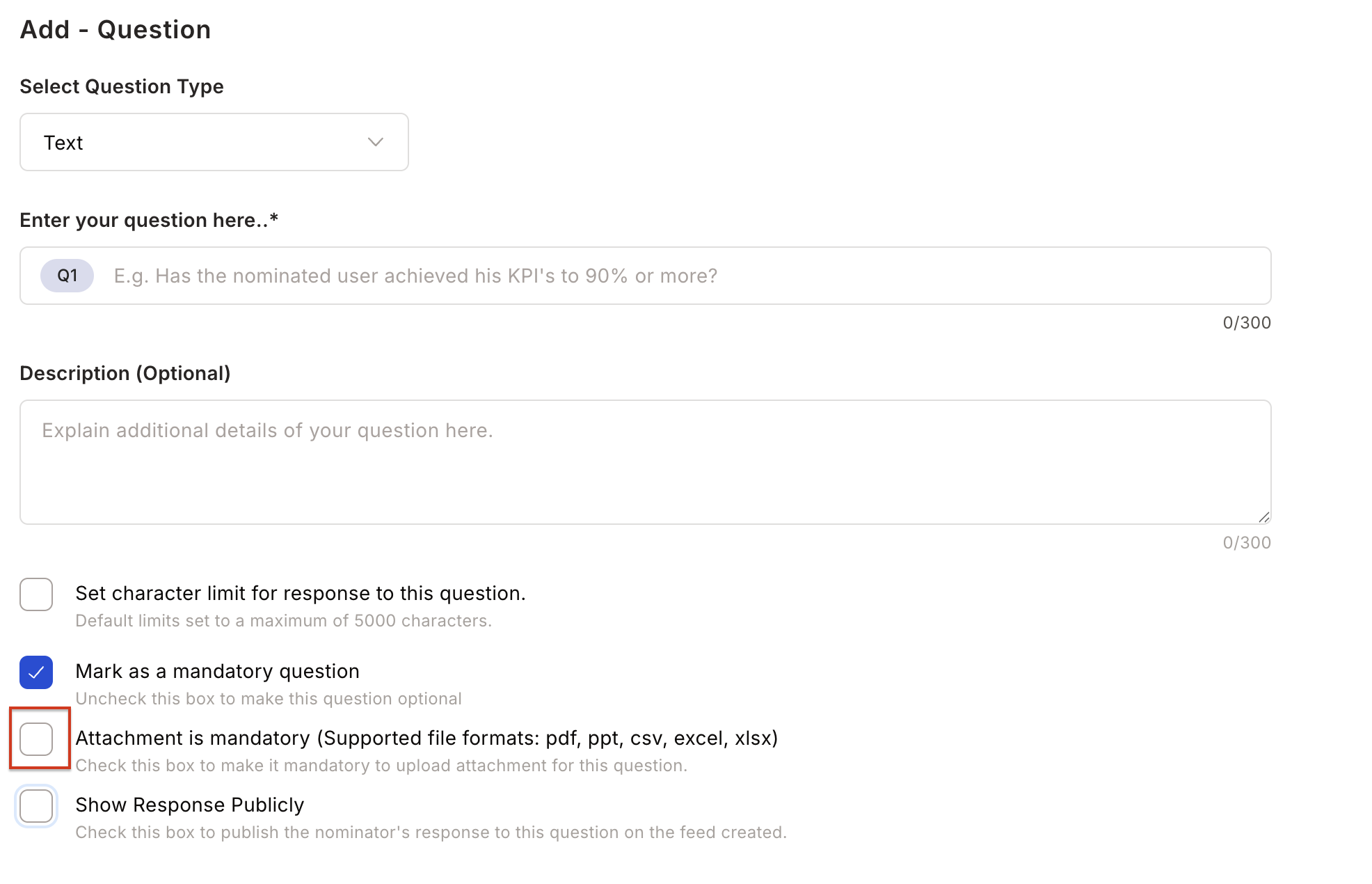
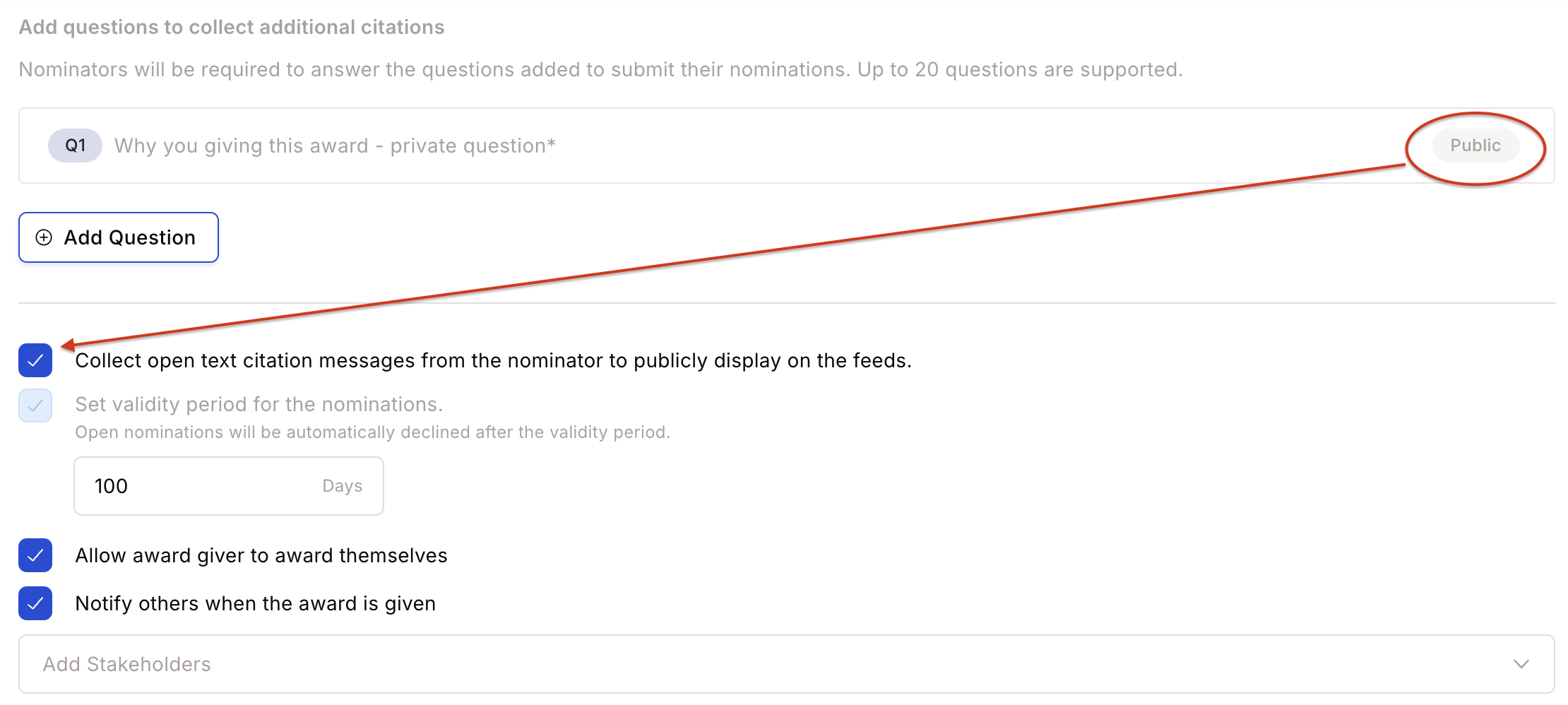
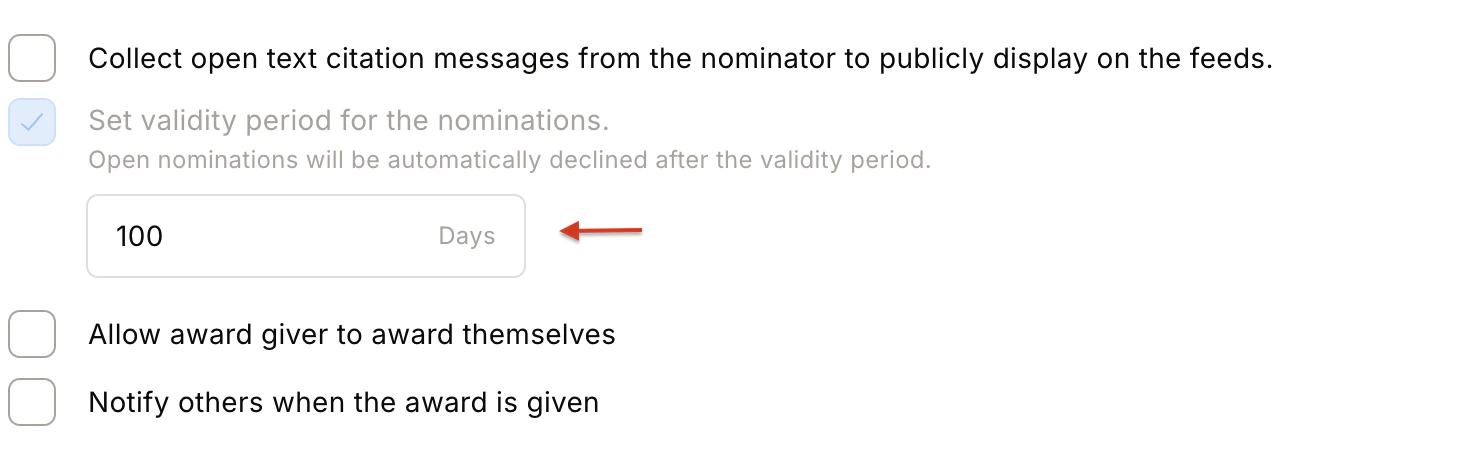
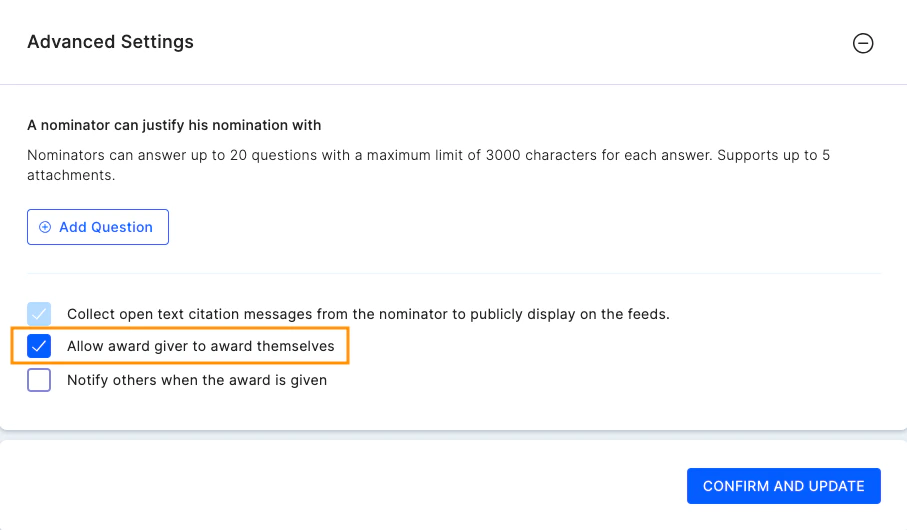
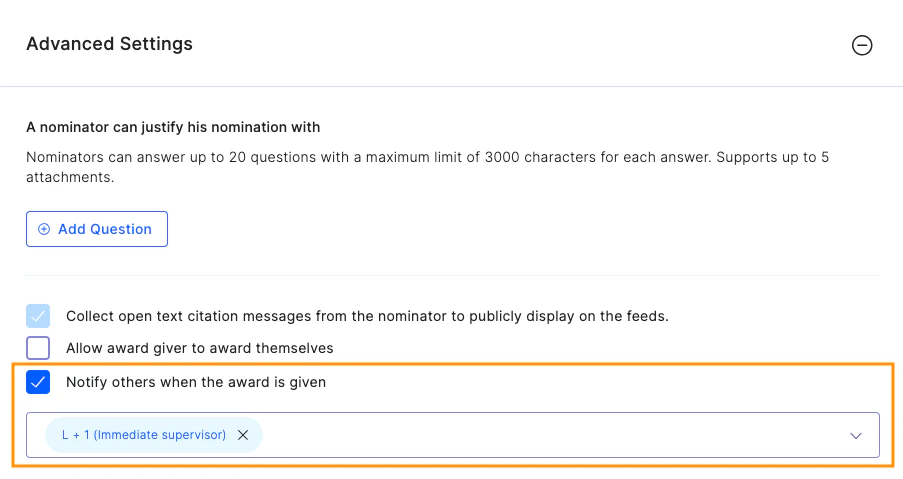
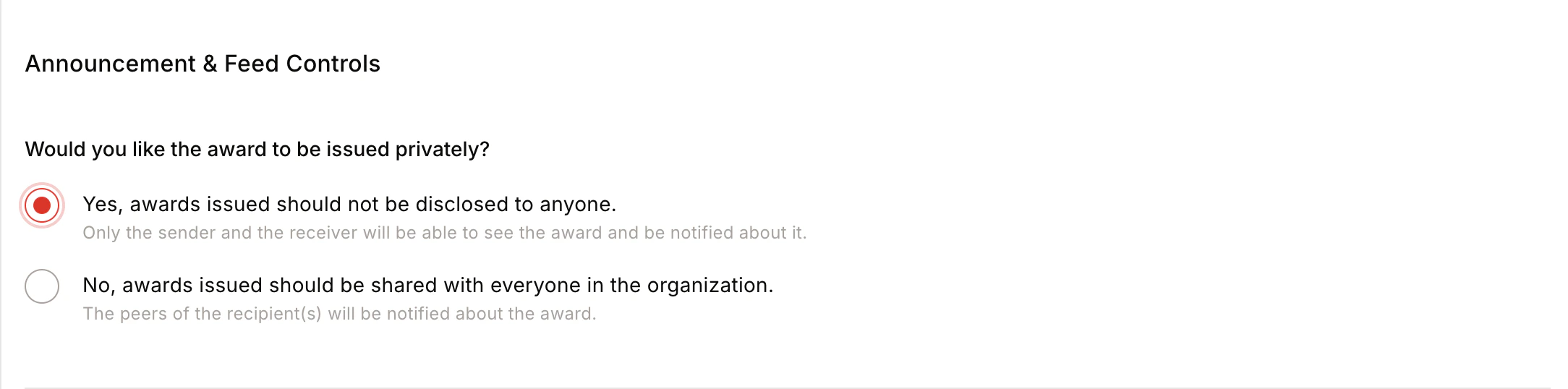
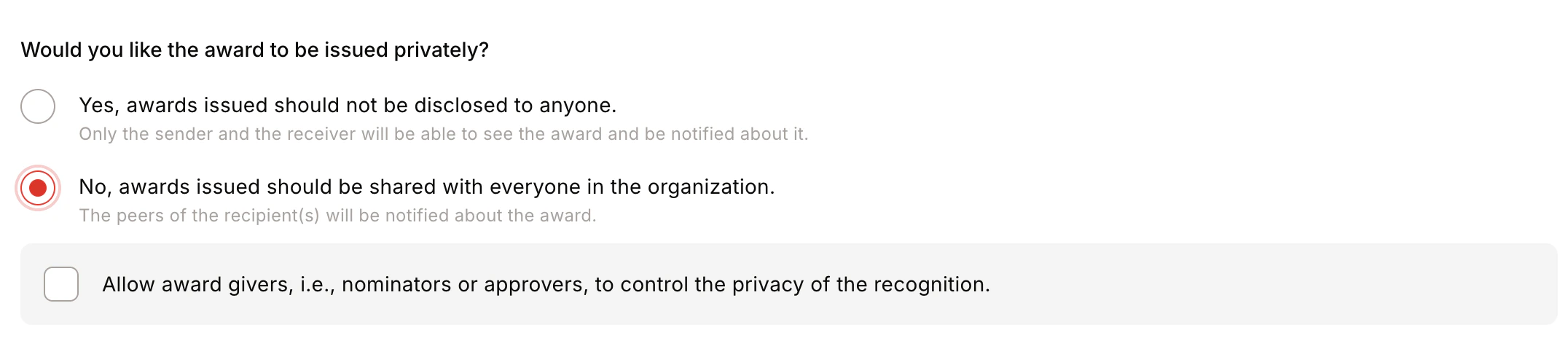

- Award Visibility — Post publicly on the feed, or keep private (only sender and receiver can see it). You can also allow nominators/approvers to control visibility at the time of giving.
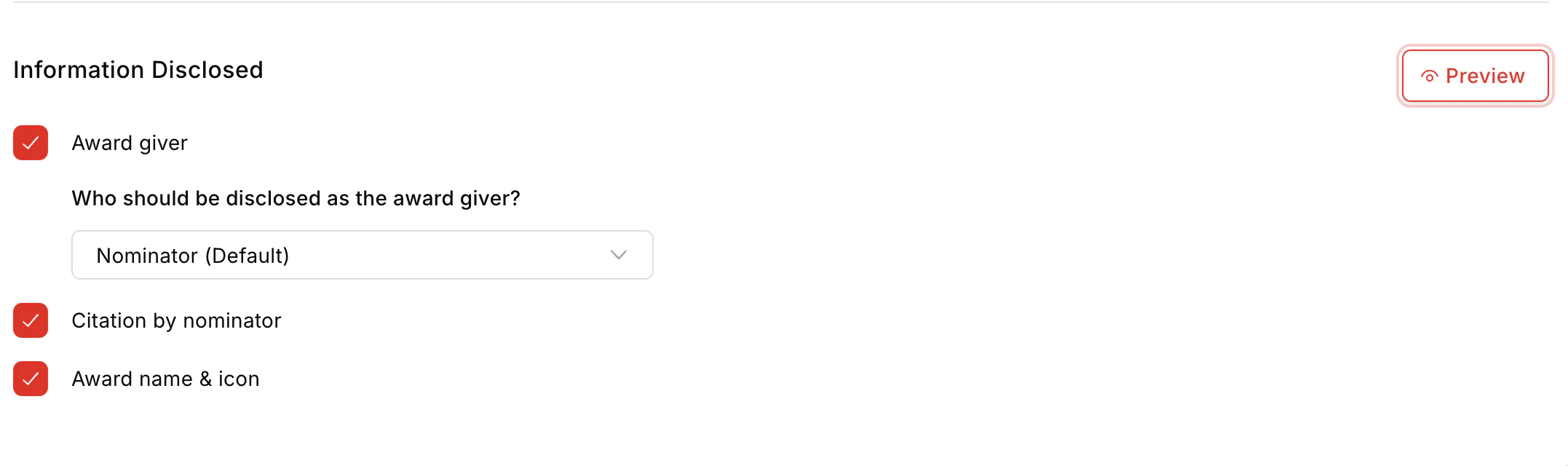
- Information Disclosed — Choose whether to show the Award Giver, Citation by Nominator, and Award Name and Icon on the feed.
- Privacy Control:
- Centrally — Award is posted publicly and visible to all group members.
- Public — Visible to all members of the group where recognition is posted.
- Private — Only the nominator and nominee can see the award feed.
- By Nominator/Approver — Privacy is set by the nominator or approver at time of giving.
- Team Size — Minimum 1, maximum 50 members.
The awardee’s teammates are notified by email to crowdsource wishes for the award recipient.