

Every time you’re recognised, you earn points that have real monetary value. The Empuls rewards catalog spans over a dozen categories — digital gift cards, physical merchandise, travel, experiences, charitable donations, and more — available across 100+ countries. Open the rewards store in your tenant atDocumentation Index
Fetch the complete documentation index at: https://empuls.mintlify.app/llms.txt
Use this file to discover all available pages before exploring further.
https://<your-empuls-url>/home/redemption. This guide takes you from checking your balance through completing a redemption and tracking your order.
Check your points balance
You can see your available points in two places:- Dashboard — Your balance appears on the right side of the home screen under My Points.
- Shop — When you open the Shop from the left navigation, your balance is displayed at the top of the page.
Redeem your points
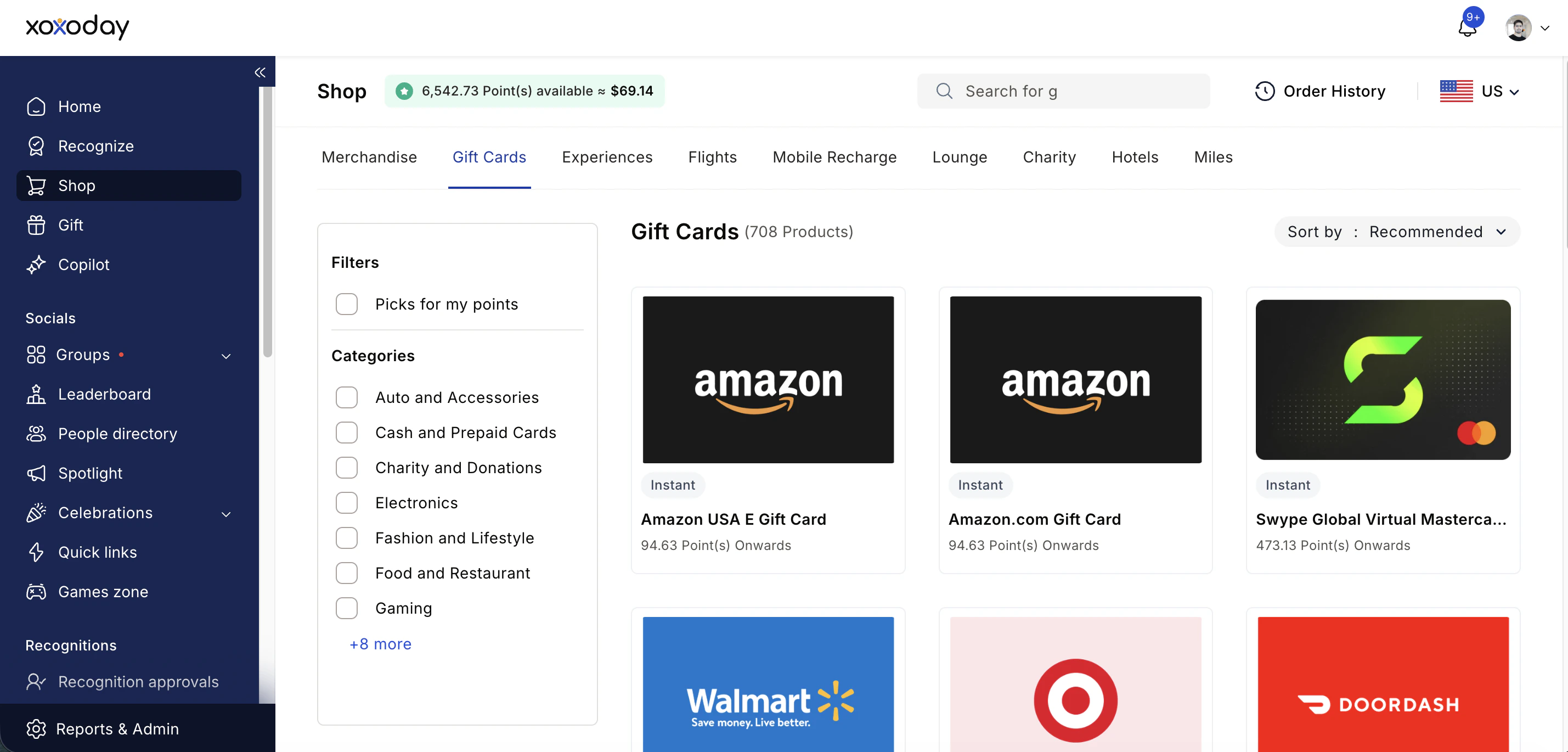
Browse by category
Use the category tabs to explore available rewards. The catalog includes:
- Gift Cards — Amazon, Starbucks, Apple, Netflix, Spotify, Uber Eats, Airbnb, and hundreds more
- Merchandise — Apparel, accessories, office items, and home goods
- Company Store — Items curated by your organisation
- Health & Wellness
- Experiences — Sports, dining, wellness, adventure, classes, and travel experiences
- Flights and Hotels
- Mobile Recharge — Prepaid and postpaid
- Lounge access, Miles, and Charity donations
Filter and sort
Use the filter to narrow results by category or subcategory. Enable Picks for my points to automatically show only items within your current balance. Sort by Recommended, Recently added, Price (Low to High), or Price (High to Low).To view products from another country, change the country selector in the top-right corner of the Shop.
Select your item
Click on a product or gift card. For merchandise, choose your preferred colour and size if available. For gift cards, enter the desired denomination and choose a **quantity. ** 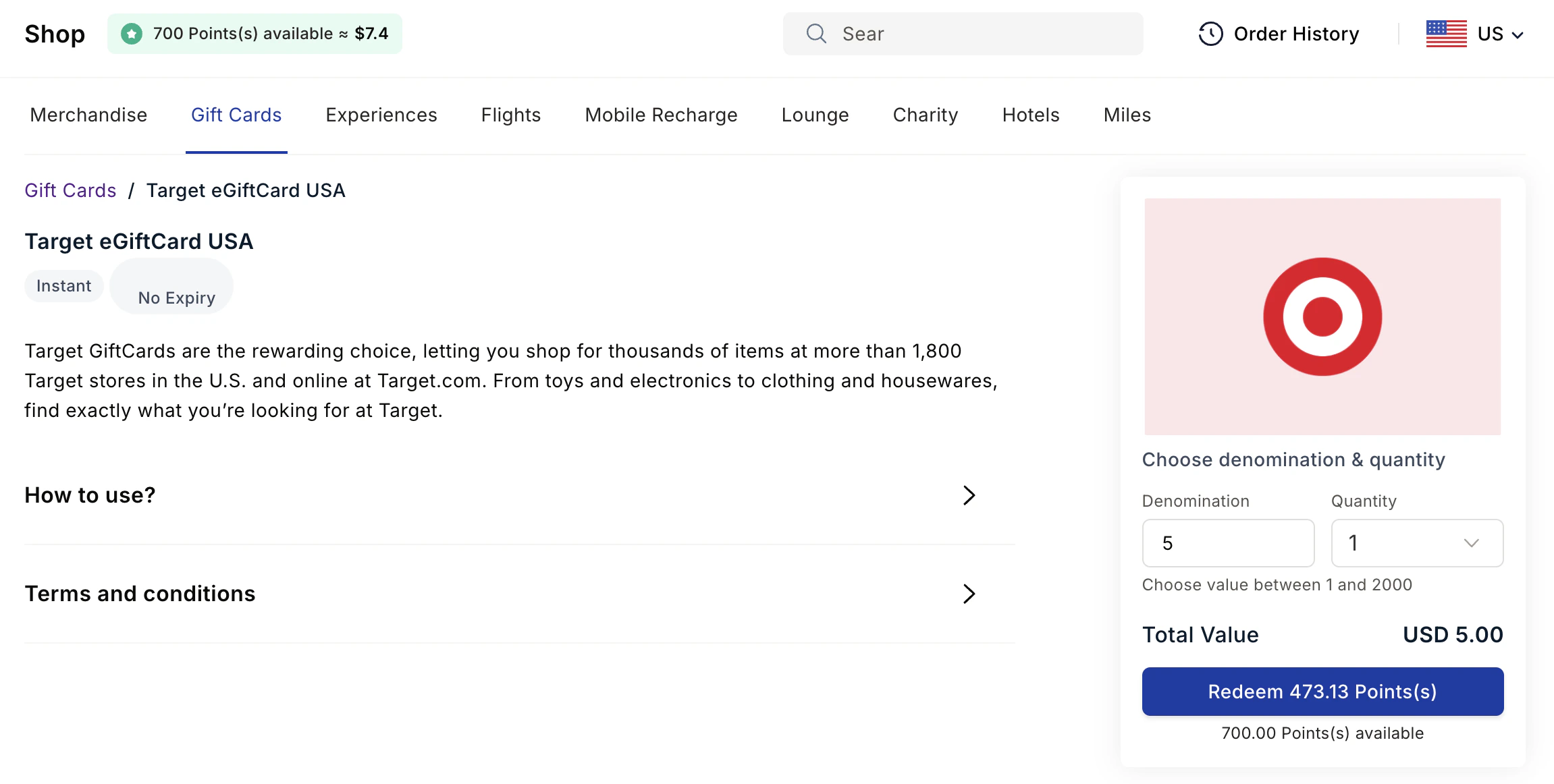
Multiple merchandise products can be added to your cart and redeemed in a single checkout. For all other reward types (gift cards, experiences, flights, etc.), you redeem one item at a time.
Review your cart and proceed
For merchandise products, click Go to Cart to review your order summary, then click Proceed to shipping details. For gift cards, click Redeem Points.
Enter shipping details (Only for merchandise)
For physical merchandise, enter your delivery address and any required information. Digital gift cards do not require a shipping address.
Complete the redemption
- If your points cover the full order, click Redeem Points to confirm.
- If your balance is insufficient, you’ll be offered a partial payment option — your points cover what they can, and you pay the remaining balance by credit card. The payment process is handled by Stripe and is PCI compliant.
Digital gift cards are delivered instantly to your registered email. Physical merchandise typically takes 3–15 business days depending on your location and the item.
View your account statement
Your account statement gives you a full transaction history — every point you’ve received, every redemption you’ve made, and your running balance.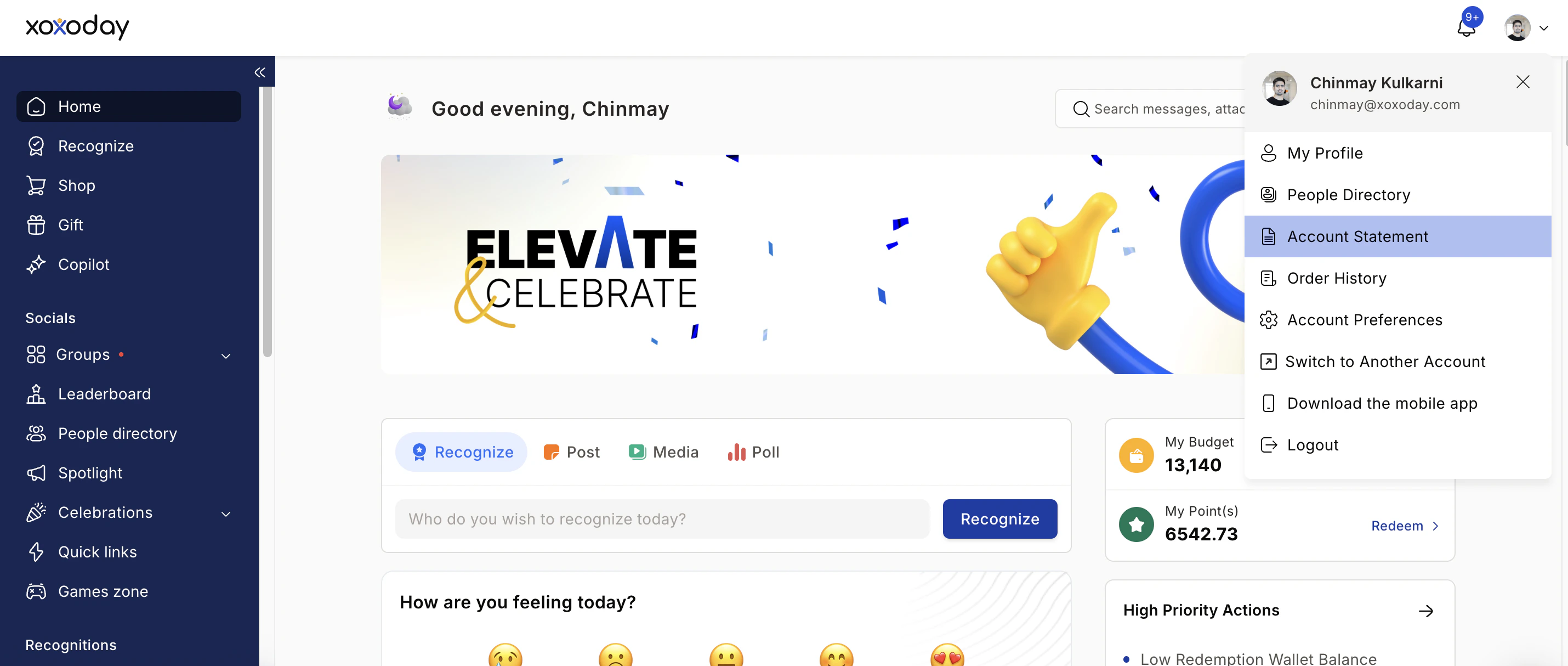
Read your transactions
Each row shows a Date, Description, Debit (points spent), Credit (points received), and Closing Balance after that transaction.
- A value in the Credit column means points were added — from recognition, awards, or admin adjustments.
- A value in the Debit column means points were deducted — from giving recognition to others or from a redemption.
Your closing balance updates after every transaction and reflects your real-time available points at that moment.
| Date | Description | Debit | Credit | Closing Balance |
|---|---|---|---|---|
| 01 Mar 2026 | Recognition received from Anushree | — | 100 | 350 |
| 03 Mar 2026 | Redeemed gift card | 200 | — | 150 |
FAQs
I didn't receive my gift card voucher code
I didn't receive my gift card voucher code
Check your spam or junk folder and wait a few minutes — delivery is usually instant but can occasionally take longer. You can resend the code from your Order History by hovering over the item and clicking Resend Gift Card. If it still hasn’t arrived, contact support at cs@xoxoday.com.
An item I want is out of stock
An item I want is out of stock
Inventory updates regularly. Check back later or ask your administrator about a waitlist option. You can also browse similar items in the same category.
I received the wrong or a damaged item
I received the wrong or a damaged item
Contact support at cs@xoxoday.com immediately. Most issues are resolved quickly.
I can't purchase a voucher or product
I can't purchase a voucher or product
This may be a permissions issue configured by your administrator. Check with your admin to confirm your access settings.
How do I redeem if my points balance is too low?
How do I redeem if my points balance is too low?
Select the partial payment option at checkout. Your available points are applied as a discount, and you pay the remaining balance by credit card through the secure Stripe payment gateway.
Can I book flights with my points?
Can I book flights with my points?
Yes. Go to Shop, select the Flights tab, and click Explore now. You’ll be redirected to the Plum store where you can search and book flights using your points.