

The Wall of Fame is a dedicated digital space where employees who receive awards and recognitions are spotlighted. It creates a virtual showcase of outstanding contributions across departments and teams, giving recognition the visibility it deserves. Open it in your tenant atDocumentation Index
Fetch the complete documentation index at: https://empuls.mintlify.app/llms.txt
Use this file to discover all available pages before exploring further.
https://<your-empuls-url>/home/wall-of-fame. Employees can browse recognitions from their immediate circle or from the entire organization, filtered by month, award type, department, location, and more.
The Wall of Fame is available in two modes: Interactive mode for everyday browsing and TV mode for displaying recognitions on office screens and digital signage.
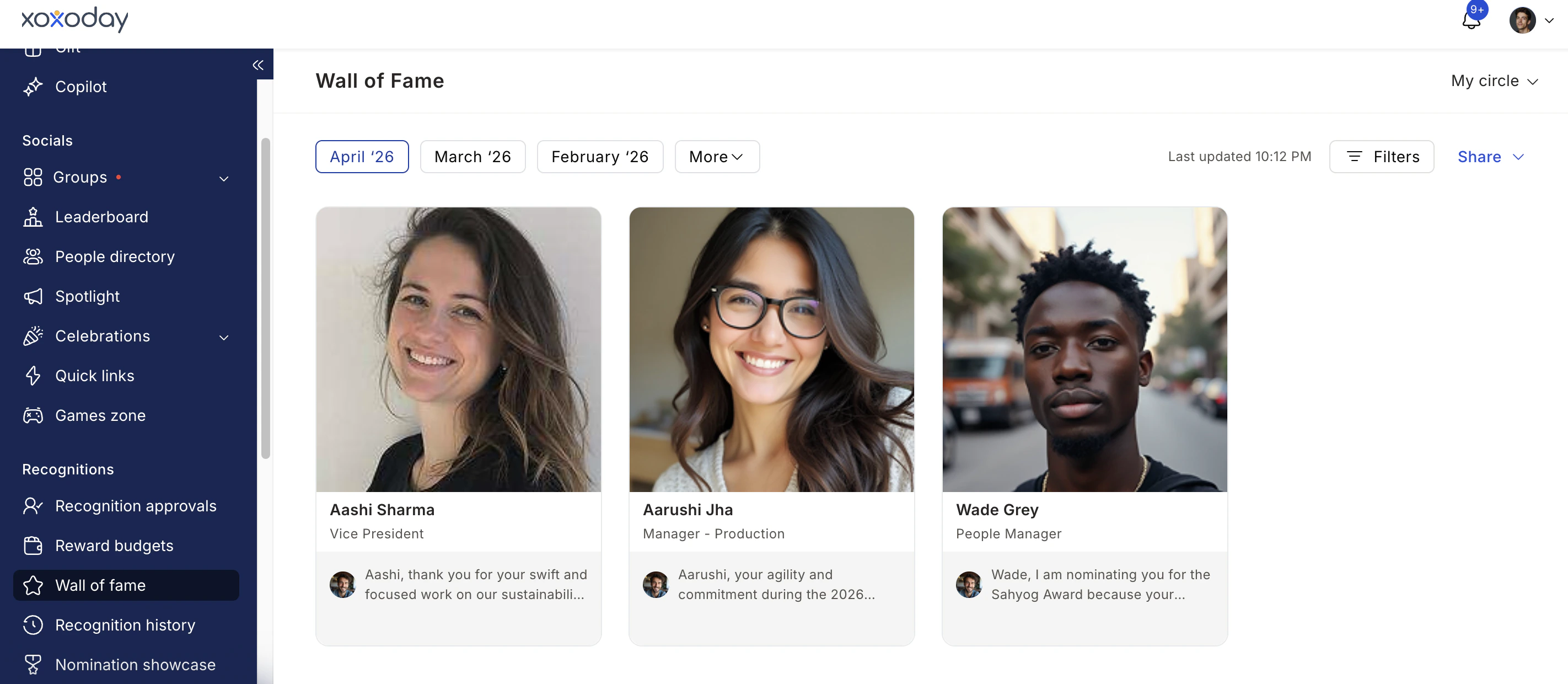
Interactive mode
Interactive mode lets employees browse all recognitions in the organization, drill into individual profiles, and filter the view to find the people and awards that matter most to them.Accessing the Wall of Fame
Navigate to Recognitions > Wall of Fame.Browsing recognitions
By default, the Wall of Fame shows recognitions from the current month. You can:- Toggle between My Circle (recognitions within your connections) and All (organization-wide recognitions) using the view selector at the top.
- Switch between months by clicking the month selector. Click More to view older months.
- Click any employee’s name card to see all their recognitions for the selected month in detail.
Filtering the Wall of Fame
Click Filter to narrow the view using one or more of the following criteria:- Award or core value
- Department
- Designation
- Grade
- Business Unit
- Location
- Cost center
Sharing the Wall of Fame
You can copy a shareable link to the Wall of Fame using the Share button at the top, then clicking the copy link icon. This is useful for sharing recognition highlights with leadership or external stakeholders.Configuring what employees see
Admins can control which recognitions appear on the Wall of Fame through Feed Settings. The options are:- All updates — employees see every recognition across the entire organization.
- Recommended — employees see only recognitions within their department, business unit, cost center, or shared office locations. This keeps the feed relevant for each person.
- Both — display all recognitions with the recommended filter also available.
TV mode
TV mode is designed to display recognition highlights, new joiner introductions, and milestone celebrations on office screens — TVs in lobbies, conference rooms, and town halls. It runs as an auto-rolling web page that continuously cycles through content.Getting the TV mode link
The TV mode link is generated by the Empuls team on request. Contact cs@xoxoday.com or your Empuls Account Manager to request your unique URL.Publishing TV mode on digital displays
Your IT team can publish the URL on digital displays using the admin console of your digital signage app. Alternatively, screensaver apps on individual screens can be configured to load the URL.Controlling what appears in TV mode
The TV mode URL can be customized to show or hide specific content types:| Content type | Configuration range |
|---|---|
| Recognitions | Show recognitions from the last 7 to 90 days |
| New joiner introductions | Show new joiners from the last 1 to 7 days |
| Birthday celebrations | Show or hide birthdays for today |
| Work anniversary celebrations | Show or hide work anniversaries for today |
FAQ
Who can see the Wall of Fame?
Who can see the Wall of Fame?
All active employees can access the Wall of Fame in interactive mode. The content they see depends on the visibility settings configured by your admin in Feed Settings.
Can I see past months on the Wall of Fame?
Can I see past months on the Wall of Fame?
Yes. Use the month selector at the top of the page and click More to access older months.
How do I get the TV mode URL for our office screens?
How do I get the TV mode URL for our office screens?
Reach out to cs@xoxoday.com or your Empuls Account Manager. They will generate a custom URL for your organization.
Can I filter the Wall of Fame by a specific award?
Can I filter the Wall of Fame by a specific award?
Yes. Click Filter, then select the specific award or core value you want to display, along with any additional criteria. Click Apply.
What's the difference between 'My Circle' and 'All' on the Wall of Fame?
What's the difference between 'My Circle' and 'All' on the Wall of Fame?
My Circle shows recognitions from employees within your selected connections (based on your feed personalization settings). All shows recognitions from across the entire organization.
Related pages
Social intranet
Overview of posts, reactions, feed personalization, and announcement spotlights.
Awards and core values
Configure the award programs that feed into the Wall of Fame.